• Skip to main content
  • Skip to primary sidebar
  • Skip to footer

Foliovision

  • Weblog
    • FV Player
    • WordPress
    • Video of the Week
    • Case Studies
    • Business
  • About
    • Testimonials
    • Meet the Team
    • We Support
    • Careers
    • Contact
    • Pricing
  • Products
  • Support
    • FV Player Docs
    • Pro Support
  • Login
  • Basket is empty
Affordable VAST/VPAID for Wordpress has arrived. Serve ads with your videos starting today!
    • Docs
      • Installation
      • Changelog
    • FAQ
    • Support
      • Free Support
      • Pro Support
    • PRO

    How to encrypt videos directly in WordPress with Coconut

    Before you start, we assume that you have a working Coconut encryption set-up. If not, you can configure it by following our simple set-up guide. You can get FV Player Coconut for free here.

    List of contents:

    • Encoding Via Coconut
    • Posting A Coconut Encoded Video
    • Example
    • Troubleshooting

    Encoding Via Coconut

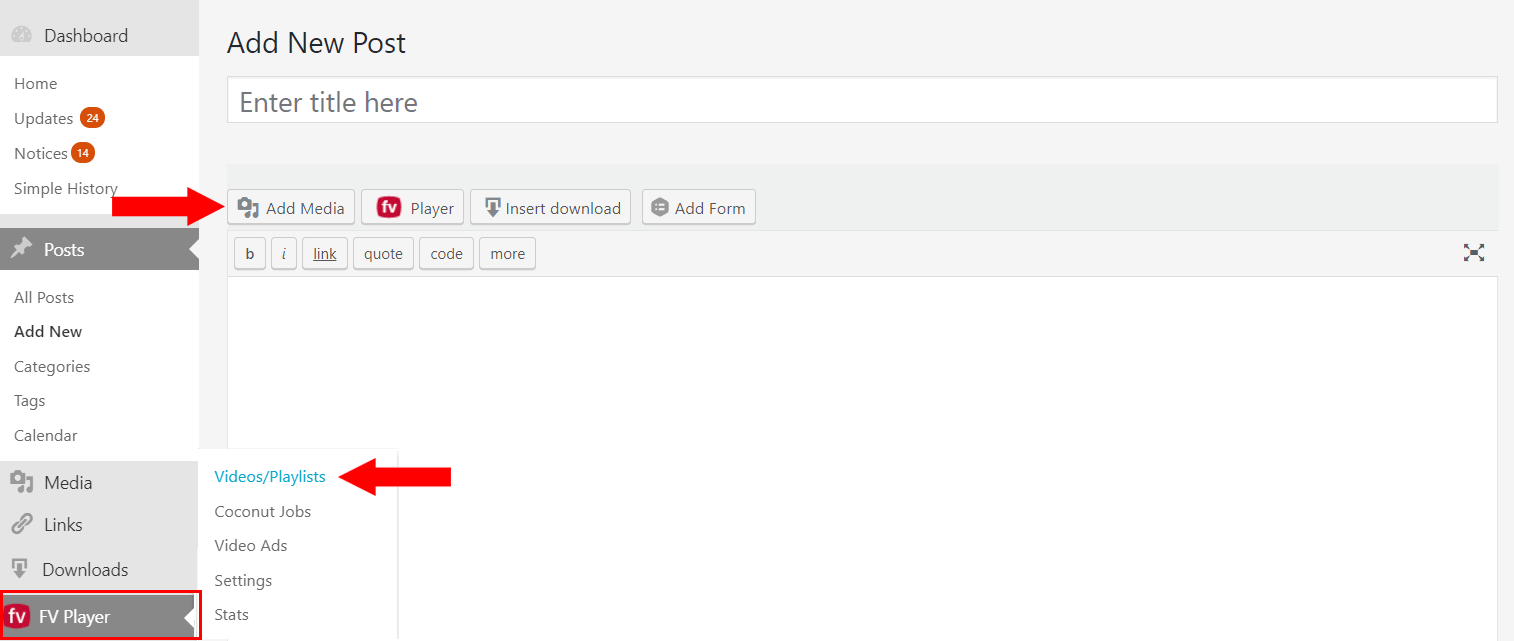
    1. FV Player Coconut lets you uploads the video right in your WordPress Admin Dashboard. You can access it either via the FV Player database or the FV Player button in the post editor.
    2. Clickig the button will bring up the shortcode editor. Once there, click Add Video to open the Media Library.
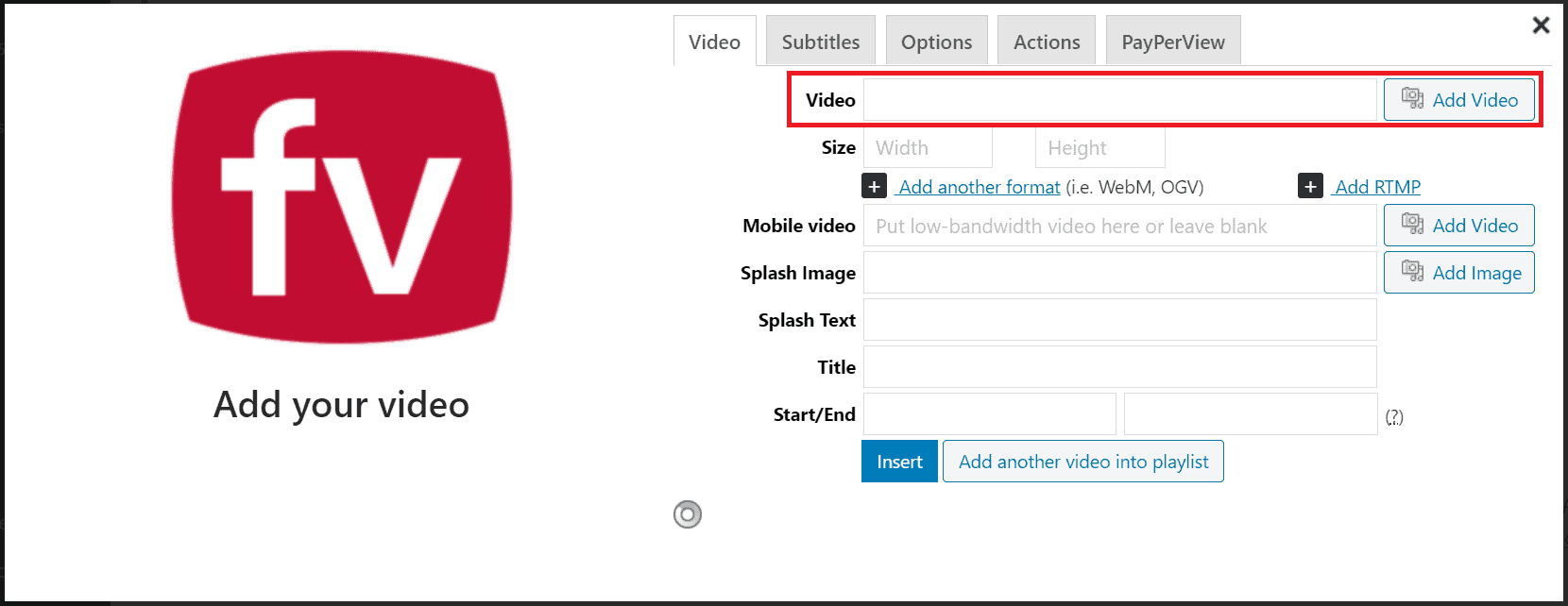
    Shortcode editor

    3. Open the Coconut tab. If you own the FV Player Pro licence, you get the choice to also encrypt your video. Encryption is currently the best video protection against downloading possible.
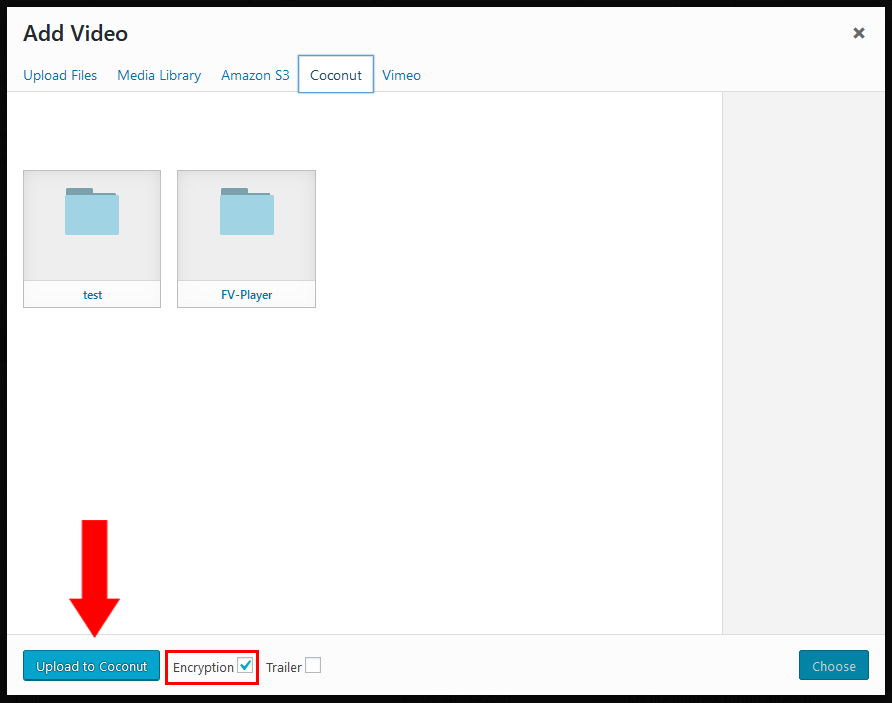
    Uploading video to FV Player Coconut

    You can also use the drag & drop function.
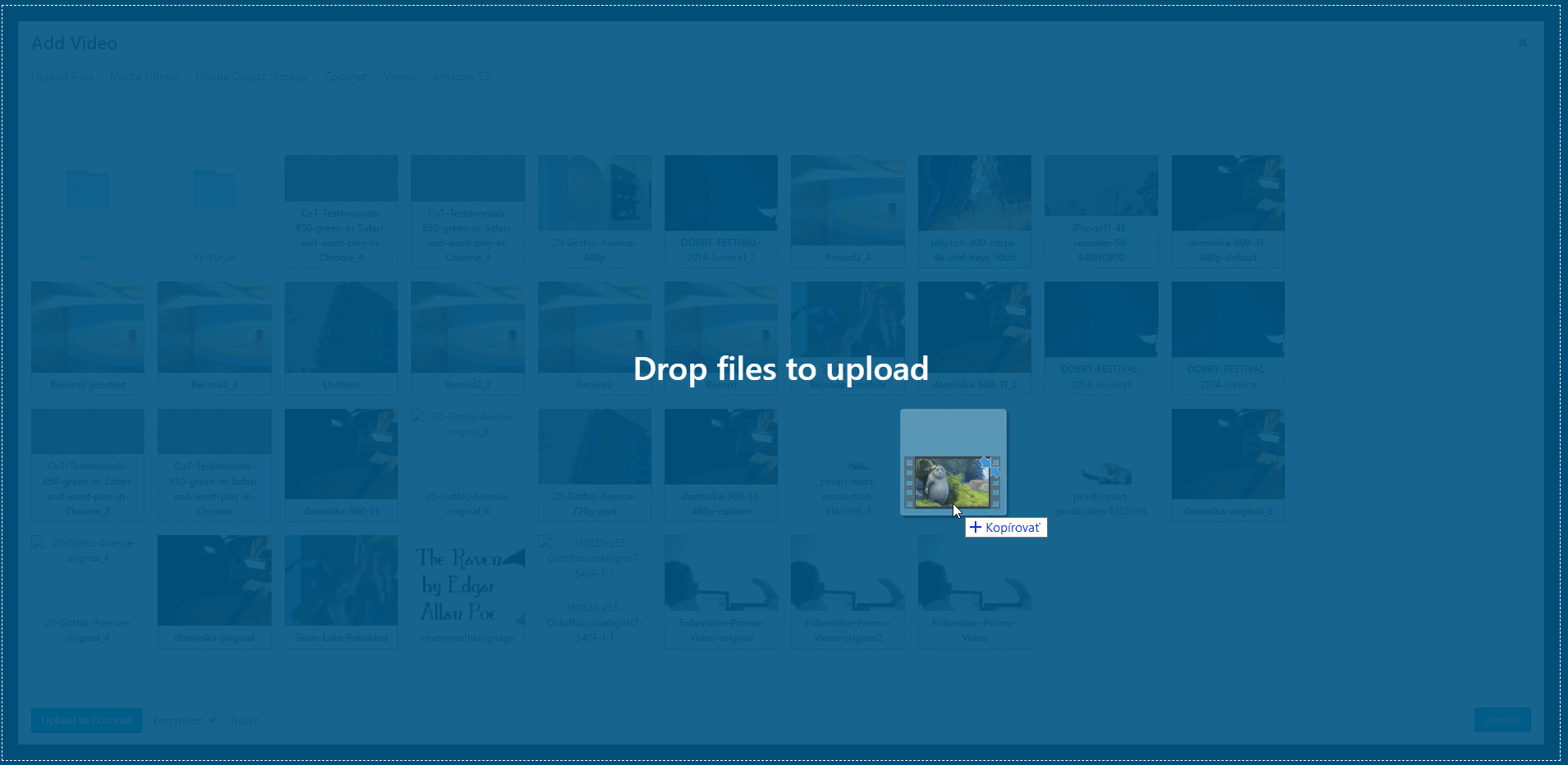
    The drag & drop function of FV Player Coconut

    4. A loader will appear in the left bottom corner, showing the progress of uploading the video to DigitalOcean Spaces.
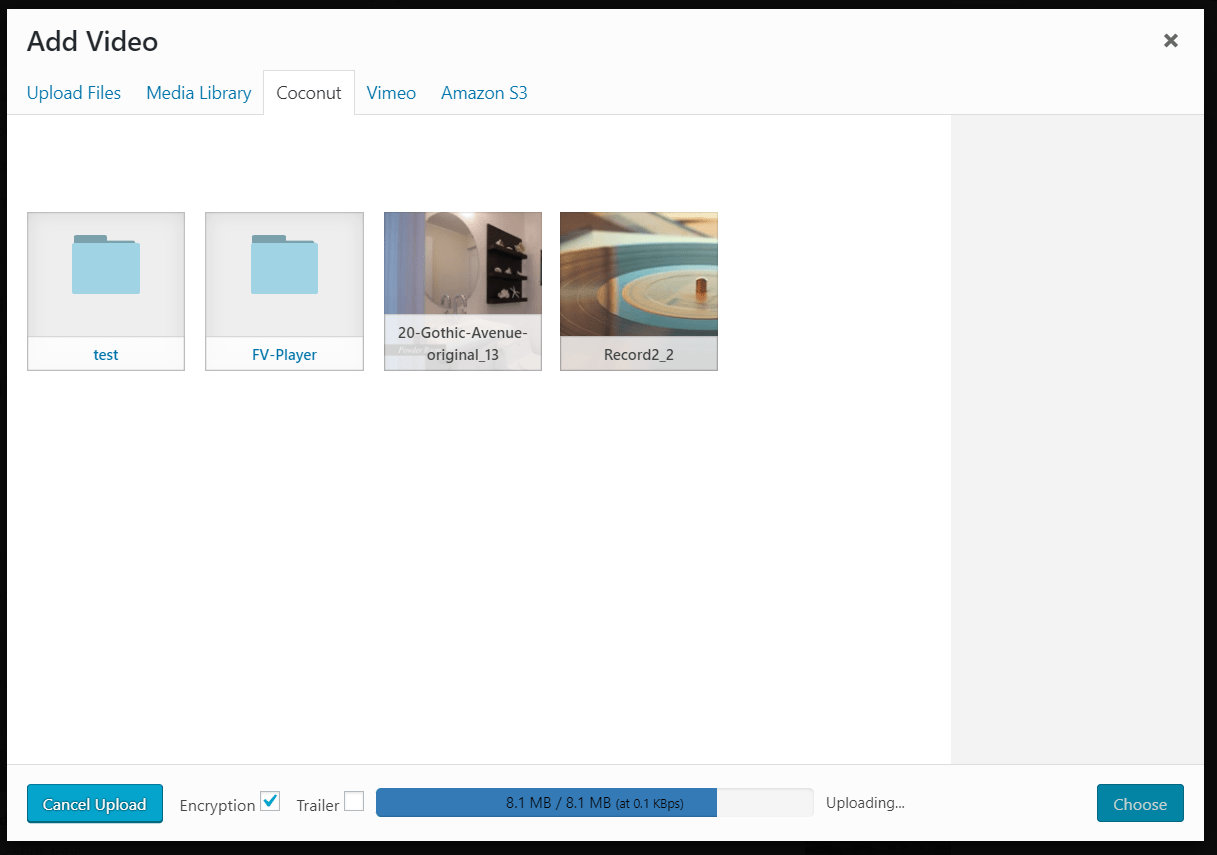
    Uploading a video to DigitalOcean Spaces via FV Player Coconut

    5. Once the video is uploaded, the media library tab will automatically refresh and show you the video processing progress in real time.
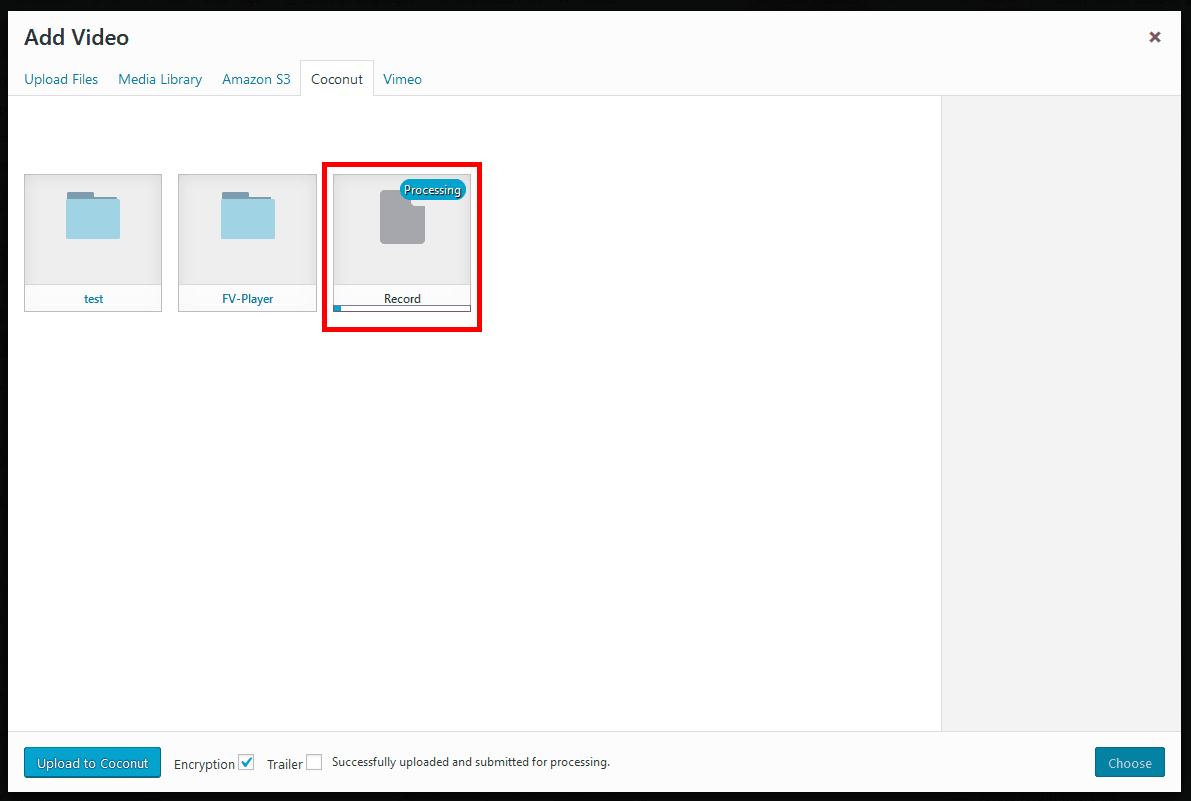
    Video being processed

    Posting A Coconut Encoded Video

    You don’t need to wait for the job to finish. You can continue editing the features in the shortcode editor, or even post it before the encoding process has finished.

    1. Pick and insert the video that is being processed. You will see a real-time processing notice where the player would be. During this time, the video will show as “coconut_processing_coconut job ID”.

    Meanwhile, you can go on setting up other features. Please remember that the splash screen, thumbnail previews and decryption key will be set automatically upon job completion.
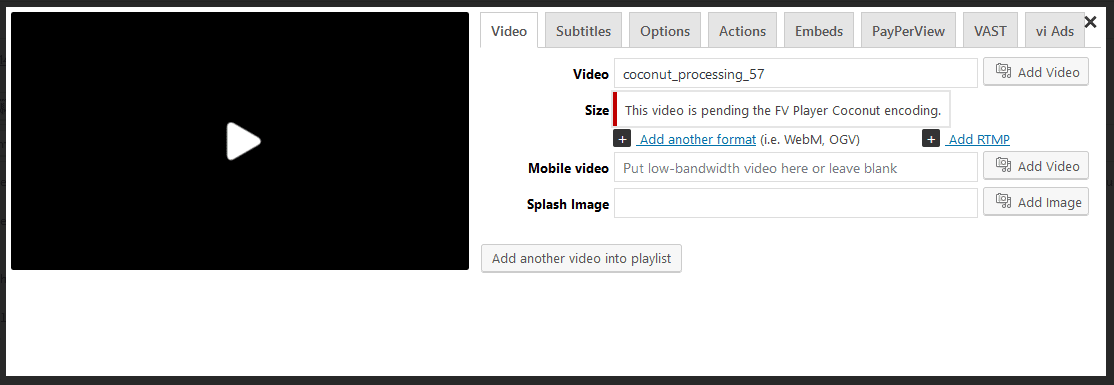
    Shortcode editor before video is encoded

    2. You can also insert the video into a post before the encoding is finished.
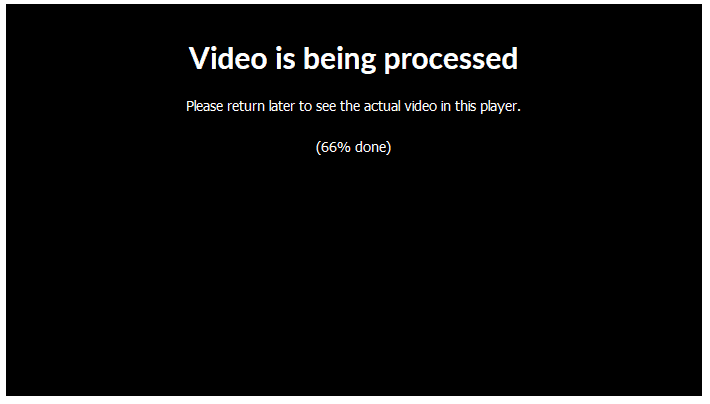
    A posted video still being processed

    3. Once the video is done, it will show up in the Coconut tab of the media library, with the video source, decryption key, timeline previews and splash image already filled in.
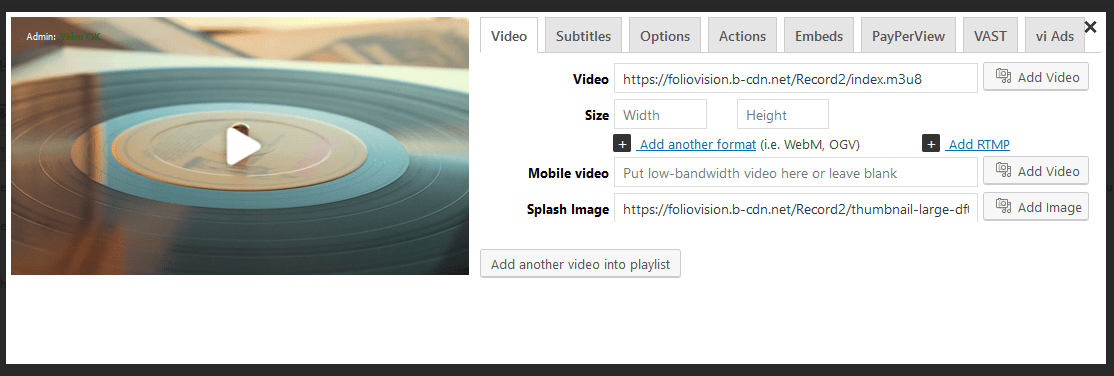
    Shortcode editor after the video is encoded

    An already posted player with all the features you set up will also automatically shows up after the encoding done.

    A posted video after the encoding process has finished

    Example

    Here’s an example of video encrypted via Coconut directly from our website. You can try to download it to check its security.

    video
    play-sharp-fill

    Troubleshooting

    If something fails in the process, you can check FV Player->Coconut Jobs and hover over the error status of the job to find out about the issue.
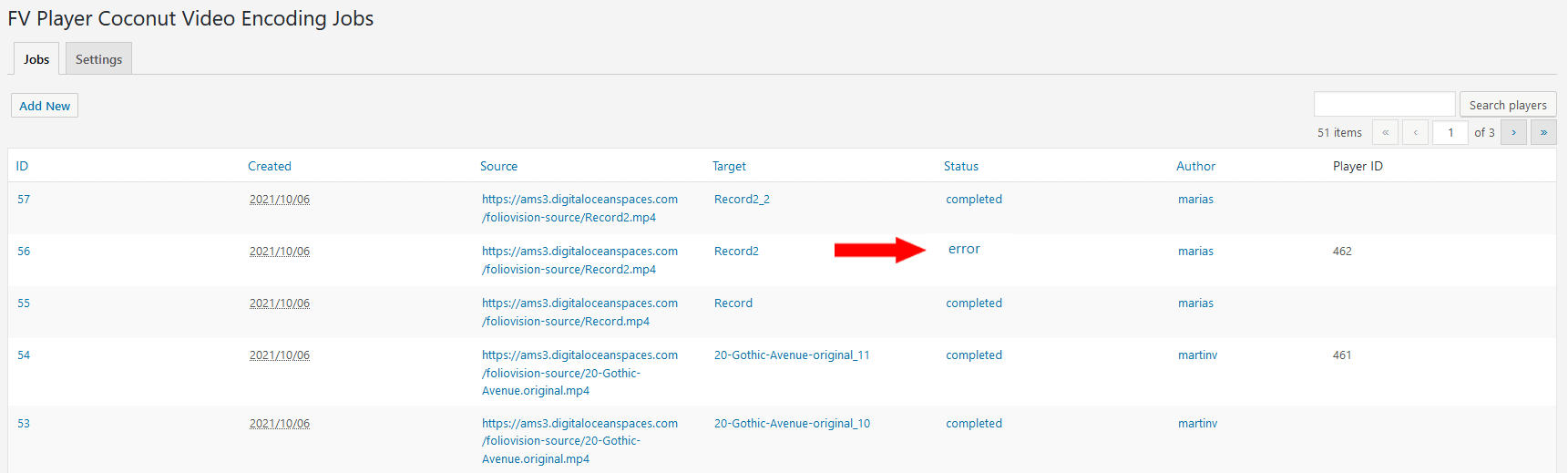
    Coconut Jobs screen

    If you will run into any issues with Coconut integration or with any other part of our player, don’t hesitate to contact us via our Forums!

    Primary Sidebar

    Secure Video Encoding

    1. Why FV Player?
    2. FAQ
    3. Creating and Managing Playlists
    4. Advanced features
    5. Video Security
      1. Video Protection Methods
      2. CDN Options
      3. DRM Watermarking
      4. Secure Video Encoding
        1. Encrypted HLS with Coconut Setup
        2. Encrypted HLS with Coconut End User Guide
        3. AWS MediaConvert Encrypted HLS Guide
        4. AWS MediaConvert End User guide
        5. Amazon Elastic Transcoder Encrypted HLS Setup - Deprecated
        6. AWS Elastic Transcoder End User Guide - Deprecated
        7. Pricing comparison or Coconut, AWS, Bunny Stream and Cloudflare
    6. Troubleshooting
    7. Tools
    8. Analytics
    9. Audio Player
    10. Live Streaming
    11. Download | Buy
    12. Getting Started
    13. Licensing and Account
    14. Setting Screens
    15. Video Hosting
    16. Video Membership, Pay Per View and eLearning
    17. Video Advertising
    18. FV Player VAST/VPAID
    19. Casting Options
    20. For Developers
    21. FV Player Demos
    22. Additional Services
    23. Legal

    Footer

    Our Plugins

    • FV WordPress Flowplayer
    • FV Thoughtful Comments
    • FV Simpler SEO
    • FV Antispam
    • FV Gravatar Cache
    • FV Testimonials

    Free Tools

    • Pandoc Online
    • Article spinner
    • WordPress Password Finder
    • Delete LinkedIn Account
    • Responsive Design Calculator
    Foliovision logo
    All materials © 2026 Foliovision s.r.o. | Panská 12 - 81101 Bratislava - Slovakia | info@foliovision.com
    • This Site Uses Cookies
    • Privacy Policy
    • Terms of Service
    • Site Map
    • Contact
    • Tel. ‭+421 2/5292 0086‬