List of contents:
- What is FV Player Coconut add-on
- Free vs Pro
- Coconut Wizard Setup
- Step one: Coconut setup
- Step two: DigitalOcean Spaces Hosting Setup
- Step three: DigitalOcean Spaces CDN setup
What is FV Player Coconut add-on
Setting up HLS Encryption with FV Player Coconut is much easier than using Amazon Web Services, and cheaper too. Coconut does a great job at providing an API which you can use to load source videos from different locations and then store the output somewhere else.
The files are stored on DigitalOcean Spaces (free $200 credit for new users) and use their CDN for distribution.
Free vs Pro
FV Player Coconut is a free add-on for FV Player. You can download it in our store and use it with both free and Pro version of our player.
With free version of our player you’ll have full access to Coconut encoding without encrypted HLS. If you want to encrypt your videos with FV Player Coconut, you need to purchase the Pro version of FV Player.

FV Player Coconut
Free and easy to use video encoding with high security HLS and signed URLs. What’s not to like?
Coconut Wizard Setup
Setting up video encoding can be a confusing and cumbersome task, therefore we decided to make it much easier by providing the coconut encoding setup in a wizard form.
This wizard will show you comprehensive screenshots of all the necessary steps. Moreover, it will automatically fill in all the required information on your FV Player settings site.
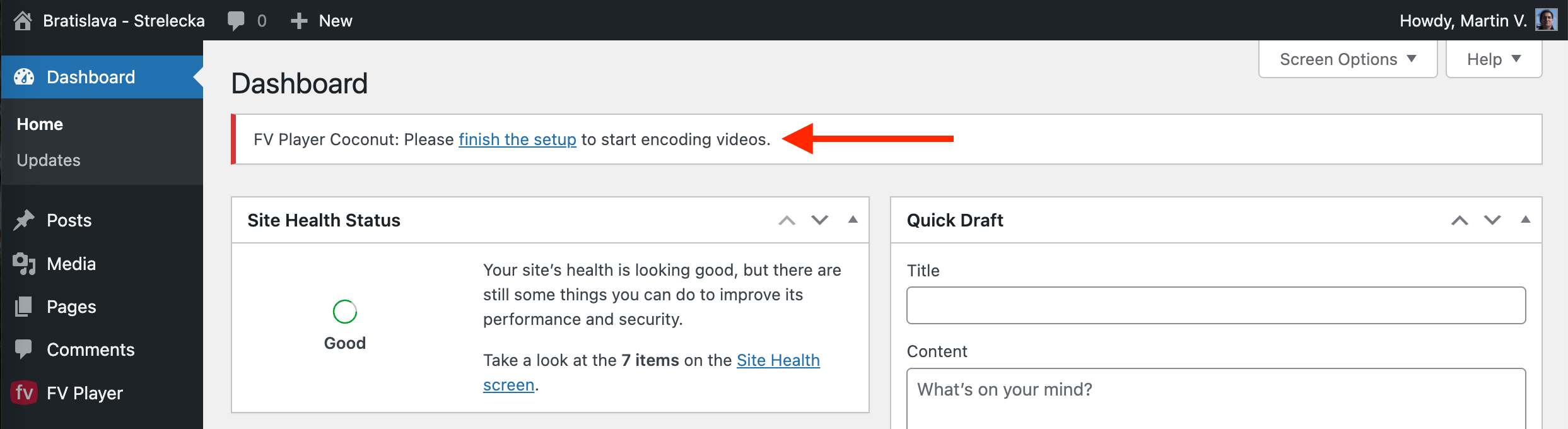
After installing the add-on, a message at the top of FV Player Settings will prompt to finish the setup of Coconut. Alternatively, you can navigate directly to FV Player -> Coconut in your WordPress admin dashboard.
There you will see the welcome screen of the FV Player Coconut Wizard. The wizard will lead you through the steps of setting up your Coconut account and DigitalOcean account.
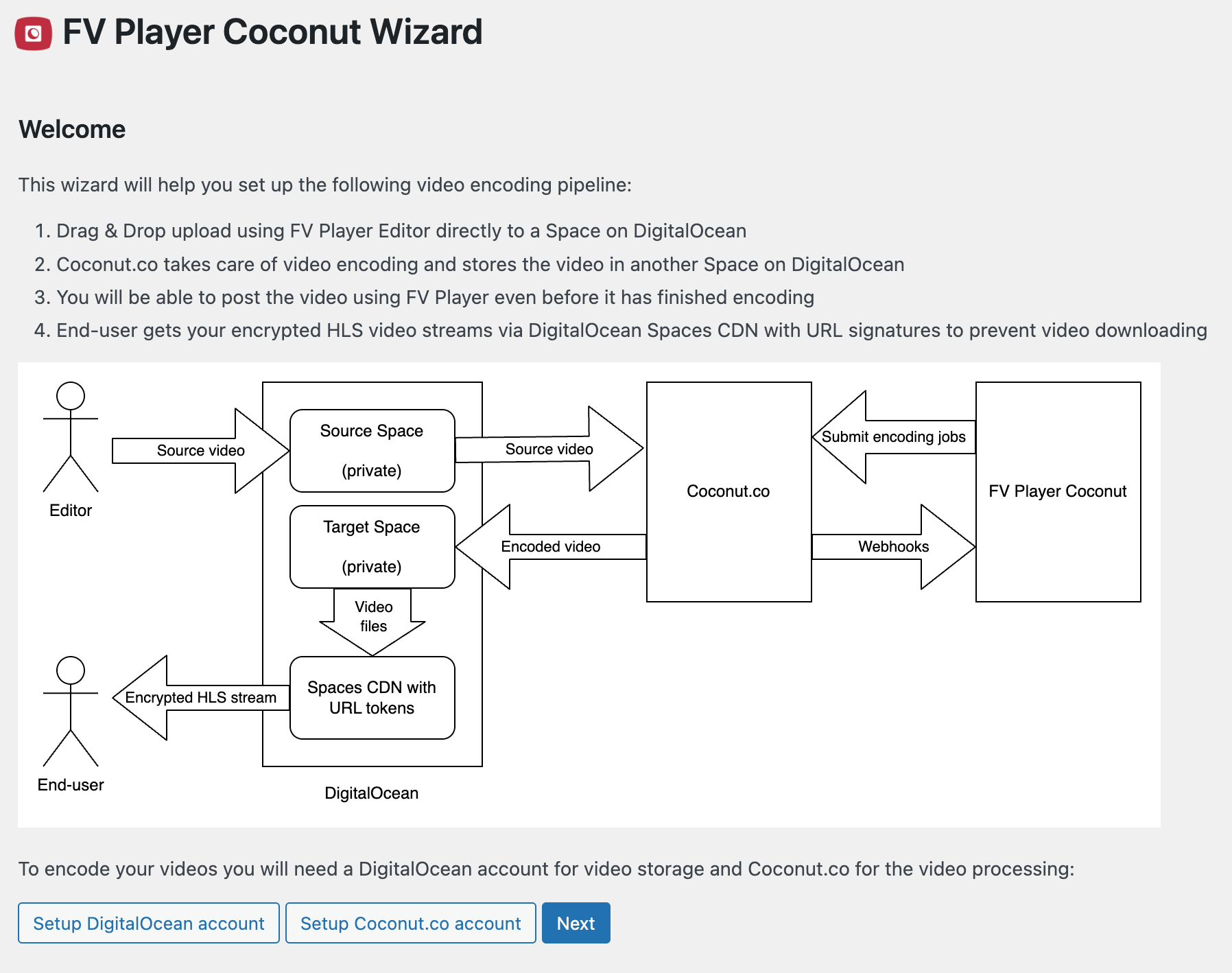
Do you want to use FV Player Coconut on more than one domain? You can easily add more domains to your existing accounts. Just install FV Player Coconut on the other domain and the setup will automatically create a new DigitalOcean Space. Coconut.co will work for any domain.
Step one: Coconut setup
-
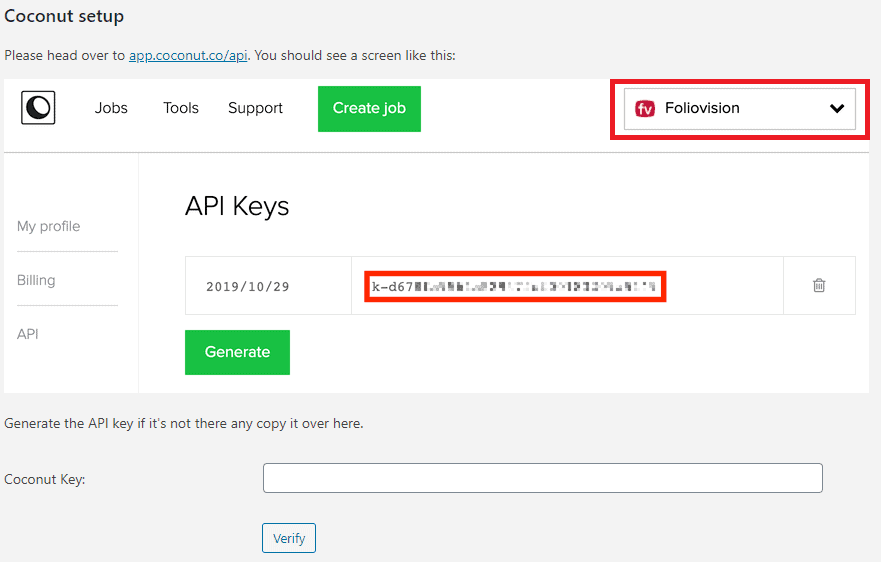
The wizard will prompt you to insert your Coconut Key. You will find it by opening your account drop-down menu on the Coconut website and picking the API section.
Please note that currently we only support the N. Virginia region of Coconut.co.
- Insert the Coconut API Key into the Coconut Key field and click verify.
- That’s all you need to configure in Coconut.co. No need to configure any presets, as these are all part of the FV Player Coconut code:
240p @ 500 kbps
480p @ 1000 kbps
720p @ 4500 kbps
1080p @ 6000 kbps
1440p @ 12000 kbps
Step two: DigitalOcean Spaces Setup
Here you can find DigitalOcean’s doc on how to set up a Space in your DigitalOcean account.
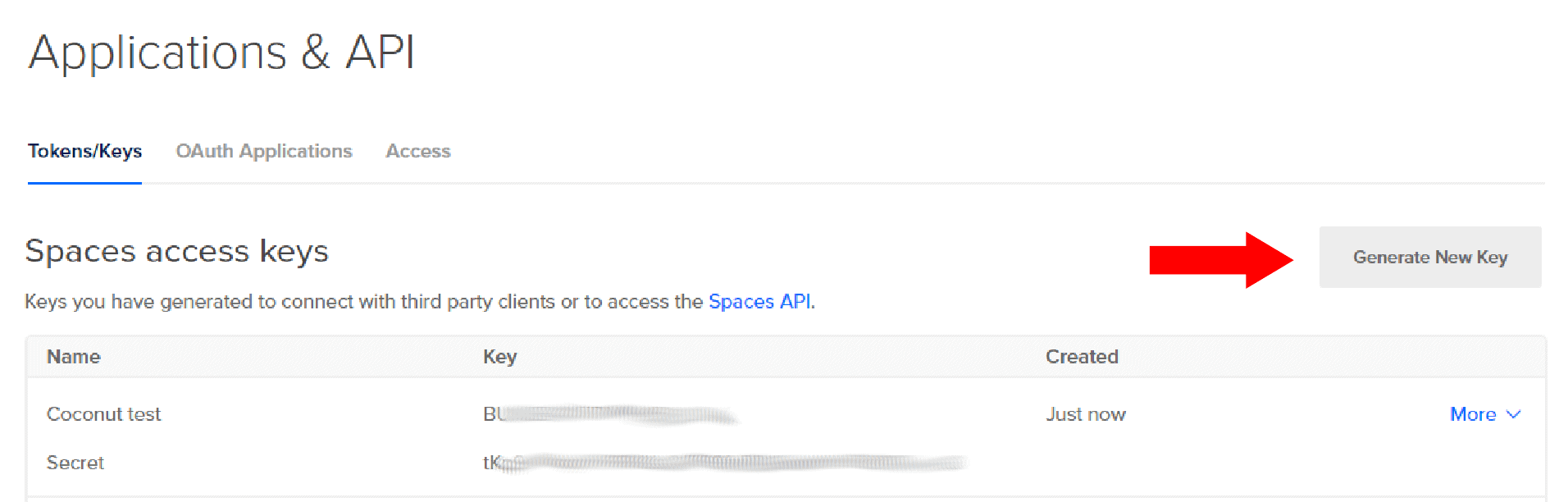
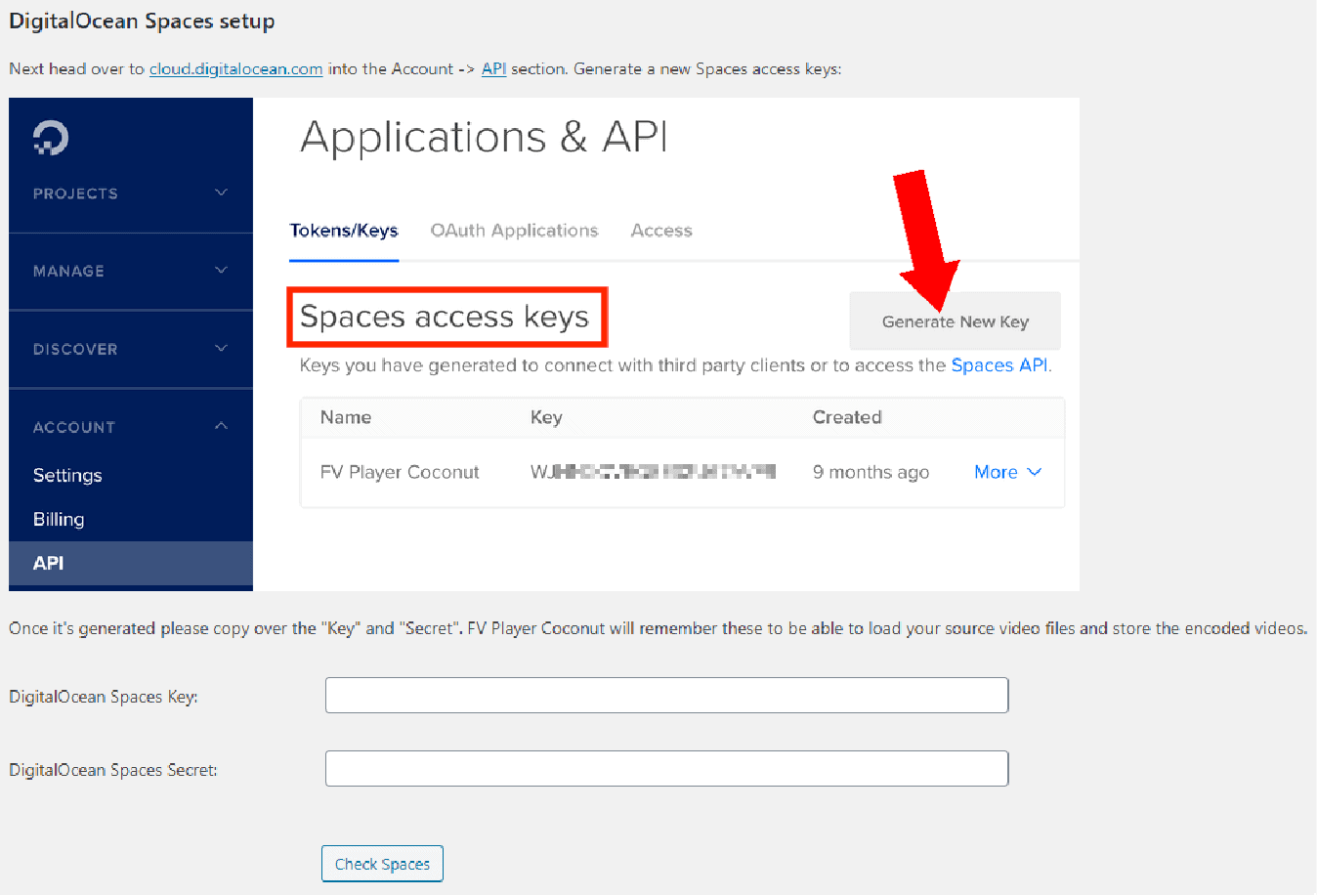
- First, click on the Account -> API link in the main navigation of the Control Panel and generate the Spaces API keys.
- The wizard will ask you to insert both the API key and the secret. These keys will then get automatically stored in Settings -> FV Player Pro -> Hosting -> DigitalOcean Spaces.
- The wizard will also automatically create your DigitalOcean Spaces for the video files. The wizard will then inform you about your Source Space and Target space. All the important information about your DigitalOcean spaces and account will be automatically stored in Settings -> FV Player Pro -> Hosting -> DigitalOcean Spaces.

DigitaLOcean Spaces setup step in the Wizard

Source Space and Target Space information in the Wizard

Step three: DigitalOcean Spaces CDN setup
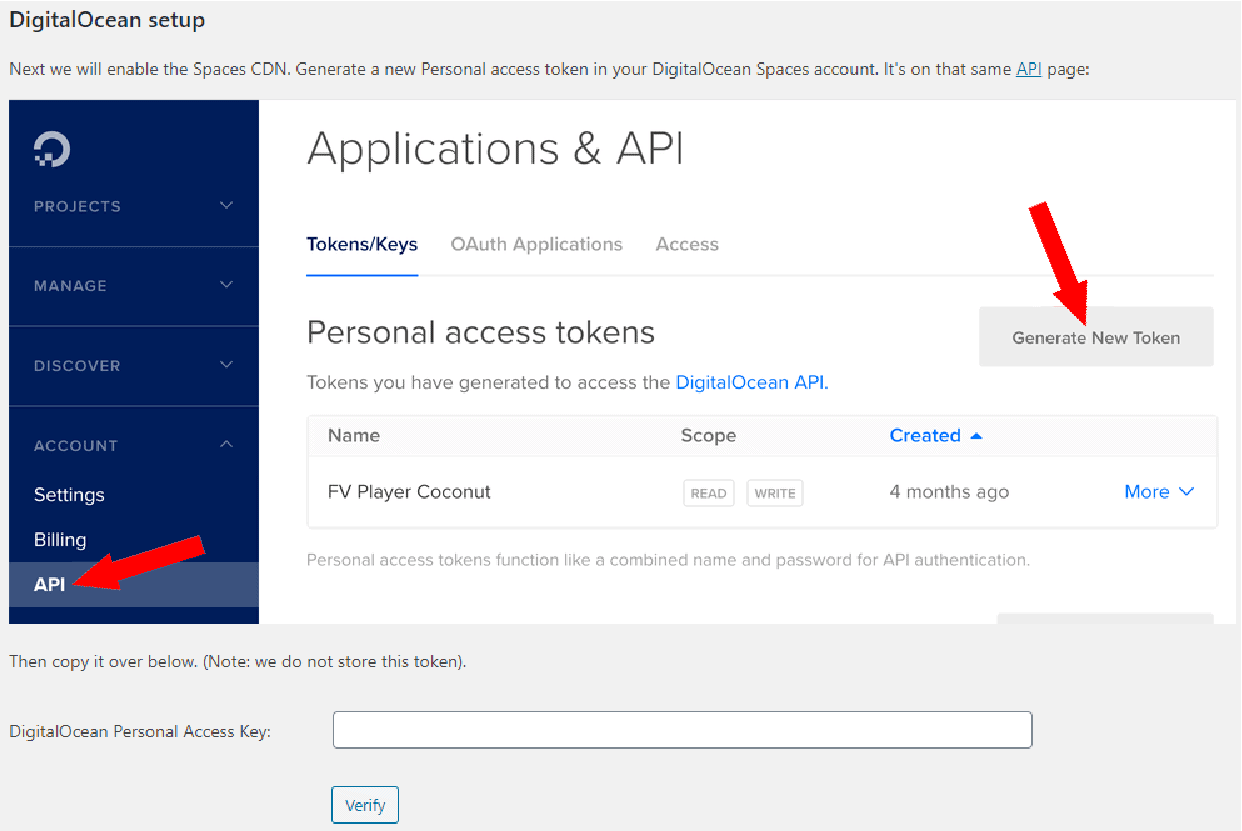
The wizard will ask you to set up DigitalOcean Spaces CDN.
- After completing the previous step of gnerating Spaces Access Keys in Account -> API, click generate new token in the Personal access tokens section.

Creating personal access tokens step in the wizard
After these steps, your Coconut encoding workflow is and ready to process first videos.
If you want to find out how to use it. Please follow our guide on How to encrypt videos directly in WordPress with Coconut.
