You probably use some sort of analytics service to analyze the data about your website visits. You can integrate FV Player video statistics with Google Universal Analytics, or more recently, with Matomo Analytics. However, you can also analyze your video statistics right in the FV Player plugin.
How to enable Video Stats
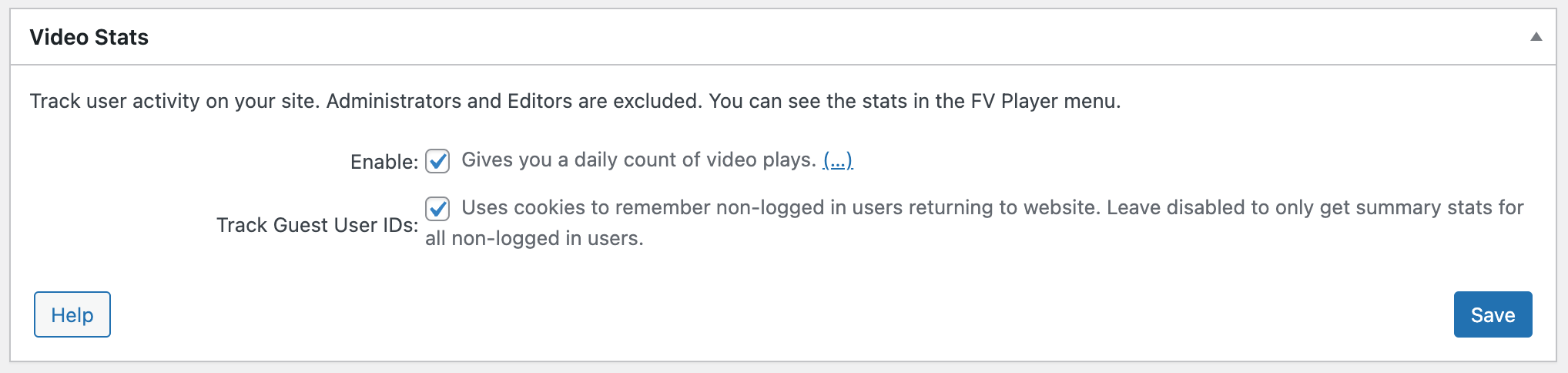
Go to wp-admin -> FV Player -> Settings -> Video Stast and check “Enable”.
How to check FV Player Stats
Once enabled, access FV Player statistics by going to FV Player -> Stats in your WordPress menu.
The Administrator and Editor users are excluded.
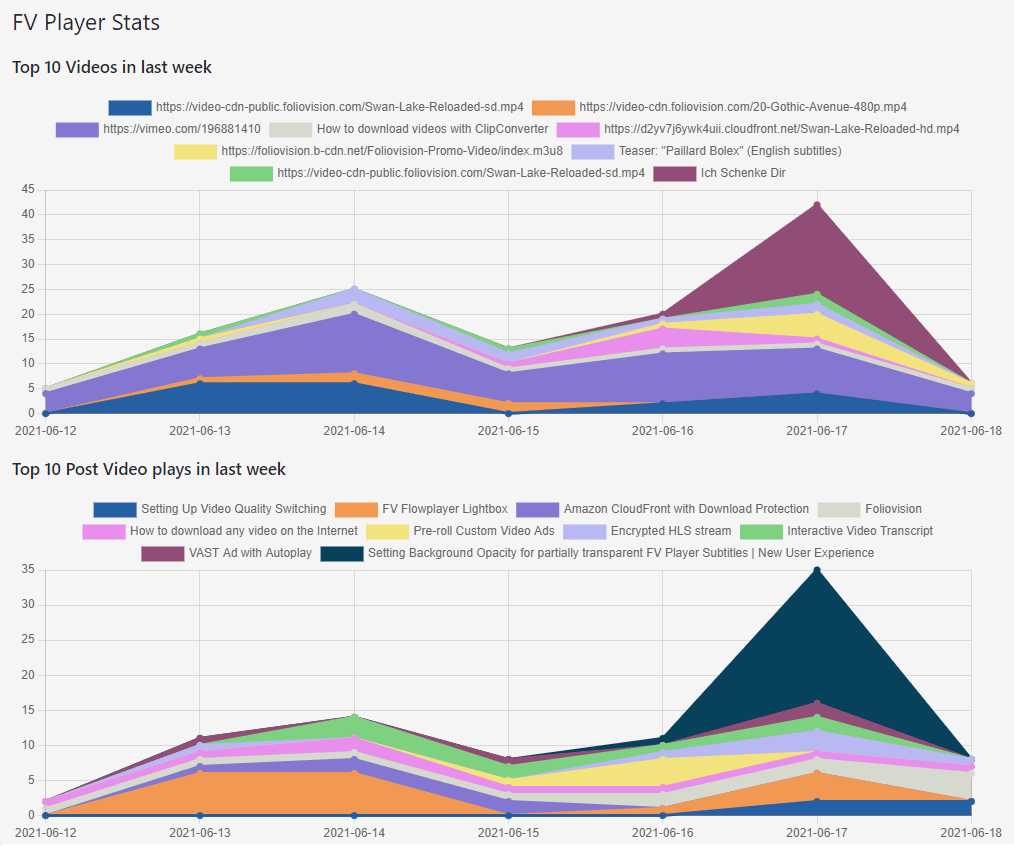
The horizontal axis represents the date and the vertical axis is the number of views. There are three graph views.
The first graph shows the overall top 10 videos played past week by the player name. The second one shows the top 10 videos by posts containing them.
For example, you might get 50 views on a single video embedded in two posts, resulting in 50 views on a single player item in the first graph. These 50 views will then be divided between two separate post items in the second graph.

The default view of FV Player Stats
The third view shows videos by watch time:
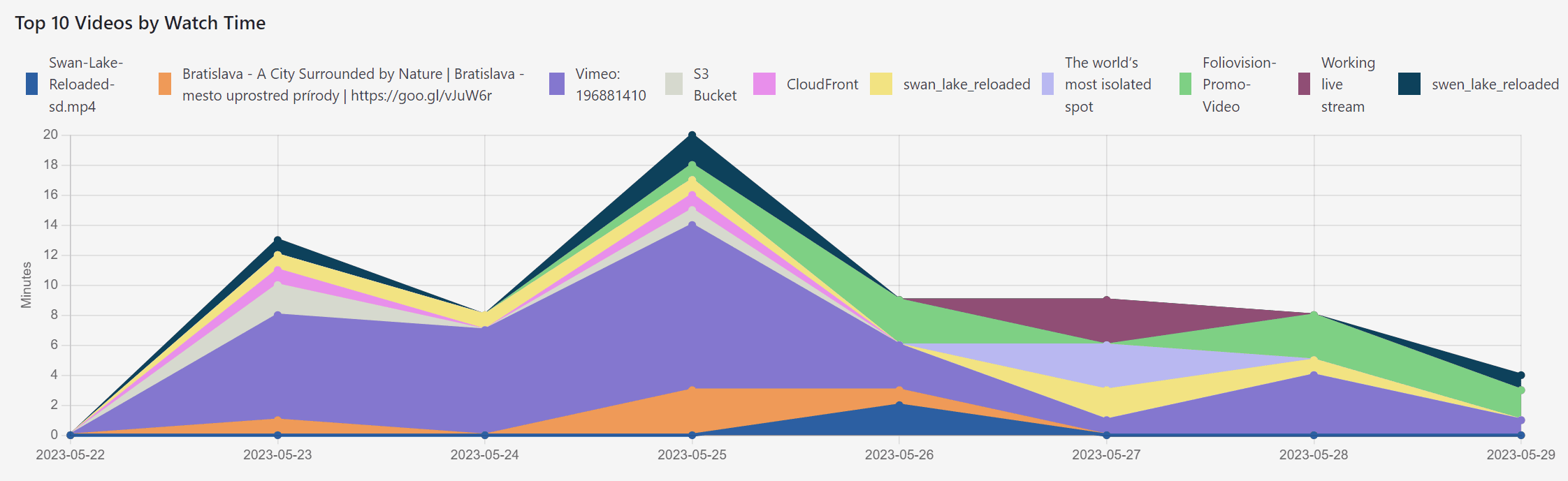
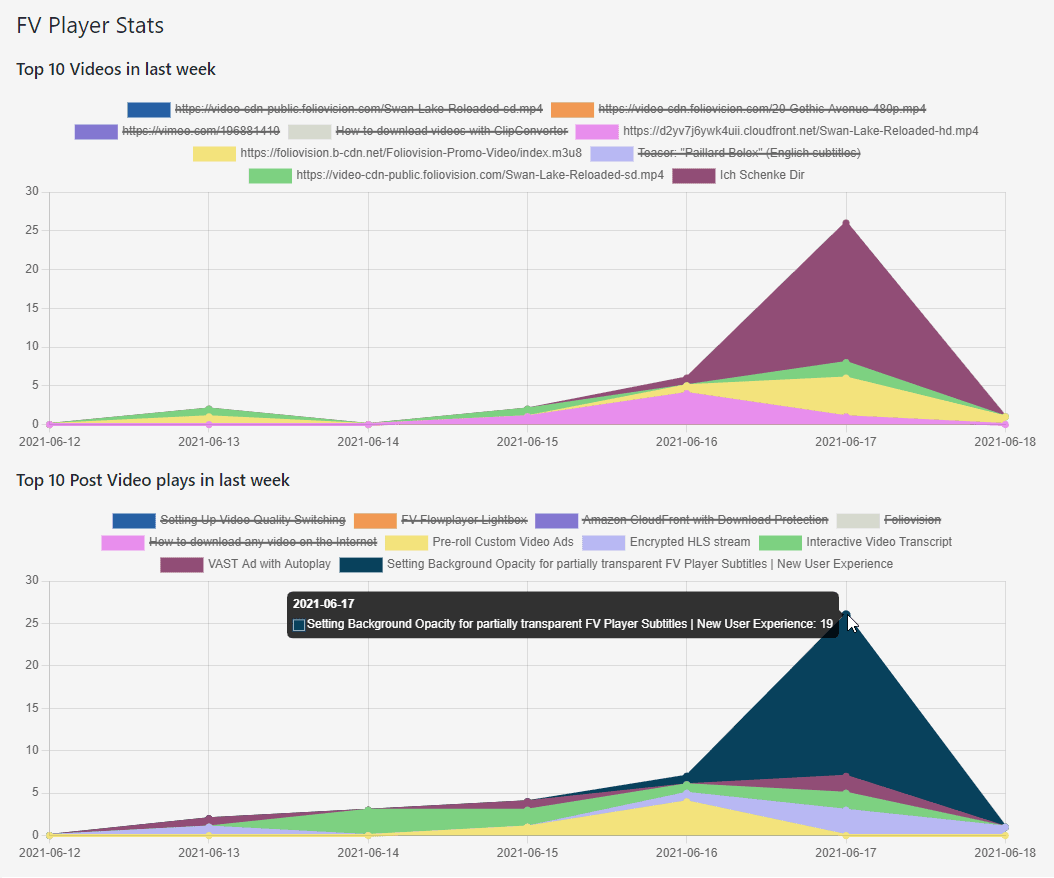
Each item has an color assigned. You can gain a cleaner view by toggling individual items on and off by clicking on them.
To see the exact number of views on a given day, hover your mouse over the dot signifying that date.

Stats with some items disabled
Time controls
You can control the time span shown by picking one of the options in the drop-down menu on top:
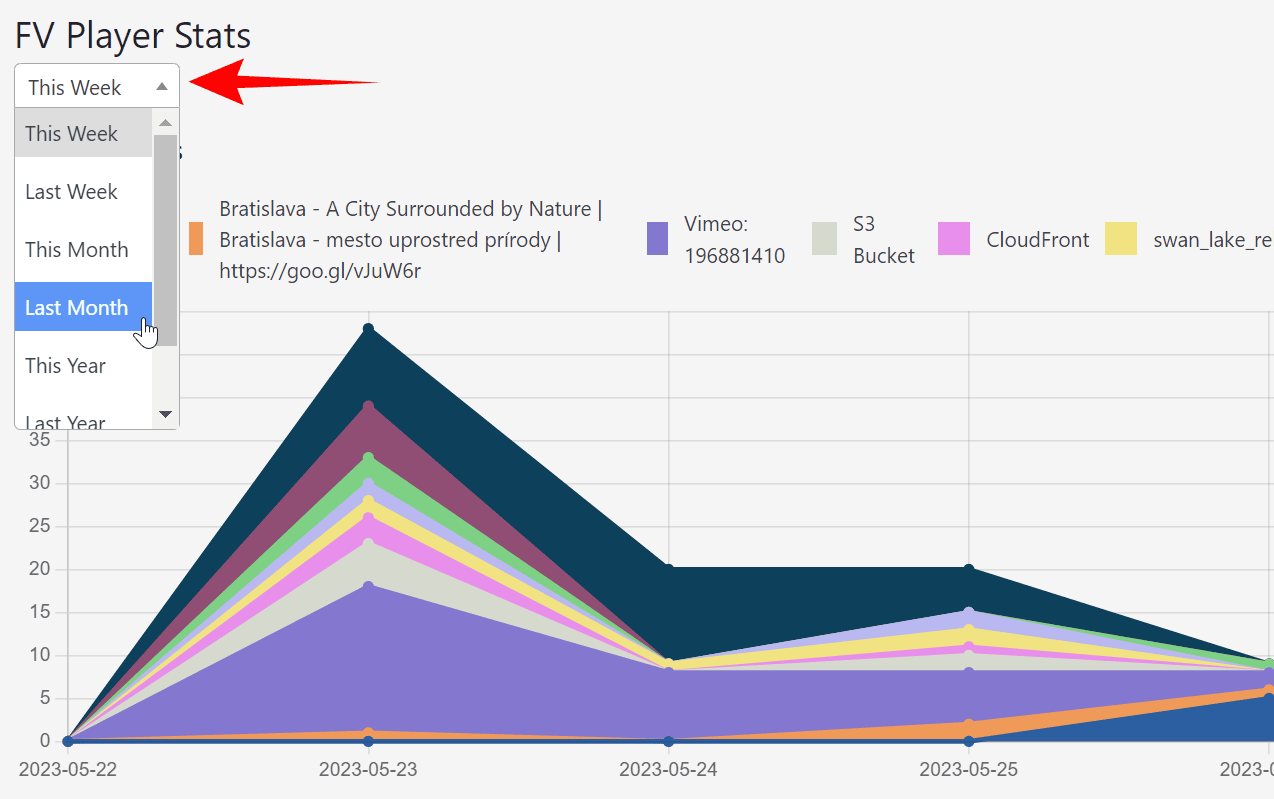
Player per video
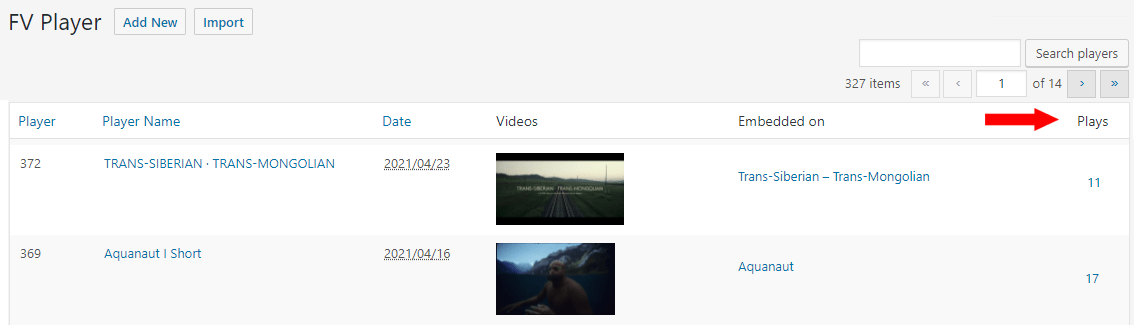
Another statistics view is the Plays column in FV Player Database. This column shows you the number of plays in the past week for individual players.

Statistics in FV Player Database
By clicking on the number of plays, you get to see a day-by-day individual statistics for the specific video.
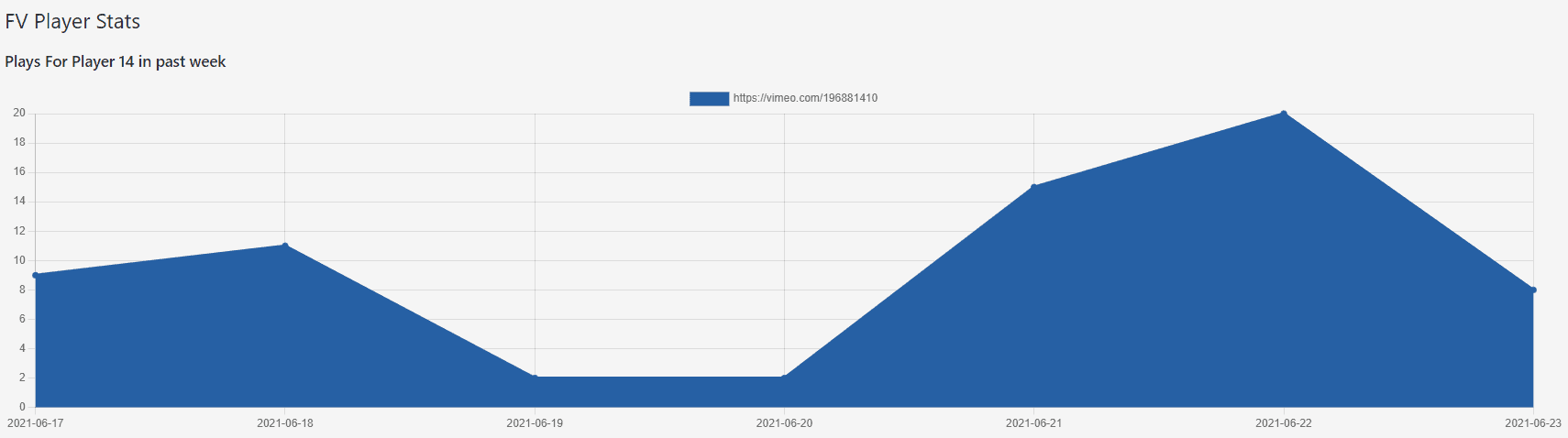
Get details on user video plays and Export
Please check the User Stats guide.
Technical details
Database structure
The database table storing FV Player stats is wp_fv_player_stats. The fields are:
id– record IDid_video– ID of the video playedid_player– ID of the playerid_post– ID of the post where the playback occurreddate– using year/month/dateplay– sum of playsuser_id– WordPress user ID, or 0 if not logged inseconds– sum of video duration played in secondsguest_user_id– used to track non-logged in users (FV Player 8 only)click– used to track ad clicks (FV Player 8 only)
All fields except play, seconds and click use indexes.
The fields which are sums work for the combination of the id_video, id_player, id_post, date, user and guest_user_id. So if a user watches 2 videos on a specific date, there will be two rows for that date – with different id_video, id_player and id_post – depending on where the FV Player is posted.
We aim for a simple database structure to let you run your own SQL queries for the reports you might need.
Here are the video plays by logged in users in last 7 days, showing user email, post title and video links:
SELECT user_email, date, post_title, src, play, seconds FROM wp_fv_player_stats AS s
  JOIN wp_users AS u ON u.ID = s.user_id
  JOIN wp_fv_player_videos AS v ON v.id = s.id_video
  JOIN wp_posts AS p ON p.ID = s.id_post
  WHERE
    user_id > 0 AND
    date >= DATE( NOW() ) - INTERVAL 7 DAY
  ORDER BY s.id DESC;
Note: you should replace wp_ with your actual WordPress database prefix.
How the tracking works
In the user web browser the tracking is using an AJAX call to the track.php file in the plugin folder.
- The video play is tracked after the first second of the video has passed.
- The video watch time is recorded once every 5 minutes or when switching to a different browser tab or closing it.
On server the video playback stats are gathered in a file like this:
wp-content/fv-player-tracking/play-{WordPress site ID}.dataDirect access to the file is blocked.
Then the stats are processed by a WordPress cron job every 5 minutes.
We use this approach as it’s much faster than using traditional WordPress AJAX calls. That way your server won’t slow down (or crash) if your video gets viral.
Troubleshooting
Since the stats are processed with a WordPress cron job, it might take 5 minutes before you can see any stats being available.
Here’s how to check the stats functioning in depth.
- Load your page in a new incognito browser
- Views coming from logged in users who can edit the post do not count
-
Open your browser developer tools and it’s Network tab
-
Play your video
-
You should see a request to
wp-content/plugins/fv-player/controller/track.php -
This request should not show with HTTP 200 response code
- If you notice HTTP 403, then something must be preventing access to PHP files in your wp-content folder. This can either be done by your web host, your .htaccess file or even a WordPress security plugin.
- As mentioned in the previous section, the reason FV Player uses a bare PHP file is the speed and preventing slowing down your server if you go viral.
- You should be able to locate the
wp-content/fv-player-tracking/play-1.datafile with your web hosting control panel file manager, or FTP. It should have JSON data like:
[{"video_id":1066,"post_id":5753,"player_id":888,"user_id":0,"guest_user_id":8828,"play":1}]- Once WordPress cron has finished, you should see the values being appended to your
wp_fv_player_statstable.
