We recently rescued a complex and older weblog Uncoy.com from Typepad and moved it to WordPress with absolutely zero broken links or posts.
Why do we write rescue? First of all Typepad is a truly awful platform for anything but the most basic weblog.
- images look terrible
- CSS is difficult to alter
- stats are a joke
- tech support is a close tie for the worst on the web
Secondly, it wasn’t easy. SixApart make it really difficult in fact. It’s only easy if you are ready to accept:
- broken permalinks
- missing comments
- disappearing images
Making the move work involved:
- special plugins on export and import
- collecting all the images via a special script
- adding a special plugin to prevent WordPress from breaking comments in your post
- installing a plugin to allow you to keep categories at root level (not easy in WordPress, perhaps the only plus of the Typepad system is that categories default to the root directory)
- adding a special plugin to allow you to update your permalinks easily (the Typepad permalinks are terrible)
- creating archive templates which match the Typepad setup
- adapting a theme to suit the setup of your Typepad weblog (if you have a relatively complex layout)
The detailed steps are below – the list above is just the executive highlights.
Was it worth it:
The day my weblog was finally out of the hands of Typepad and safely into WordPress was one of the happiest days of my online life.
I wish you the same success. But buckle up – the going gets rough:
Updated Step by Step Guide to moving from Typepad to WordPress
-
Use custom Movable Type export template to export the content of your Typepad blog. You need to use this template to preserve the original URLs for the articles.
You need to use ‘Create new index template’ in Design/Current Design tab in your blog administration and put the content of our file there. If you don’t see this option, you need to create new Advanced template and activate it. Also, this feature is available only for Unlimited and Business Class Typepad account levels.
You have to give it a name like export.txt and then open it in your browser via {yourblog}.typepad.com/{yourblogname}/export.txt
- Install WordPress on your site (guide).
- Log in into WordPress administation interface and set up a custom permalink structure /%year%/%monthnum%/%postname%.html (Options | Permalinks).
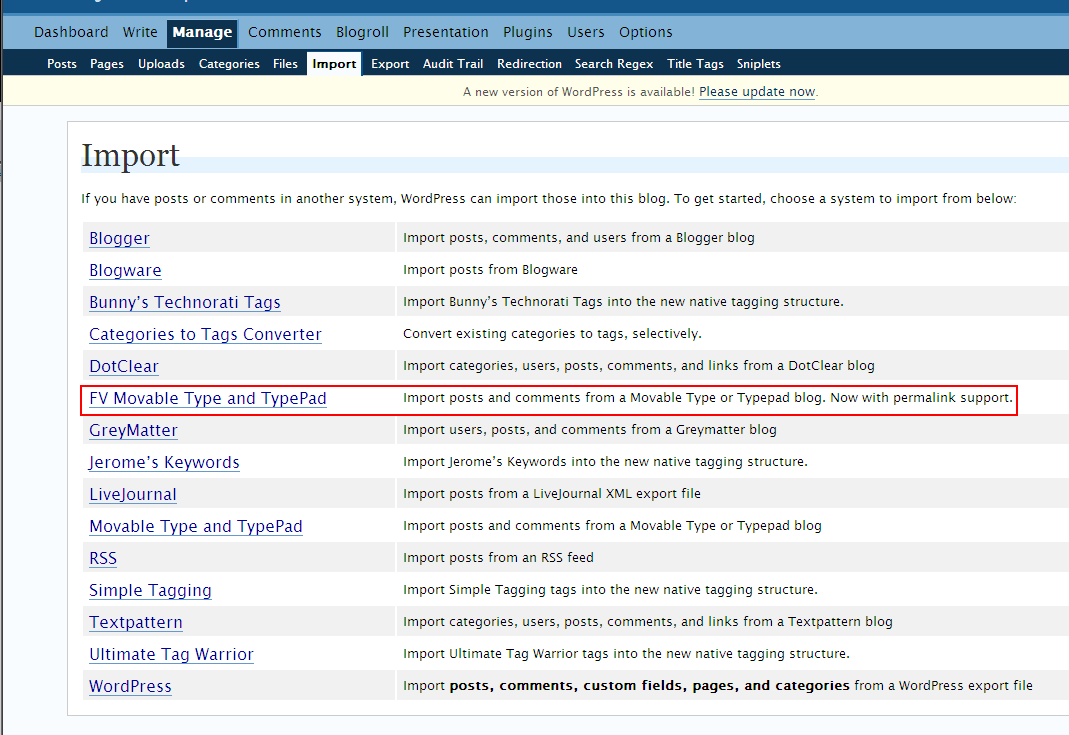
- Install FV MovableType and Typepad Import plugin (fv-mt.php – view source – download) and use it to import the Typepad exported file. You need to use this custom import plugin to preserve the original permalinks.
Thanks goes to Collin Donahue-Oponski for providing a fix for new WordPress versions (tested with 3.3.2).
fv_mt import plugin - Install Top Level Categories plugin to remove /category/ from category URL. Then leave Category base in Options | Permalinks blank.
- Use Disable wp-texturize plugin, if you have problems with HTML comments in the posts.
-
Next step is to download all the images from all the posts. You will loose all the images hosted on you blog site when you cancel your Typepad account. That’s why its
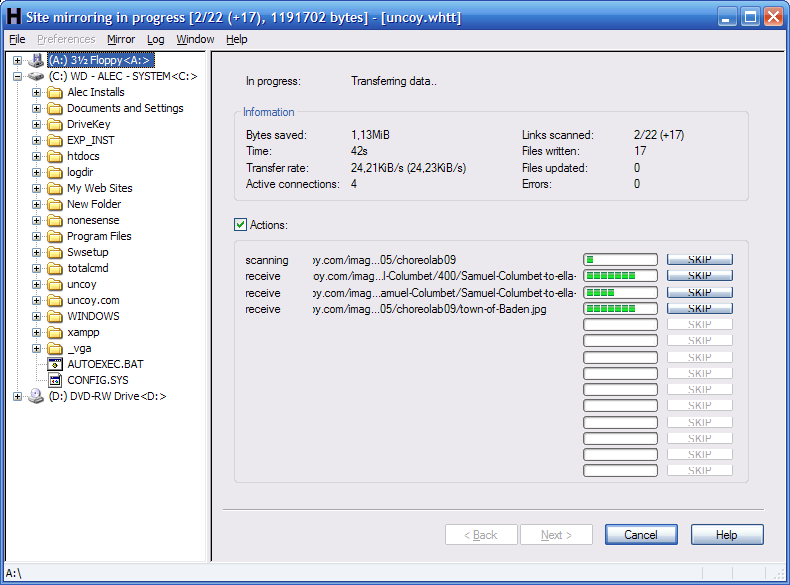
We use a free and easy-to-use offline browser utility called HTTrack to get the images. If you are using Windows, use the WinHTTrack version.
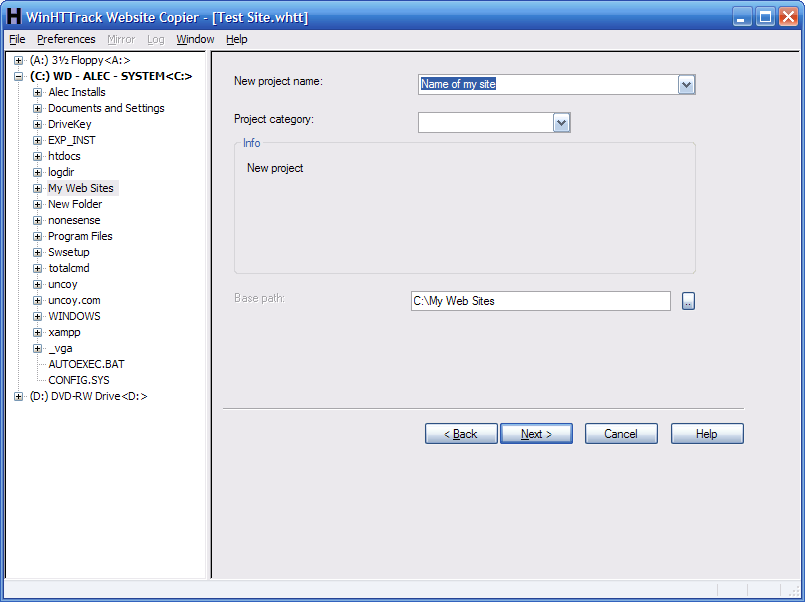
Download it, install it and start a New project. Set the Project name and Base path. This will form the location where the images will be downloaded to your hard drive.

WinHTTrack – basic project settingsClick Next and enter your site URL.
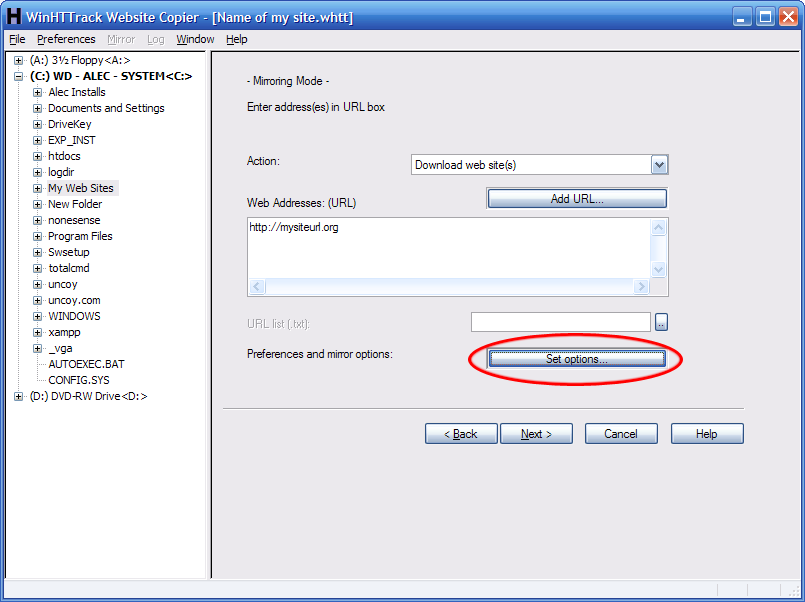
WinHTTrack – site URLThen click Set Options to open the Options window.

WinHTTrack – Scan RulesKeep in the default Scan Rules. To make sure you get all the images, add the following rule in Scan Rules tabs:
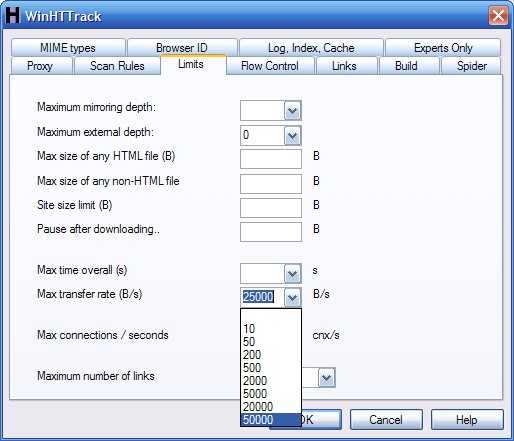
+*/.a/*Next up si the Limits tab. Set the Max transfer rate to a bigger value than the default 25,000 B/s. 50,000 should be enough, but you can experiment with 100,000 value too. Don’t forget to enter 0 into Maximum external depth to get only the images from your blog.
WinHTTrack – Limits options tabPress OK and press Next until the download starts. Please note that the actual download may take hours to complete.

WinHTTrack – Downloading - Now it’s time to decide how to organize the images directory on your new site. So make your choice and don’t forget take notes about this, as it will be crucial in the next step. Upload the newly organized images directory structure to the /images directory on your site via FTP.
- Then use Search Regex plugin to update links and images in the posts. Be very careful about this. It’s a good idea to back up your database first.
If the original image URL was http://site.com/people/image01.jpg, replace http://site.com/people/ in all posts with /images/people/ (it will work for all the images and directories in this directory!). Of course all depends on your new /image directory structure - Create 301 redirections for the images on the original locations if necessary (to keep up with the Google Image search, this is basically the same as). Get all the images URLs from the Movable Type export file or database. Find all the images from the domains you have access to and write .htaccess rules for them. Here’s an example of such rule:
RewriteRule ^/images/(.*) http://newsite.com/images/oldsite/$1 [R=permanent,L] -
Install Redirection plugin and put in some basic redirections for your posts and pages. This largely depends on your original blog structure, if it was domain mapped etc. This one works for domain mapped blog with blog prefix. It’s a Regex redirection, so turn that on when you add it into Redirection plugin.
/your_blog_prefix/(.*).html => /$1.html - After installing the Redirection plugin and running the site for few days, check the 404 log in this plugin to get rid of all 404 errors.
- Set up some nice theme with edit buttons bellow both posts and comments and all the other stuff. We assume, that you want your page to look the same as it look on Typepad.
- Create archive page which lists of all the months and years and categories if necessary.
- Create about page.
- Check trackbacks.
- If you are testing your new site on some other domain and you plan to move it when finished – be careful about _capabilities and _user_level meta values in _usermeta table and _user_roles in _options table when moving WordPress from one database to another!

The original mechanics are based on conversations with Michael Hampton
and Anu’s Typepad to WordPress Switch. Thanks guys

Alec Kinnear
Alec has been helping businesses succeed online since 2000. Alec is an SEM expert with a background in advertising, as a former Head of Television for Grey Moscow and Senior Television Producer for Bates, Saatchi and Saatchi Russia.


Hi there…
I was so excited to see that you had found a way to simply download all of the images from the the old typepad blog. I am having trouble though because my downloading agent (site sucker) is not seeing past the robots.txt file on the typepad image directory. How did you get around this?
Hello tim,
bellow is attached the robots.txt file of our Typepad blog. As you see, there is nothing to do with the images, so we haven’t encoutered any problem like that.
But thanks for pointing this issue out.
What’s your robots.txt file? What about using some other downloader, which behaves more like a browser (we are searching for some nice Firefox Addon with this functionality right now)?
User-agent: * Disallow: /t/trackback Disallow: /t/comments Disallow: /t/stats Disallow: /t/app
weird MSIE thing that keeps hammering
User-agent: Active Cache Request Disallow: *
Hi,
I just came across your post on TypePad to WordPress via google. Thanks for a helpful post.
I am trying to migrate to WordPress now.
I had quick question. On your step #1… with custom template. It works fine but does not go back far enough in time (we only have about 300 posts over 18 months). Any suggestions on how this script can make sure ALL posts are exported?
Thanks again for a very helpful post!!
Clint San Jose, CA
Hello Clint,
the problem seems to be in the first line of the export template file. This one:
<MTEntries lastn=”5000″>
Try to replace 5000 with 400 if you have about 300 posts. Or try to replace the whole line with just
<MTEntries>
More info about: MTEntries tag: movabletype.org/documentation/appendices/tags/entries.html
Thank you and drop us a message about your progress,one of these should work. Typepad is weird indeed.
Hi there,
This looks like a great guide. I had a question: What do you do with the export template in step 1?
On the “design” section of Typepad, I see options to create a new template and create a new template module. Which of these, if either, should I select in order to create the export template?
Sorry for sounding like such a noob. I’m just really eager to get away from Typepad — far, far away!
I think you need new template module Terrence. I suggest you email the wretched customer service at Typepad and ask them how to install the custom template you need to migrate away from their awful services.
Let them feel the pain of an export system which just doesn’t work.
If Anil Dash is lurking around here somewhere wondering what he can do to reduce the damage – say it again out loud – we hate typepad! – he could start
I hope Anil won’t pander again his usual tripe about nobody wanting to move away, not having the resources to fix this as they are building new features.
If evangelism could lie and do its job, Anil wouldn’t have been out of bed for the last five years.
BTW, if anybody is interested in having their weblog moved flawlessly from Typepad to WordPress (Typelists intact, design intact, photos intact, permalinks intact), drop us a line.
After a few emails requesting it, we have decided to offer migration as a professional service. It took a programmer and a designer a week (combined) to rescue our weblog first time out (thanks again Anil!) and have it functioning at 100%. It will be faster for us to repeat the process so we are able to offer this service for just $300. In line with the season, we will donate 10% to charity.
In comparison to the hassle of doing the move yourself, this will be the best money you ever spent. If it sounds like a lot of money, don’t make the mistake I did and never start a weblog on Typepad.
Moving away took years of planning and cost me a day of my own time supervising the move as well as three days of programmer time and a day and a half of my designer making things right.
Imagine! You can bring all that Typepad pain to an end, start posting in your own custom WordPress install this week and support your favorite charity for just a fraction of what the ordeal cost me.
Convenience Guarantee: All orders fulfilled within a week or half price.
PS. This price is a special price offer to 15 January 2009. We don’t want to, but we may have to raise the price as moving a Typepad weblog away properly is such an incredible hassle that we might not be able to continue to do so at this rate.
Please petition Anil Dash to fix the exporter to include permalinks and to allow customers to download their image and video library as a single large zip file which could be conveniently moved to another service.
If Anil and SixApart do the right thing and do those two things – no sign of it in three years – we will be able to retire this service and you will be able to do most of this yourselves in just a couple of steps.
Thanks for the responses!
Ok, so here’s what’s going on now:
I set up the Export template as an advanced index template and told it to output to an export.txt file. Unfortunately, it’s only retrieving posts from the last month (or so.)
My suspicion is that this may have something to do with the way archives are published? I tried changing the MTEntries tag as suggested above, but no luck. Should the template be pulling all the posts, or did I misread something? (Always a possibility!)
Hm. Typepad makes me want to kick something!
Thanks again for any help you can offer!
Terrence
Hello Terrence,
We were able to export all the entries with this template.
You don’t have to tell the template to output, you just have to try to download the template.
The address for our template in the day was not .txt but .xml
Hi Terrence,
what worked for us may not be working for you. This is a rather complex problem, but if you have some programming skills, you should be able to modify the export template with help of this manual page:
movabletype.org/documentation/appendices/tags/entries.html
Good luck!
Martin
I noticed that your offer for moving photos is up. How much will you be charging now? I am a small non-profit organization that works with firefighters and we unfortunately got stuck in Typepad and now, a gracious programmer has moved my blog to a hosted WP account for free. Well, tonight we found out about the images and I really wanted to cry because I was on that stupid platform for years. I have too many photos to have to manually change them over. I hate to burden my programmer with trying to figure this whole thing out, so I was wondering if you might be running the special again. Our organization will be hopefully getting a grant sometime in the next couple of weeks and I think I can use part of that to cover costs to move our images over. PLEASE HELP US!!!! I need to move away from that crappy service!
Hello Wendy,
We will take care of you.
I understand your frustration. I wanted to use search and replace to repair another client’s weblog for her while the weblog was still on Typepad. The new platform doesn’t support search and replace even though the knowledge base still says it does.
Frankly I am amazed at how SixApart is going backwards in features and customer support. It’s even worse than when I was a client.
You will love WordPress.
Thanks Alec for being so quick in your response and answering all of my questions! You have been awesome and I will highly recommend your services. Thanks for putting this ‘fire’ out for me! :o)
Wendy
Hey thanks for this guide. I am migrating a site for a client and good lord, what a pain. I have a question though. I did the show_posts thing and downloaded all the images. The problem I’m having is this. In the posts, the img src are like this:
mysite.typepad.com/.a/6a00d83548093553ef0111688c21ae970c-500pi
but in the image directories that Teleport downloaded, the true paths are like this:
mysite.typepad.com\mysite\images\20075\27\first-blog.jpg
Any clue how to change them all over? Search and replace won’t really work since I’m not even getting a regular ol url with the .jpg at the end. I don’t get the .a/blahblahblah stuff. Did your typepad export spit out something different?
Thanks!
Hello Amber,
No, we have to work around it and change the paths once we have the images downloaded.
Good luck. It is really a pain trying to move away from Typepad, isn’t it?
A ptiy that shameless promoter Anil Dash doesn’t actually do something about it so that neither you nor I nor all the other unhappy Typepad users have to go through this hell to move away.
Amber- Honestly, it’s worth it just to pay them to do the move for you. Alec and his team were awesome to work with and I couldn’t be happier with the move! Kudos to you guys over there!
Wendy
Alec, Thanks for the quick response. So I need to go through and just manually re-insert the images? From your excellent tutorial above, it sounded like I could do a search and replace. But I’m not sure how a search and replace would work when the image urls typepad generates are garbage. Thanks!
Hello Amber,
Let us know how it goes for you.
Cordial regards,
Alec
PS. Thanks Wendy for the kind words!
We are very satisfied with the work made by Foliovision, while migrating our site padreshispanos.com from Typepad to WordPress.
We knew this is a tricky task, and that’s why we made some research before contacting you. Since the very first moment, we received a high quality service, with a clear list of activities that had to be done. When the technical task began, we saw the hard work made by the Foliovision team, including yourself, Martin and the designer.
We have no doubt that we made the best decision by hiring your services. We strongly recomend other people in similar situation – migrating from TP to WP – to follow this same path.
Thank you so much for your kind words, Leonardo.
We really commit ourselves to making sure people get out of Typepad with more than just the content of their websites intact (no small order) but websites which seem like they’ve always been on WordPress from the beginning.
It was great working with you and Victoria too!
Thanks for the guide. It proved invaluable in a recent migration.
For some reason I couldn’t get typepad to export more than 100 posts at a time, so I changed the first item to and incremented the offset by 100 until I ran out of posts.
Also after importing everyone could see the posts on the index, and archives and such, but the individual posts returned 404s until I edited and published that post. I think the line “STATUS: Publish” in the export should be “STATUS: publish”. I fixed this after the fact with a MySQL query like “Update wp_posts set post_status = ‘publish’ where post_status = ‘Publish’
Hello Mike,
We have sometimes run into the problem of only been able to get part of the posts in a single export, but we haven’t run into the publish issue yet.
Good tip though.
Thanks for sharing!
Just noticed the first line was filtered out, take two…. I had to change the first line of the export filter to <MTENTRIES nlist=100 offset=0> and increment offset by 100 until I had all the posts.
Hi guys,
Firstly, thanks for posting this valuable information.
I want to know if you are still offering the commercial transfer service? I could probably do this myself with a lot of hard work but it makes more sense to get you guys to do it- having already completed this process several times.
Thanks.
Hello Ewan,
Thanks for stopping by.
We are indeed still offering the service and even have a formal Typepad to WordPress order form now with all the possible options and an outline of who might want to choose what option.
The basic service is $350.
PS. You are quite correct that it makes a lot of sense to have us do this as after doing about ten difficult sites we are getting very good at this. What’s strange is that we continue to run into new issues with every site we do. It’s painstaking work to do it right, but we enjoy the challenge. Now that we are free, we love to liberate others from the icy grasp of SixApart.
alec, first thanks for you efforts and sharing your knowledge. Very appreciative.
One question to the first step. Once I have the custom template setup inside of TypePad. How do I get that template to show and thus “give me the data?”
What url should I use? http ://www.mydomain.com/moveable-type-export-template.txt ??
Hello berchman,
you need to use ‘C reate new index template’ in Design/Current Design tab in your blog administration. If you don’t see this option, you need to create new Advanced template and activate it.
Paste the template code into Template body and set output file to export.txt. This way you can access the template via yourblogurl.com/export.txt
And don’t forget to use offset option (seems like SixApart is trying to make the post exporting harder and harder to do) – Mike Wheeler wrote a nice comment about it in here.
Good luck, M.
Could you contact me to tell me how much is your service to switch from Typepad to wordpress ? Thanks Stéphanie
Bonjour Stéphanie,
Thanks for writing. Detournements interesting site. I like fashion as well.
We now have an order form up for our Typepad to WordPress conversion, with different levels of service from simple technical move to full site redesign.
The basic service is $350.
Here is the full Typepad to WordPress conversion order form.
There’s lots more notes there on who should use which service and why. With all the pictures and posts you have, many well-indexed, using our service would be a very good choice in your case.
Cordial regards,
Alec
PS. On parle Français à Foliovision. Je ne crois pas que ce soit indispensable – on a fait deux sites en language Espagnole et l’on n’a que les notions les plus vagues de cette language – mais c’est commode. En tout cas notre conversion est fait en UTF-8, pour faciliter la vie internationale maintenant et à l’avenir.
I am not a developer but want to move my blog to wordpress – do I have to move it to wordpress.org, or can I move it to wordpress.com to preserve everything (widget, theme, customed layout, customered css, etc)?
Thanks, Joanne
Hello Joanne,
Unfortunately due to deliberate sabotage by SixApart, Typepad’s export tool is crippled (plus they make it damn hard to move the images as well, but that’s a separate story and more easily solved).
We did crack the process – it took us 50 work hours to get it right the first time with a complex site – and now we do Typepad to WordPress conversions as a service.
If you’d like to do it yourself, the instructions above cover the nitty gritty.
If you have a basic and relatively new site, you can just use the built-in Typepad export and your losses will not be too great. If you have an older and well developed site with a lot of images, you will lose a lot of material and your Google rankings.
Here’s the order form for our Typepad to WordPress service if the second case applies to you.
If we can help you, let me know.
UPDATE: Following a conversation with Anil Dash today
We are doing a lot of the Typepad to WordPress migrations. Including one for one of the world’s largest companies.
The conversions are going very well. The sad part is that it still takes about 10 hours of work to move everything intact from a larger Typepad weblog to WordPress.
SixApart could fix this tomorrow.
I spoke with Anil Dash on the telephone today and offered him our custom export template at no cost if he would install it as an export option for Typepad. Anil refused the offer point blank.
We used to be able to export 500 posts at a time. SixApart have now limited us to just 100 posts.
SixApart is maliciously keeping users trapped in Typepad.
Please complain vigorously about the data theft.
I would like to retire the Typepad to WordPress service but cannot until the export function is fixed in Typepad.
adash@sixapart.com contact@sixapart.com vox@sixapart.com
Alec,
That explains the issues I’ve been having with the export template. I can’t get more than a handful of posts at a time (I haven’t counted, but it probably is about 100.)
Thanks for all your hard work on this!
We recently underwent a painful transition from Typepad to WordPress. I wish I knew about your service, or even this guide, before we undertook the project. While we are now largely moved over, we’re having problems with with our RSS feeds. Unfortunately, when we signed up for Typepad, they didn’t yet fully support vanity domains, so the URL to our site was:
username.typepad.com/sitename
This of course meant that our RSS feed had the path:
username.typepad.com/sitename/rss.xml
Unfortunately, services like My Yahoo and Google Reader, added this URL to their directories, which now have tens of thousands of subscribers, who are obviously no longer getting updates.
I know Typepad doesn’t support .htaccess files, but is anyone aware of whether something like a meta refresh tag can be embedded within this old Typepad rss.xml file that points to the new one?
Hello Mark,
I know the transition is hellish which is why I created the service. Why should anyone have to go through what we (and you) went through just to get a copy of their own weblog with permalinks?
For your RSS feeds, from what I understand you still have your Typepad account. In this case, I would suggest putting as the last few posts information linking to your new feed. In that case most of the active readers will just click through and subscribe to the new feed. You will lost a lot of bot/automated subscribers. Not such a big deal.
I know that my own NetNewsWire is so oversubscribed that I have ended up abandoning it for the most part (I’m too busy to keep tabs on two hundred sites).
Probably a lot of the people who won’t come across would be very soft subscriptions like mine.
What’s happened to RSS? As websites got richer in presentation and extra content, I find I prefer to see the original. One of the old advantages of RSS was that you wouldn’t have to look at people’s ugly slow loading websites. Another RSS innovation which killed RSS was the partial feed (why bother with a feed reader if you are going to have open the website anyway to read the article).
But I agree with you SixApart/Typepad should be offering 301 redirect options as long as you are a paying customer (that way it won’t be abused and their costs will be covered). You can see from my interview with Anil Dash that SixApart is quite dishonest about Typepad export and lockin is a deliberate policy.
Thanks for your interesting question.
Thank you so much for these helpful instructions. You have saved me!
One question I have, if you have the time to reply – I’m using WordPress Multiple User version on my site. I am getting hung up on step 7.
Unfortunately the show_posts.php does not work with WPMU (doesn’t parse anything to the page when show_posts.php is put in the main directory where the wp-config files is). Is there a quick modification to do to your provided show_posts.php (or somewhere else I have to put it) for it to work with one of the blogs on my WPMU setup?
Hello Jane,
I’m glad the instructions helped you. Please drop Anil Dash an email and let him know that he should fix the Typepad Export so you don’t have to go through this pain to get your own weblog back.
I’m afraid I can’t answer your WPMU question.
Alec, thanks anyhow :)
I did drop Anil an email begging for mercy! The squeaky wheel gets the grease, right?
Hello Jane,
I’m sure there is only a minor difference in database structure between WP and WPMU. Hopefully it’s just the table names, so you need to take look at the $wpdb db object to find out or search throught WP codex.
M
Hey,
Great post, this was exactly what I was looking for. Thanks for sending me the link on Twitter…
Jordan Kettner @jordankettner http://www.jordankettner.com
Hi Alec. Love this post. Great job in explaining the process. I especially liked your commentary of your experiences with Typepad “customer support.”
I am currently moving my Typepad blog over to WP on my own, and I’m looking at a slightly different approach.
I’ve exported my blog from Typepad, imported it into WP (using the standard WP template provided by my webhost), and to keep the permalinks, I’m using the WP plugin called “Redirection” which claims to create SEO friendly 301 redirections…just type in the old url, type in the new one, and you’re done.
I have about 300 posts on the old Typepad blog and I’m creating a file by hand that includes all the old links and all the new links that can be imported into the Redirections plugin at one time.
In addition, I am simply right-clicking each image I’ve used for the posts and saving them to a folder that I will then upload to my WP directory. I will then relink all the photos in my new WP blog to the new copies of the photos so I can go ahead and delete my Typepad blog altogether.
I think this takes care of the two big things, permalinks and retaining my images. This will take a few hours to do, but I think it will take much less than the 10 hours you are looking at for a site (although my site is only 300 pages and my time involved is directly proportional to the size of the site, unlike your approach).
Also, this doesn’t involve design time to get it to look the same, but I don’t believe you were counting that.
With your experience, I was wondering what you thought of this approach and if you see anything big I am forgetting. It would be great to know I’m totally forgetting something before I go through with it rather than after.
Oh…if you want to read my experiences with Typepad, I invite you to check out the Typepad posts on my blog as well. I think you’ll enjoy them wholeheartedly!
Hello Brian,
Thanks for stopping by.
Curiously enough Redirection was written for Foliovision sites when John Godley was CTO here. We still use it and even have a turbo version for internal use (a few enhancements which haven’t made it into core, although I’ll have to ask John about that again).
Your approach is fine for smaller sites and/or sites with few images (which is what we recommend on our services page).
The main issue is that it doesn’t scale at all well though.
Enjoy your newfound freedom. I’ll check out your Typepad posts a little later.
Thanks for commenting so quickly Alec. Full steam ahead on the conversion then!
For what it’s worth, Redirection seems to be a pretty solid plugin. From the 15 minutes of testing I’ve done with it, it seems to be real easy to use, creates good 301 redirects, and allows for a nice bulk upload of all the pages I need redirecting (by using the import htaccess option…I’m creating a “fake” htaccess file for this purpose).
Cheers!
For the first option of using the custom template, do you have to have a certain level account at Typepad to be able to do this? I’ve searched all through the interface and cannot find anywhere to create a new index template or advanced template.
I have the Plus account, does that mean I am out of luck on using the custom export template?
Hello DT,
You do need to have a pro account to use custom templates. You can upgrade and then downgrade.
Thank SixApart again for crippling export and not supporting redirections.
Anyone who is building a website on a Typepad third level domain i.e. http://dt.blogs.com is creating a world of pain for him/herself in the future.
Hi Alec,
I have a question that is not very related to this post, but I hope you can point me in the right direction, since you seem to be very familiar with RSS and php. I’ve lost so much time already… and I am sure the solution is very simple.
I’m using PHP to get blog entries from a newspaper blog (that I know uses typepad). Everything is working: I can download, parse and print out the 10 first rss entries of the blog: blogs.elpais.com/juan_cruz/rss.xml
However, I need to download more than 10 entries… And here is where I am running crazy: that xml file only contains 10 entries, and I cannot find a way to download the following 10 entries.
I’ve been searching a solution for two days already, and I’ve found many places where they explain how to limit the number of entries retrieved. But I can’t find a way to download those extra entries that do not appear in the RSS xml.
I know this can be done, because if I subscribe to that blog in Google Reader and then scroll to the bottom of the entry list, Google Reader will automatically retrieve more entries and show them to me.
I hope you can help me…
Best regards and thank you for your time,
Ramon
Hi Alec,
I found a solution to my previous question. I am posting it here, just in case it is useful to somebody:
I found the ‘solution’:
there is no way to retrieve ‘old’ posts using the RSS feed unless the provider has set it to do so…
you can bypass this problem by accessing old posts via Google. Google keeps all posts in their servers, so even if the RSS provider is no longer serving old posts, Google is. For example, in the RSS feed I was mentioning above, if you wanted to get the last 120 posts, you can access those doing:
google.com/reader/atom/feed/http://blogs.elpais.com/juan_cruz/atom.xml?n=120
I hope this helps people arriving to this post in the future…
Hi Ramon,
That’s a nice trick. But it’s not likely to get you from Typepad to WordPress with all your permalinks attached. Especially automatically. If it’s a Typepad weblog, what your really need is the login and to move the account to pro level (for custom templates). Even Typepad’s broken standard export (no permalinks) would handle this issue.
Thank you for this very helpful tutorial. I have successfully exported my client’s posts and imported them into WP, as well as used WinHTTrack to mirror the hidden /.a/ files.
My question concerns the Regex search/replace step. My imported links are in the format:
olddomain/.a/6a00e553a6d94a88340115720ff3ba970b-pi
The new link needs to be:
newdomain/images/6a00e553a6d94a88340115720ff3ba970b-pi.jpg
I have two issues:
I am getting “Allowed memory size exhausted…” fatal errors when I run the Regex plugin without setting a Limit value. If I set a Limit value, I only get a subset of posts until it too errors out. Any way around this?
For some reason WordPress is not showing the image if the “.jpg” is not added to the end. However, I can’t figure out how to do this with a Regex string – do you have any info or tips on how to accomplish this in an automated fashion?
Thank you very much in advance!
I recently did this. It is not as easy as it looks.
Regarding my questions two comments above:
The memory error can be avoided by increasing the amount of memory set for WordPress/PHP in the wp-config file. There is info in the WordPress.org forums on how to do this.
Never determined an automated string to change all the file names, but you can use Regex to find all the characters at the end of the Typepad file names (there were 5-6 possibilities) and do a handful of search/replaces.
Thanks for the article – I was able to completely transfer a blog with two years of posts and images from Typepad to WordPress and maintain permalinks!
Hello ElShaddai Edwards,
Or you can do a webserver installation on your own computer and set the memory limit to some bigger value. That’s the best solution to handle big sites with lots of posts, commments and images, but it requires a serious knowledge of computer stuff.
I hope it’s a little clearer now, good luck with your Typepad to WordPress conversion.
M.
I’m looking to move a few sites from Typepad, and today it dawned on me just how much work that might entail. I have a lot of files saved on the Typepad server, a ton of links within posts… It isn’t a terribly big blog, but it WILL take a lot of work.
Thanks for posting this! I’m going to use it as a benchmark to see what happens. I also appreciated the comments from Brian Brown about the plugin option with WP. I’m new to WP, but taking to it like a duck to water. I can do so much more in it – and I cannot wait to learn more about it and get my content organized in a better fasion.
After going through some of the motions and doing more research, I have a feeling I’ll migrate one of my blogs from Typepad myself (it is fairly small), but the other one – the business one – I’m going to need help with. I’d rather have it done right the first time, than make a mess I need to clean up later on. =0)
Hi Angela,
We don’t actually approve of Brian’s method. It’s a hack and will cause grief long term. When we do our moves, we make the Typepad site organically WordPress so there will never be a future compatibility or inflexibility issue.
A small site which is not well-indexed by Google can just be moved in the standard way. You do lose your permalinks and there will be some hand fixing of images but on a small site it’s not the end of the world. Our methods are the way to go with larger sites or sites with a lot of incoming links/visitors or a lot of images.
Thanks for posting this; so far, it is the most detailed guide for moving a blog from Typepad to WordPress I have found. I have a few more ducks to line up before I am ready to try out this guide myself, but I will let you know how it goes when I am ready for the migration.
Hi Alec,
I noticed you posted in the WordPress.com forums about this import process. Can you clarify that it works for WordPress.COM? You may not be aware, but plugins cannot be used on WordPress.com blogs, and unless I’m very mistaken that means this procedure can’t be used to import to WP.com. Since your example used only hypothetical URLs, there’s no way to confirm.
en.forums.wordpress.com/topic/move-typepad-blog-to-wordpress-what-about-url?replies=6
en.forums.wordpress.com/topic/please-read-me-first-before-posting?replies=1
Hi raincoaster,
I think you are right. If you can’t install plugins on wordpress.com, then you probably can’t do all the redirections you need to do in case you don’t want to loose links in google. But if you move to wordpress.com, your domain name will be different, so it doesn’t matter so much. Anyway, you need to do a lot of search-and-replace stuff and I’m not sure if that’s covered on wordpress.com either.
The thing I’m more worried about is, that you need to use a special Typepad importer (which is only a light modification of the default one) to do the import with the post URLs. It should be rewritten and submitted as a bug fix to WordPress’ trac.
Thanks, M.
How do you handle the subscribers? Looks like they are not automatically redirected. Do you have to notify them of the URL change? Will they have to re-subscribe to the new blog location? We want to avoid them having to re-subscribe if possible.
Thanks soooo much for this article!
Thanks for this.
Just a heads up to Amber or anyone else who has problem with the Typepad URLs ending without an extension. To get around this I used a program called ReNamer to remove the .jpg and .gif extensions of all my files and then uploaded to the server. Then you can use Search Regex just fine to replace the first part of the url.
I personally didn’t bother to change to broken permalinks. It was just too much work for my small blog. I’ll just wait for Google to re-index my new site and live with the small loss in traffic.
Oh, and Typepad, f**k you. I waited months to move because I knew it would be a PITA and it was. And like everyone is saying, I already love WordPress.
Hello there :)
I have recently moved the aberconwyconservatives.co.uk website from typepad into wordpress and can’t get the comments to show. If jo blogg inserts a new commentsand it is approved, it will be shown, I just can’t see any old comments. I am using the WP 2.9.1. I can see the comments in a post display in admin, but I can’t see them in the listing of all comments in admin (although it does show me the total number of comments). I have checked the DB and the new comments that ARE showing look exactly the same as the old ones. I can edit old comments by going through a post, but they still don’t show. I have installed the plugin specified above, still no show. I simply don’t know what else to do. I am very experienced in WP, but have never met typepad:)
Hi Maja,
You’ll have to take a closer look at your database. Something must be different. We haven’t had this issue with our own moves.
I am experiencing the same problem as Maja using wordpress 2.9.1. The comments are not linked to their posts. All the comments are in the database and display on the comment admin page, but they all say posted in “#”
Thanks for the tutorial!
I thought it worked flawlessly, but for some reason the old post slugs/links, do not work in FireFox. They work fine in Chrome.
Also, new posts title slugs/links work fine as well.
http://www.nickblevins.com
Any ideas?
My experience was similar to Nick’s when I did this last year. I detailed my experience here, but essentially I discovered that the archive permalinks (imported content) would only work if you were logged in. If you were unauthenticated, as most site visitors were, you would get WP’s 404 error. On the dashboard, the post status for all of the imported content read “Last Modified” instead of “Published”, so I too ended up republishing all of the posts and all was well.
Hello Nick,
you missed an important step (3.) and that is setting your permalink structure to match your old Typepad blog (typepad post addresses end with .html). The fact that it worked in Chrome was just a coincidence I guess.
Thanks, M.
Hey,
I did that step, and it was broken then too. I reverted it to a normal WP permalink structure in hopes that it would fix that issue, but it didn’t.
Ultimately I went back and re-published all the posts through WP and that worked for whatever reason.
Hi there,
I had a question about the Typepad guide that you posted on the site, confused about the images and how to restructure the files to upload to WordPress, on the old Typepad blog there are all sorts of images, some have been uploaded into Typepad, buts lots of the other ones have been just from other sites, so its downloading those too.
Thanks for any help! Ethan
Hello Ethan,
check out the screenshot “WinHTTrack – Scan Rules” here in the article. You can fine tune the rules to include just your site and ignore the other sites.
Thanks, M.
I’m afraid i’m struggling with the first step, how do i actually execute the export template (foliovision.com/downloads/typepad-to-wordpress/movable-type-export-template.txt) within typepad?
Hello Simon,
you need to add a new Index Template in some Advanced Template design. If you are not able to create a new Advanced Template, you need to upgrade your account. The most basic account does not provide this feature.
Thanks, M.
t sure about this, I think it has nothing to do with WordPress and it’s server related. But you can do the replace anyway – most of the images in the ugly /.a/ directory end with ‘-pi’ or ‘-320pi’ or ‘-500wi’ and so on.
Thanks for guide and for wp-texturize plugin – it’s useful for me.
Hi – Point 11 seems to stop my site from working completely? If this is missed does this mean that if I change the category structure in WordPress that I will loose my URL’s and thus affect my SEO? Thanks , great tutorial for this
Hello Stacy,
it was linking to old version of the plugin, thank you for noticing that. I updated that step. If your blog is going to keep the same domain address, you need this plugin to put in all the redirections.
Thanks, Martin
Thanks so much for this tutorial. Saved me tons of frustration!
I couldn’t get the .a directory images downloaded and couldn’t figure out why. I finally figured out that it was because I had the forward slash added to the site url, so you’ll want to make sure you don’t have that.
Just thought I’d add that in case anyone else has the same issue.
Great tutorial! Everything is moved over successfully, and the images are downloaded and relinked. Have I mentioned how much I hate Typepad? This was just short of pure hell, but made at least possible with your help.
So, what’s the best way to deal with all the internal links in the old posts that link to other posts in the old icky Typepad blog? Unfortunately the URL structure of those and the URL structure of the links in the new blog aren’t at all similar.
And are you still offering the conversion service? I might take you up on it for other clients…
Thanks!
Hi Andi,
let’s say that the old internal URLs are like:
yoursite.typepad.com/blog/2010/09/post.html
So you have to go in and replace “yoursite.typepad.com/blog/” in all your posts with just “/”, so the links become /2010/09/post.html and that should work, if you followed the step number 3. in this guide about custom permalink structure.
Yes, we offer the service, just check out the button in top right corner of this site.
Thanks, Martin
Is this compatible with version 3?
Hello Kar Yung Tom,
sorry, it works only up to WordPress 2.9.2, read the section about our import script for workaround. We plan to upgrade it for the new WordPress import system.
Thanks, Martin
For the issue of migrating images, after downloading .a directory with HTTrack as described, upload same .a folder to your WP installation, and for the issue of URLs not using jpg/gif/png extension in the posts, put a .htaccess file inside the .a folder with this line:
Options +MultiViews
That takes care of the content negotiation, gets the filename, if not found then looks for whatever matches it
HIH
It’s very good article and all process of moving is so simple described, thanks. But, don’t you have some fresh news about renewed WordPress?
What news are you looking for? Our guide is still accurate and WordPress’s core database remains the same.
Ah, yes. You need to use FV Top Level Categories going forward (WordPress 3.1 and later) and not Top Level Categories.
To get more than 100 posts, change the first line of the template to something like this: <MTEntries limit=”100″ offset=”100″>
That last comment by Lorin Rivers just saved me a LOT of time. Glad I found this, thanks!
I’m trying to export from TypePad – and have changed the first line to now I get an error that says “An error occurred. Please wait a few minutes and try your request again.” anyone else? Any ideas on how to fix it?
Great guide! Typepad hooks people because it is so easy to get a site going and have multiple sites on one account. But it is a bear to switch from.
I tried using the Import plugin in the WordPress Tools section and gave up and just started from scratch. I wish I would have come across this first. :/
This is a good guide. Thanks.
I am currently on typePad – concordextra.typepad.com/blog/
I am planning to move to wordpress -blog.concordextra.com. The design work is under progress.
What is the best way to move to wordpress ?
Just a quick note for those transferring from foreign languages. The date names are not really recognized by WP, so you have to export the dates in number format.
for example:
MTEntryDate format=”%Y-%m-%d %l:%M:%S %p”
this will spit out the date like YYYY-mm-dd [time]
also, lastn limit for typepad is at 100. if you have more than 100 posts, you’ll have to start with offset=”0″ lastn=”100″ and then increase the offset by values of 100. so the next time you export it’ll be offset=”100″ lastn=”100″.
In typepad, when a post refers to an image, the HTML involved refers to an image without using the extension. For example: [img src=”mytypepad.com/.a/6a00d8345269b462e201696937j1db770b-800wi“
The above instructions simply tell you to use Search Regex to replace the typepad domain to your new domain and to change from /.a/ to your new /images/ directory. That’s all fine and good. But you have to add the extension to the images for them to show up.
The best solution was at this person’s website: scriptygoddess.com/archives/2011/05/26/moving-from-typepad-to-wordpress/
Search string (regex options turned on)
#src="http://www.MY-CLIENTS-TYPEPAD-DOMAIN.com/\.a/([^\s]+(?=))"#iand replaced it with:
src="MYREMOTESERVER.COM/DIRECTORYNAME/$1.jpg"BTW, you also have to do that for the href that encapsulates the image tag so when someone clicks on the image, they’re taken to the correct path. Hope this helps someone.
Has Typepad created the following procedure within the past few months, perhaps in response to all the negative press about their nasty coding?
help.typepad.com/typepad_to_wordpress.html
If you’ve tried this procedure, what were your results?
Hi Suzanne,
Thanks for stopping by
Typepad added some export back in 2009 due to pressure that Foliovision put on them and specifically Anil Dash.
The export didn’t work properly then and I imagine it’s still broken now. Permalinks were an obvious victim back then. If anyone has other experiences, we’re all ears.
Typepad have had a major attack on their platform for the last 4-5 days and ALL their customers have been screaming ‘blog down’ . A really nasty little platform design to keep you with them in hell forever.