A good tool to make screenshots on Windows (Gadwin states that is compatible with all versions from win 98, also with NT) is to use Gadwin Printscreen . It is a freeware and also has a payed professional version. You can download it here. The installer is easy and straitforward.
When you install and run it a small tray icon appears on the start-up bar.

tray icon


roll up menu
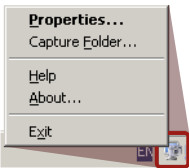
Right-click the tray icon will roll-up small menu with some options like Properties and Capture folder. Capture folder will open windows explorer to folder which is destined to store screenshots. Properties will open window with setup of Gadwin Printscreen.
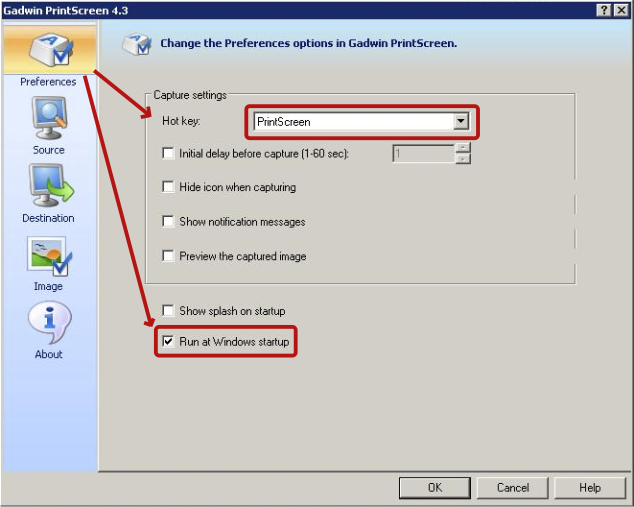
On Preferences page setup the following:
- Hot key to PrintScreen
- Run at Windows startup
- Uncheck everything else

Preferences settings
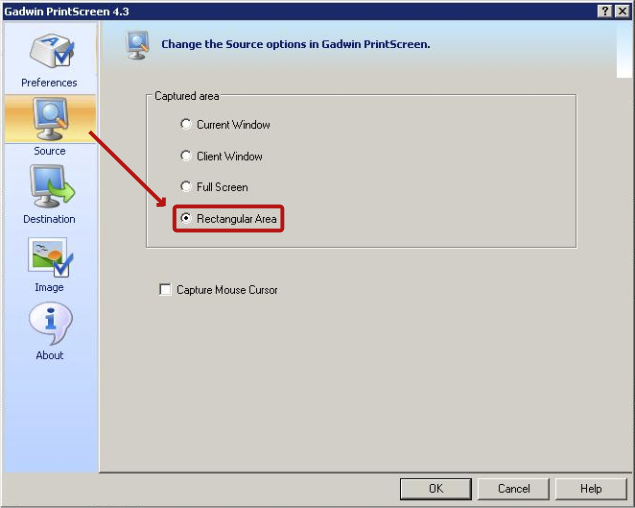
On Source page setup the following:
- Rectangular Area
- Uncheck everything else

Source settings
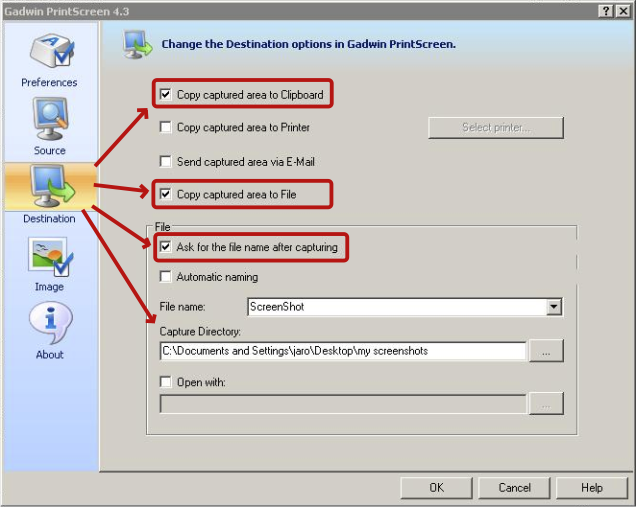
On Destination page setup the following:
- Copy captured area to Clipboard
- Copy captured area to File
- Ask for the file name after capturing
- Create a folder on your desktop and set the Capture Directory to it.
Select Directory - Uncheck everything else
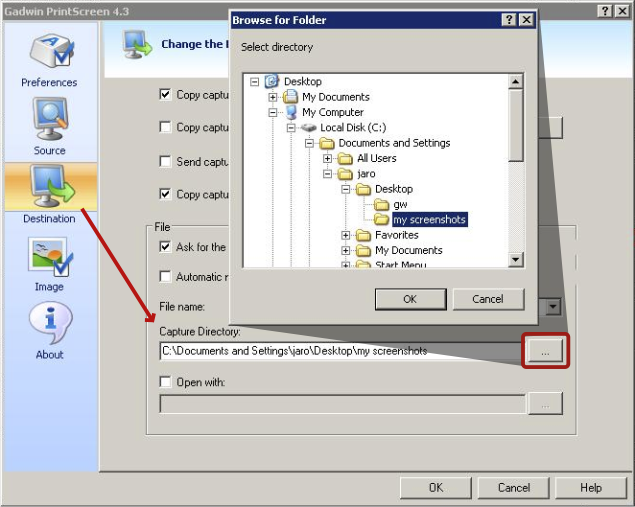

Destination settings
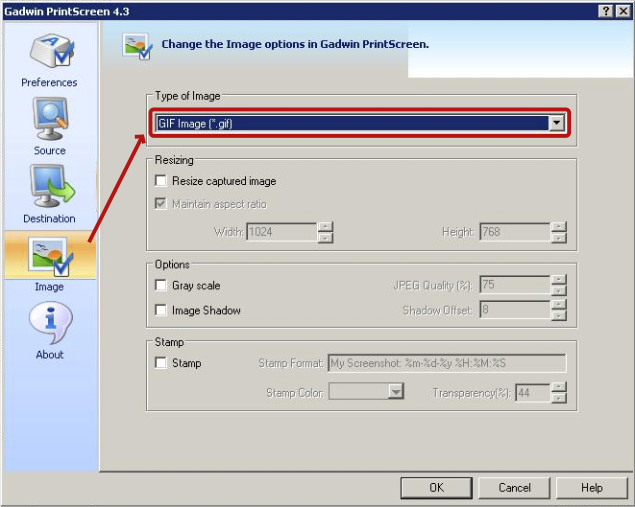
On Image page setup the following:
- Set Type of Image to GIF Image (*.gif)
- Uncheck everything else
- It would be better to use PNG file, but Gadwin doesn’t support 8 bit color PNG files. But if you’re able to transform the PNG to 256 colors (8 bit) it would be preferable. You can transform the image by many programs including XnView, IrfanView, ACDSee …
Image settings
Now just click OK and you a ready to use Gadwin Printscreen.
- Press PrintScreen button.
- Drag your selection box on area you wish to capture. Don’t worry about the Zoom window, it will not be captured on final image.
- Resize and move the selection box to match the area precisely.
- Press Enter (Return) to confirm or Esc (Escape) to cancel.
- When you pressed Enter type the name of the screenshot and celebrate.


After 3 weeks of non use (vacation) Gadwin PrintScreen (Alt+PrtScrn) does not come up with the screen any longer but with a window called Zoom Window. It gives an enlargement of a small section of the screen but does not do any capture.
Uninstalling. downloading and installing, as well as changing all options has not made any changes. It always opens with the “Zoom Window” and does not allow capture.
Do you have any recommendations to resolve the problem?
Thank you, Arno Martens Toronto, ON, Canada
After multiple deletions and re-installations the Marquee cursor appeared again allowing ScreenPrints and the “Zoom window” could be shrunk to a negligeable size.
I know, this is an old post, but the same happened to me Jan 2012. You need (1) uninstall Screenprint software (2) manually remove folder from /programs if it was not removed, (3) manually remove the gadwin registry keys under software and (4) reboot the server. not sure if all steps are mandatory, but that did it for me
Same problem for me. Do the developers have any better solution than the previous post of 4 steps to fix the problem? I am getting the same “Zoom Window” and I don’t want it.
I came up with a simple routine that works well for me. Diagonally shrink that ‘Zoom Window’ to about 1 sq.in. and drag it up to the top somewhere (it is just being parked and will not become part of the saved screen.
Marquee the part (or all) of the screen you want to save, right click anywhere on it and Window will pop up with the mouse default at ‘Continue output’. Click on that and the saved picture will open with the viewer software you specified.
Happened to me! Hard to work without it. WTF!
Solution recommended by Arno Martens above worked for me.
I just don’t understand what has happened to a simple printscreen programme?! I am trying to capture images (as I have always been able to do) within a game, so this “zoom window” does not assist me at all. I tried Ben’s solution. The problem still persists. I then tried Arno’s method. This doen’t help at all either. I am at a loss. I cannot use my cursor in-game when I am trying to capture a screenshot. Any ideas? Any other software you could recommend??
Cheers peeps. And I hope a solution is found soon. p
Under Source did you set a check mark at “Capture Mouse Cursor” ?
where is the file that lets me change the screen capture to rectangle area with mouse?
In response to patches’ post of 23 Mar 2013:
Gadwin PrintScreen works great in conjunction with ACDSee for capturing rectangular area with a mouse. Run Gadwin, hit PrtScr to save full desktop image, save to lossless format such as PNG. Then double-click on PNG file to open with ACDSee (make sure it opens in the full viewer, not Quick View), drag your mouse across the area you want to save, right click and choose Save Crop As. Save as a lossless format again. After final editing of the crop, convert to lossy format such as JPEG if you want to shrink the file size.
@ patches
Source 4th radio button from the top.
No need to save full screen.
Add on to my post # 5
I have a file on the desktop called ScreenPrint. That is where the snaps are saved. Click the Windows Explorer icon pinned in the Taskbar and it opens. Couple of clicks from everwhere.
Hi Everyone,
Thanks so much for your input Arno and Ben.
Gadwin Print Screen appears to be becoming more of a pain in the neck than a help, with the free version hidden and partly broken.
Here’s some alternatives.
Picpick includes some nice extra tools for graphic designers including all kinds of measurement rulers and eyedroppers.
Picpick includes some nice extra tools for graphic designers including all kinds of measurement rulers and eyedroppers.
Feel free to continue to share your experience with free Windows screenshot software here, positive and negative.
When i run the application all hotkeys work except for printscreen. It is selected to run on startup no delay is selected. The print screen button isn’t broken because i can take screenshots and paste them in paint.
OS win7 32bit
Thanks for recommending PicPick – I will give it a go. I have been using Gadwin Printscreen for years but upgraded to the latest version for my new laptop running Windows 8.1 and they seem to have mucked about with the UI, adding some stupid widget that floats on the screen and that I couldn’t turn off, so have un-installed it now. PicPick seems pretty good so far. Thanks.
In this new version, there a window that stays on screen showing capture options, history, settings etc. Can you tell me how to disable it permanently? Thanks
If you have windows 10, try the almost very good print screen tool included; press shift+s+windows-home keys to activate the tool.