• Skip to main content
  • Skip to primary sidebar
  • Skip to footer

Foliovision

  • Weblog
    • FV Player
    • WordPress
    • Video of the Week
    • Case Studies
    • Business
  • About
    • Testimonials
    • Meet the Team
    • We Support
    • Careers
    • Contact
    • Pricing
  • Products
  • Support
    • FV Player Docs
    • Pro Support
  • Login
  • Basket is empty
Affordable VAST/VPAID for Wordpress has arrived. Serve ads with your videos starting today!
    • Docs
      • Installation
      • Changelog
    • FAQ
    • Support
      • Free Support
      • Pro Support
    • PRO

    Staging Sites For Developers

    When you purchase the FV Player Pro licence, you need to register it to your domain. But what if you want to first try it out and prepare before implementing to the main live site? That is what the Staging Subdomains option is for.

    Staging subdomains are meant for development purposes on subdomains that are outside of your main domain. If you intend to use a subdomain of your main site for staging, for example https://staging.mymaindomain.com, you don’t have to register it as a staging domain, because all subdomains of the main website are automatically licensed under the main domain. Learn more about FV Player licencing policy regarding subdomains and multi-domains.

    The limitations

    • The licence has to be active. You cannot add a dev subdomain for an expired licence.
    • One site per licence.
    • Subdomains only. A subdomain of any site can be used for staging, but not top level domains. Developers who wish to keep their staging site on individual top-level domains, should purchase a single add-on domain (charges are very low for add-on domains).

    If your agency already have a five site license but also keep dev top level domains running for some or most of those sites, get in touch with our support team and we’ll make special arrangements for you.

    How to set a staging domain

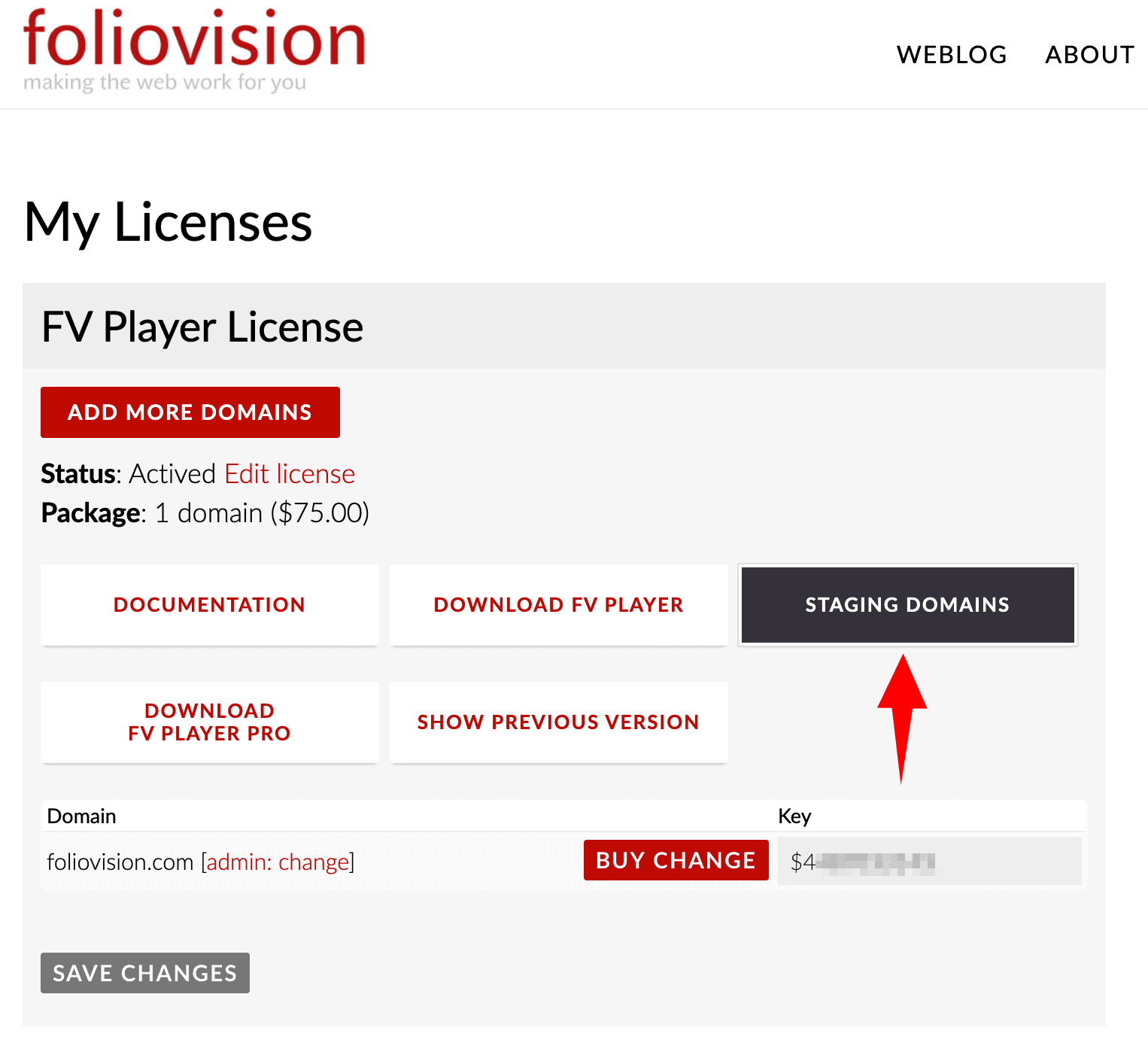
    1. Go to https://foliovision.com/my-licenses. And click the STAGING DOMAINS button. If you own more licences, make sure you chose the correct one, as changing/reverting this action will require starting a support ticket or paying a licence changing fee.

    2. An option to insert a Staging subdomain pops up Insert the subdomain and click Save Changes.:
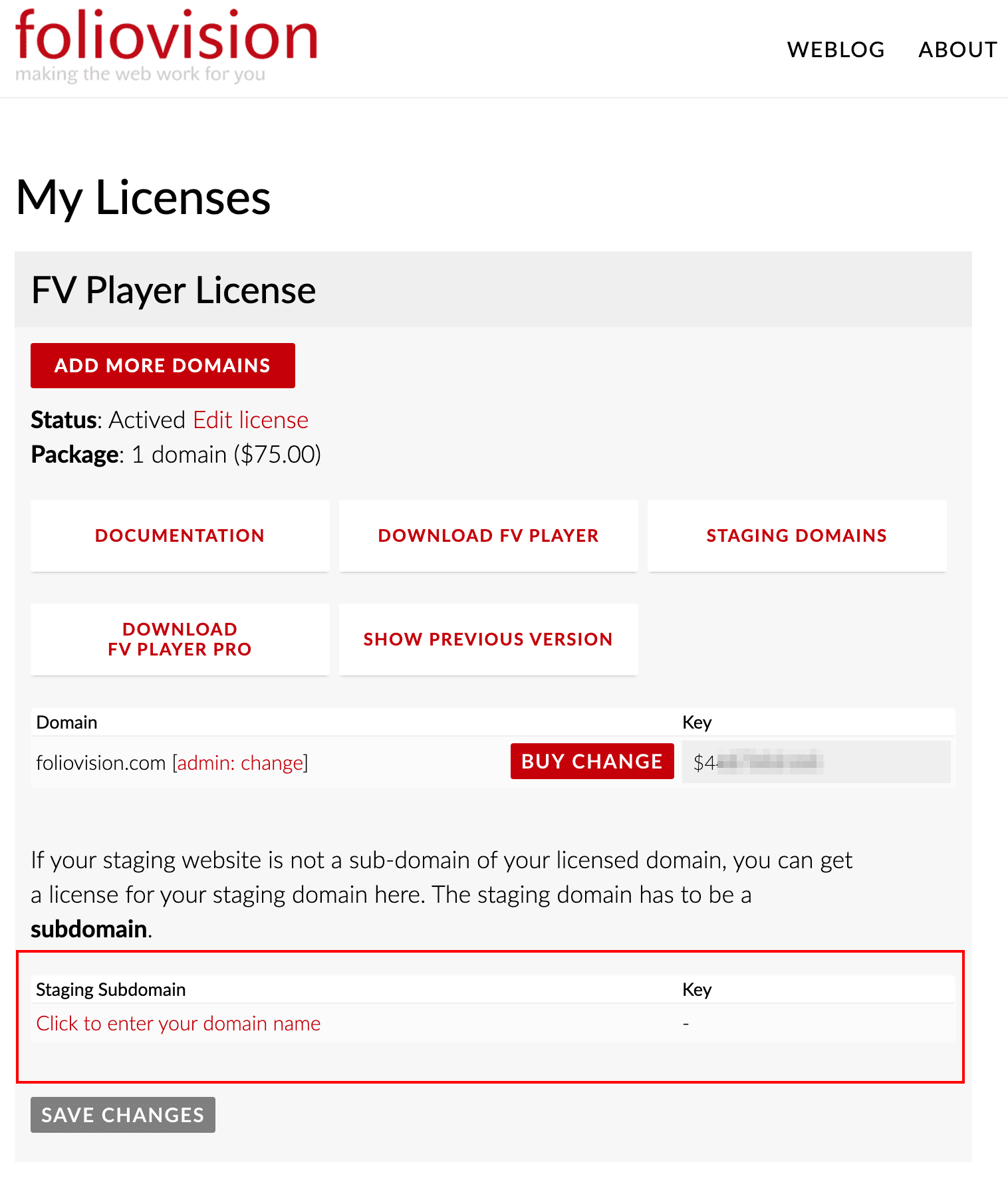
    Staging Subdomain field
    1. Once the changes are saved, a new license key for the subdomain gets generated:
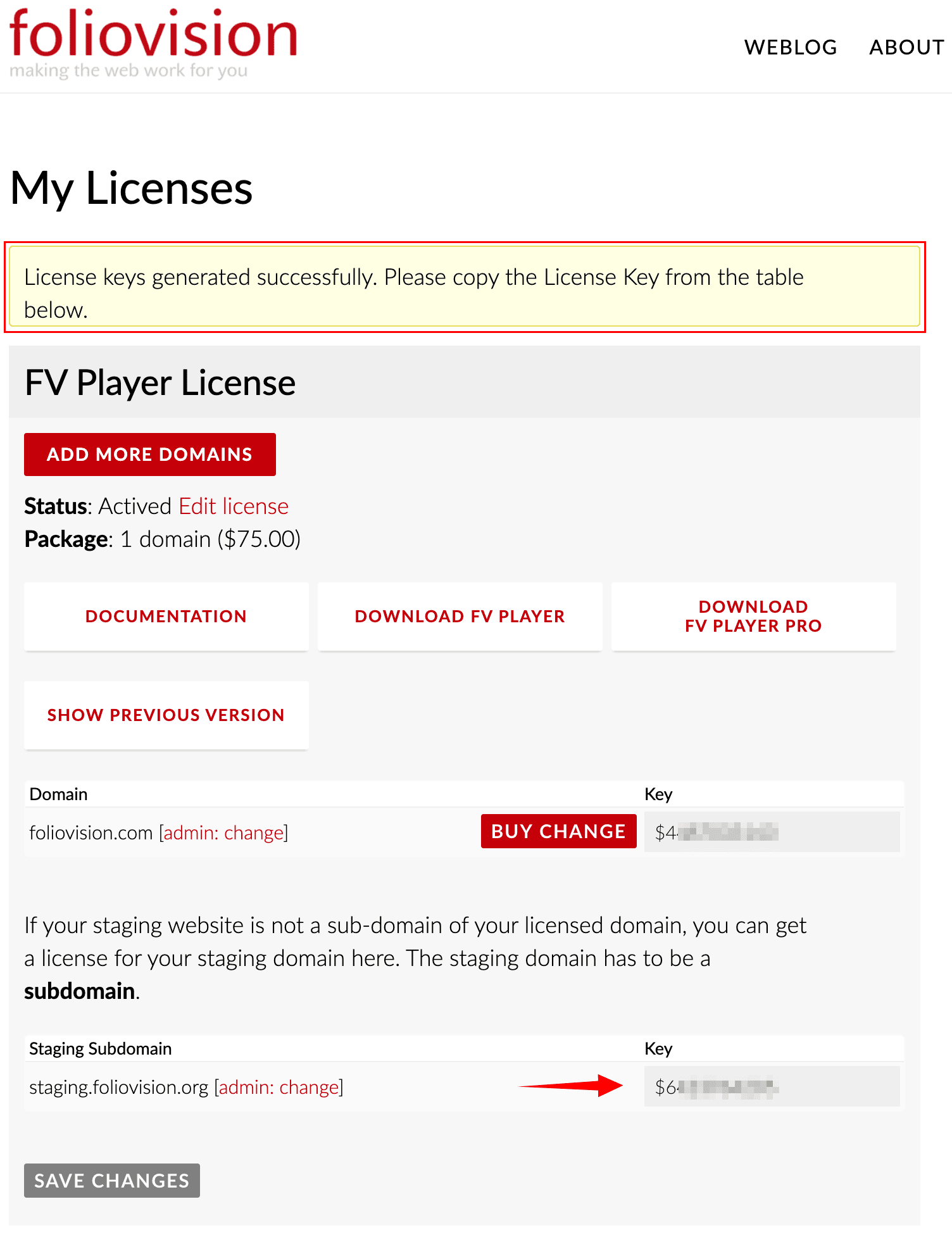
    Supposing you already have FV Player at your staging subdomain, you can now automatically download and activate the FV Player Pro add-on from within the FV Player settings screen. The FV Player logo will occasionally show as this add-on license is for dev domains only.

    Primary Sidebar

    Licensing and Account

    1. Why FV Player?
    2. FAQ
    3. Creating and Managing Playlists
    4. Advanced features
    5. Video Security
    6. Troubleshooting
    7. Tools
    8. Analytics
    9. Audio Player
    10. Live Streaming
    11. Download | Buy
    12. Getting Started
    13. Licensing and Account
      1. Sub-domains and Multi-Domains
      2. Staging Sites For Developers
      3. Upgrading License
      4. How to Download Your Legal Invoice
    14. Setting Screens
    15. Video Hosting
    16. Video Membership, Pay Per View and eLearning
    17. Video Advertising
    18. FV Player VAST/VPAID
    19. Casting Options
    20. For Developers
    21. FV Player Demos
    22. Additional Services
    23. Legal

    Footer

    Our Plugins

    • FV WordPress Flowplayer
    • FV Thoughtful Comments
    • FV Simpler SEO
    • FV Antispam
    • FV Gravatar Cache
    • FV Testimonials

    Free Tools

    • Pandoc Online
    • Article spinner
    • WordPress Password Finder
    • Delete LinkedIn Account
    • Responsive Design Calculator
    Foliovision logo
    All materials © 2026 Foliovision s.r.o. | Panská 12 - 81101 Bratislava - Slovakia | info@foliovision.com
    • This Site Uses Cookies
    • Privacy Policy
    • Terms of Service
    • Site Map
    • Contact
    • Tel. ‭+421 2/5292 0086‬