We often get questions from our clients about what to do when they lost a WordPress password and since there are no images in the offical WordPress guide (Codex), so this is a short post that might come handy.
The whole process is easy and you just have to follow the instructions on the screen.
-
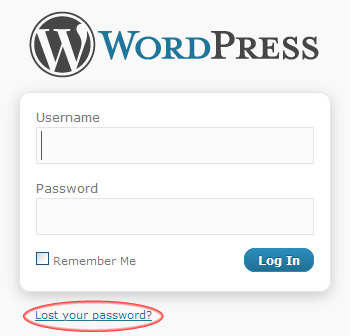
Go to your WordPress login page and click “Lost your password?”
WordPress Password Recovery, step 1. -
Now type in your username or email address you used in the registration and press “Get New Password”.

WordPress Password Recovery, step 2. -
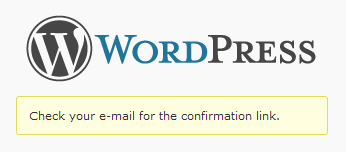
You will see a notification about email being sent.

WordPress Password Recovery Mail Sent -
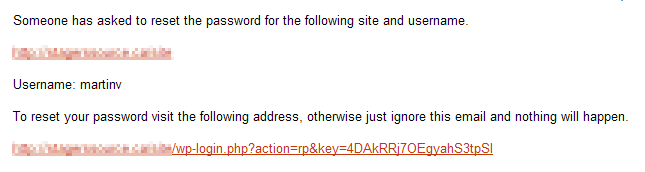
The email will arrive soon. It will have the subject “[<WordPress site name>] Password Reset”. The email is informing you, that someone requested to reset the password and therefore you need to approve this request.

WordPress Password Recovery EmailThis time it was you who was reseting the password. If you receive an email like this due to no reason, ignore it. Approve the request by clicking the second link.
-
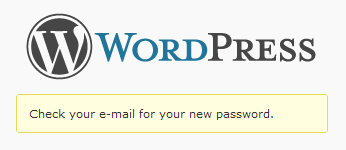
That’s it, your new password is on your email. The email has subject in style of “[<WordPress site name>] Password Reset”.

WordPress Password Sent -
This is what the email looks like, copy the password, login into Worpdress and change it to something else if you want to (don’t forget to make it a strong password), or just remember the password in your secure password management tool.

lost password 6



i have tried several times (5x) to do as stated to change my lost password, however, i only get as far as step 5…why?
thanks.
what shall i do?? i am getting recovery SMS to my mobile number,but after that i am trying to log in,but its still not working.
Go in via phpMyAdmin and create a new user or export the database.
i tried several times to change my lost pass word in wordpress.com but its still not working. help please thanks.
My sms recovery doesn’t arrive on my mobile – help please
Our technique uses email and not SMS Tom.
Sorry.
when I click lost password it re-directs the home of the website? Iam not getting the the recovery option
thank u
Hi Engarab,
Then your issues are more serious than just a lost password. Get professional help to recover your install. The issue may be in wp-config.php
I am having a problem in the “lost password” link! When I click on the lost password link nothing happen, I just stay in same page of login!
The lost password link is working which is
but, I don’t know what to do to put it working on the wp-login.php page!
Thanks for your time!