Installation is very simple and straightforward – same as for every good WordPress plugin. If you are not sure how to do it, John Godley wrote a really nice article about it – How to install a WordPress plugin.
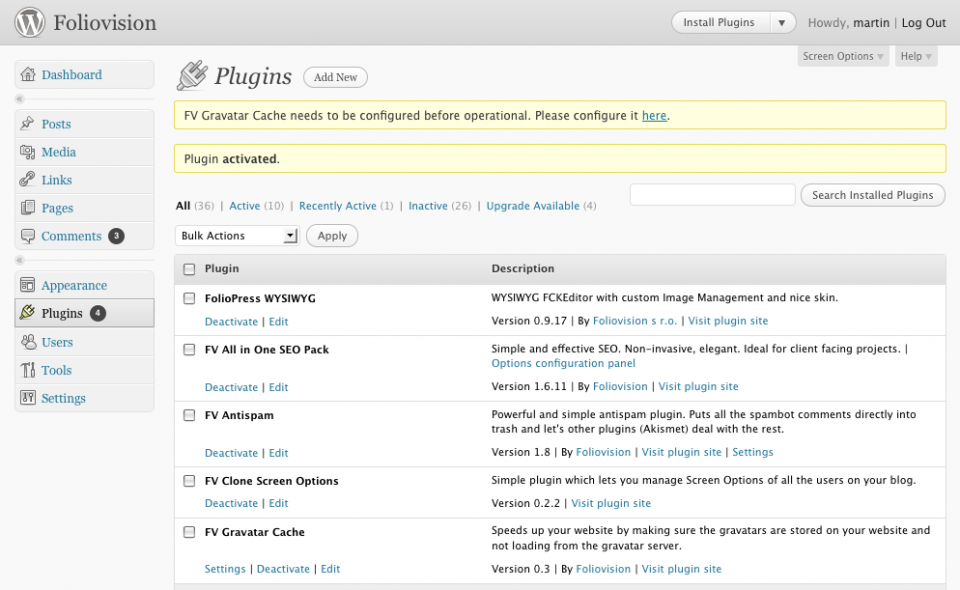
After activating plugin a message will be displayed saying, that you need to check the plugin options screen. Until you do so and save the settings on that page, the plugin will not operate.

FV Gravatar Cache Activation Notice
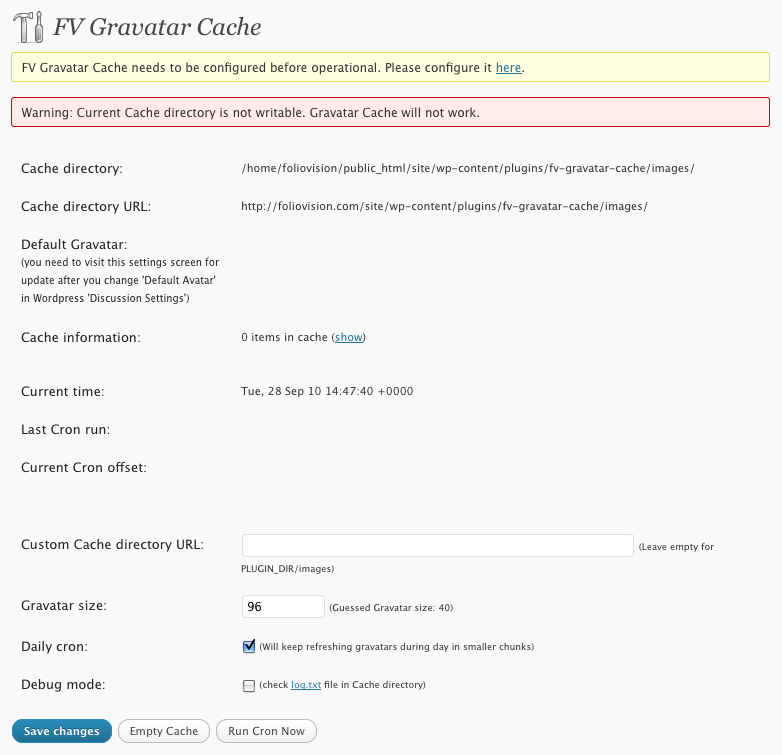
You will see a check if the cache directory is writable (this shouldn’t happen on most of the modern hosts) and you will also be able to set the desired thumbnail size using the “Gravatar Size” field.

FV Gravatar Cache Permissions Warning
Throubleshooting
- Once your directory is writable and you save the options, the default gravatar should appear. On the options screen.
- Turn on Debug mode and Save the options.
- Hit Run Cron Now. That will cache 25 gravatars every time you hit that button.
- After that, you can click (show) link in the Cache information line and also check out the log.txt file. That will give you an idea if you are having any issues.
- If you can see that only default.png gravatar is being cached, that means that all the cached email addresses have no gravatars associated. Do not expect that everybody will have gravatar already.
Requirements
WordPress 2.7+