January 16th, 2008
As the name suggest, WordPress FAQ-Tastic Plugin is designed to help you create FAQ pages.

FAQ Tastic default layout
FAQ are a troublesome and needed much needed section of almost any business website so Word FAQ-Tastic qualifies for our business rating, i.e. this is a plugin you should pay for if you use it on a successful business site.
Ask Me
The Wordpress plugin FAQ competition is called Ask Me. Ask Me is a catchier name. It is also a simpler plugin and not quite ready for business use. However the base styles are a lot friendlier. I have the sneaky feeling that Ask Me would not be robust enough for business use. Check out the instructions/requirements:
- Install Exec-PHP
- Disable the WYSIWYG rich editor within the user options (at the bottom of the page)
- Disable “WordPress should correct invalidly nested XHTML automatically”
- Make sure your permalink structure is name based rather than using the post id.
None of that sounds too good to me as baseline requirements. There's no way I am going to limit myself and my site in so many ways just to get a single plugin running. Nonetheless once in action, Ask Me is extremely simple and friendly.

ilovecode Ask Me plugin in action
FAQ-Tastic
Unlike Ask Me, FAQ-Tastic benefits from a very simple install. Just upload and go. On the other hand, once inside there are lots of options. Perhaps too many.
You can create FAQ categories in which for each question there is a separate subpage.

FAQ Tastic layout sample
You can create FAQ categories which all go on the same page. Info is pulled in via a couple of very simple and elegant smart tags:
[faq list name]
[faq ask name]
On the other hand, the whole atmosphere seems conceived for the corporation or for a very long FAQ. What's with the categories and separate pages?
Was the creator expecting NASA or the World Bank to run their intranet policy manual FAQ to be powered by his plugin?
Having to start using a FAQ by creating a set of categories is a bit much. FAQ-Tastic should come set up with a simple default category.
People ask the FAQ and one answers them. A FAQ should grow organically. Categories are for later.
Which brings up another issue with categories.
Visitors must ask their question in a particular category. There is also no way to move a question from one category to another. Which means one must use multiple Ask Me forms on a single page if one wants to allow visitors to ask questions in more than one category.
Personally, I find this all very limiting and too rigid. Rather than feedback to the owner I've listed the problems here:
- I'd like to have a single question box on the page.
- I'd like to be able to assign the incoming questions to categories myself.
- Later I'd like to be able to move questions from one category to another myself.
- I'd like to add new categories later and move questions from multiple existing categories there.
- I'd like to be an option to show a list of questions at the top of the page with automated links to the question with answer lower down on the page via anchor.
- The default layout makes each question and answer an ordered list item. The base install should include copy and paste CSS with instructions to get rid of the numbers with perhaps some options for more attractive presentation.

FAQ Tastic ordered lists
- The ratings system is dead ugly right now. Hopefully a graphic designer will intervene to improve the default look. Or they should just scrap the feature.

faq tastic ratings
I do hope the author of the plugin will find a way to remedy these FAQ administrative issues. For now I am going to tone down FAQ-Tastic into a simple Ask Me plugin. How? My FAQ-Tastic will include only a single category and a single question box.
Fortunately the end user is easily able to change order of questions in FAQ-Tastic with drag and drop. Toned down, FAQ-Tastic will do a great job. I just hope my client's executive assistant can figure out the backend interface.
Frankly I'd like to see some of the question group creation interface pulled out of the Editor privileges, to make it easier for an editor just to focus on the task at hand - editing and adding questions. On the other hand, allowing that executive assistant - editor level user access to the email templates is a smart move, as she would be the one who would like to tinker with the wording there.
There's a few bugs in the current release.
- If you put multiple question tags on the same page and submit a question all of the questions show the AJAX thank you note.
- When you refresh the page all of the green boxes notification boxes stay there as well (Camino, OS X).

wonky Ajax FAQ
- When you create a page with FAQ tags already pre-installed, I got a very unpleasant MySQL error across the top of the web page. My page was created but the MySQL error is stressful.

MySQL errors FAQ Tastic
That same pre-made page also comes with an incorrect title tag (it asks for page name which makes me think of URLs for some reason). What the pair should be called in the admin panel is Page Title and not Page Name.
But for what we paid for it, FAQ-Tastic is a bargain. I would set a donation price on it of $5/site in its current state. With the changes outlined above - moving questions around from category to category and a less intimidating interface - FAQ-Tastic could carry a suggested donation of $20/site for commercial sites.
Version reviewed: 0.9.3
Other FAQ-Tastic Reviews/Info:
alec |
WordPress |
January 3rd, 2008
One of the beta testers for Foliopress WYSIWYG has just complained that Foliopress WYSIWYG is not compatible with PHP4. Apparently PHP5 is still only 6% of the installed PHP base across all webhosts.
That figure should be enough to strike terror into any developer. But that number will change very soon as PHP4 has hit the end of the line.
PHP4 incompatibility started off not as a deliberate decision. Generally I like wider compatibility.
But on serious consideration, I'm not worried about Foliopress WYSIWYG being PHP5 only.
Why not?
- Our own webhost no longer supports PHP4 (they will put up with it on legacy projects, but strongly discourage it).
-

One click image posting from Foliopress WYSIWYG
via updated KFM right click: this image and caption
were posted with a single click
One of the core components in Foliopress WYSIWYG is Kae Verens's brilliant KFM (Kae's File Manager) which we have turned into an advanced image manager (see illustration right). Kae is no longer supporting PHP4 in future development: "PHP4 is a hindrance. My own project has already announced a similar plan - we will no longer be catering to PHP4 after the present release."
- PHP5 has been available for 3 years now and is thoroughly tested and is at version 5.2.5
- PHP5 has a lot of improved functionality over PHP4.
- PHP4 will start to disappear like dry brush this year. In six months there will no longer be PHP4 legacy issues as anybody keeping their online applications up to date will have moved on to PHP5 for one reason or another.
- Foliopress WYSIWYG target user profile: our users will be running PHP5 for the most part. If not now, in two months. Anyone who cares enough to change the default text editor in their Wordpress or Drupal install is likely the kind of person to be running PHP5 and not PHP4.
Sometimes releasing new software is great. One isn't hindered by legacy issues. We are looking to the future - Foliopress WYSIWYG will be PHP5 only. In any case, Foliopress WYSIWYG is good enough that it's worth upgrading in a heartbeat to PHP5.
Other Discussion: PHP4/PHP5 Compatibility Decisions
alec |
WordPress |
December 31st, 2007
Foliopress WYSIWYG is the editor you were always hoping for, every time you installed a new content management system.
Foliopress WYSIWYG toolbar preview
- Foliopress WYSIWYG? is simple and correctly configured straight out of the box.
- Foliopress WYSIWYG handles images and text equally well.
- Foliopress WYSIWYG gives you SEO ready images (properly labelled with caption and alt and title tags).
- Foliopress WYSIWYG is simple enough to use that your clients will love it.
- Foliopress WYSIWYG has all the extra control and flexibility you want to be able to do advanced coding on your content pages.
- Foliopress WYSIWYG looks great in your browser window. No more eyesore when using an online text editor. We aren't living in the 90's anymore and our online text editors shouldn't? look like WordStar.
- Foliopress WYSIWYG has easy and quick access to source code for experts so your programmers won't get frustrated and turn it off.
- Foliopress WYSIWYG produces standards compliant html quickly and easily.
- Foliopress WYSIWYG is forgiving: even if you make some terrible HTML/XHTML errors Foliopress WYSIWYG? will always give you or your clients it's best version of your document without erasing it.
- Foliopress WYSIWYG does true WYSIWYG. You can actually see the text in your edit box the same way it is in your content box (simple three step point and click configuration).
- Foliopress WYSIWYG will never go out of date: Foliopress WYSIWYG is assembled from best of breed open source projects so it will always be on the cutting edge of web design. The parts are carefully assembled as modules with no modifications to core code so you can always drop the latest version of the core libraries in for a seamless and instant upgrade.
- Foliopress WYSIWYG is so easy and fun to use, that you just might want to retire your word processor and write all your documents online.
- Foliopress WYSIWYG is easy to upgrade. Just drop the latest version in your plugin folder and you are up do date.
Foliopress WYSIWYG is now available.
Download Foliopress WYSIWYG version 0.3.
peter |
WordPress |
December 29th, 2007
Just when you think you've got technology under control, some small gnat comes along to bit you. I had just added and styled the nice registration form for people interested in Foliopress WYSIWYG and SEO Images to the previous post :
[sniplet signup]
and then I began seeing double. That is to say two me:

dd add signature plugin error
That nice headshot with the articles is created by Alastair Dagon Design's Add Signature Plugin. What's seems to be causing the doublevision is the inclusion of a form inside a post. I tried moving the form into a Sniplet (where it should have been in the first place, quite frankly and reuseable). I've cured a few Wordpress malfunctions by pulling code outside a post and into a Sniplet - but that was pre-Foliopress WYSIWYG. Most of the Wordpress Editors damage or modify code so a Sniplet can stop them from getting a chance to break code. But this time the Sniplet trick didn't work.
I couldn't find the issue in the plugin itself:
wp-content/plugins/dd-add-sig.php
Nor does the issue seem to be in our template index.php file, although there seems to be room for such an issue there.
Read the rest of this entry »
alec |
WordPress |
December 28th, 2007
Spent most of the day working on Foliopress WYSIWYG together with Peter Baran.
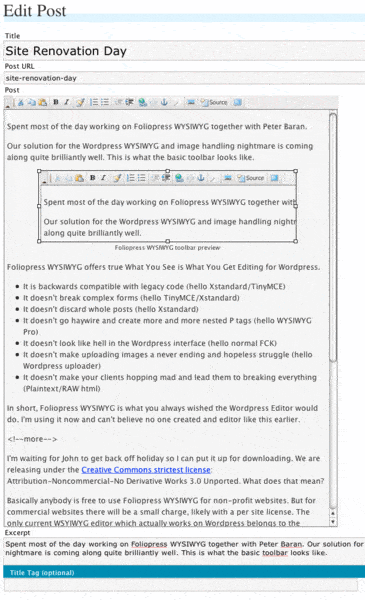
Our solution for the Wordpress WYSIWYG and image handling nightmare is coming along quite brilliantly well. This is what the basic toolbar looks like.


Foliopress WYSIWYG toolbar preview
Foliopress WYSIWYG offers true What You See is What You Get Editing for Wordpress.
- It is backwards compatible with legacy code (hello Xstandard/TinyMCE)
- It doesn't break complex forms (hello TinyMCE/Xstandard)
- It doesn't discard whole posts (hello Xstandard)
- It doesn't go haywire and create more and more nested P tags (hello WYSIWYG Pro)
- It doesn't look like hell in the Wordpress interface (hello normal FCK)
- It doesn't make uploading images a never ending and hopeless struggle (hello Wordpress uploader)
- It doesn't make your clients hopping mad and lead them to breaking everything (Plaintext/RAW html)
- Your drafts look like exactly like your posts will, without having to waste time with a preview function (hello Xstandard)
- You have unlimited standard undo from the keyboard (hello Xstandard)
- Very easy to configure (including site WYSIWYG) (hello Xstandard, TinyMCE, FCK)
In short, Foliopress WYSIWYG is what you always wished the Wordpress Editor would do. I'm using it now and can't believe no one created and editor like this earlier.
Read the rest of this entry »
alec |
WordPress |
August 22nd, 2007
Wordpress is the core of our business and the underpinnings of our Foliopress Publishing System. You will find some very rich resources to this wonderful open source framework on our site.
Contents
alec |
WordPress |
June 20th, 2007
Knowing which template file you are working is the first major hurdle that the designer runs into when working with the php files. This is what a ftp listing of a WordPress theme looks like.
With this labyrinth of various PHP files with similar names, how on earth is an honest designer to know what file he or she should be working? Browsing the front end of the site, you have no idea what you are looking at most of the time.
Am I working on archives.php or archive.php? Is this index.php or home.php?
Well the first thing to do is to open up all the files in the template folder and have a look at them.
Selectable templates which you can choose as a template for your page while editing have this code at the very top of the file:
<?php
/*
Template Name: Archives
*/
}
?>
WordPress needs this unique name to manage your extra templates. Each file with a name like this will be a selectable template in this list when creating or editing a page:
Default WordPress template files (i.e. single.php, page.php, archive.php) don't have that comment and must be present in every theme.
But even this identifier doesn't help you when browsing the site to know which pages are running off each template.
It's easy enough to just drop some html in the source code and it will show up and tell you what template such and such page is using.
But the problem with the simple solution is that everyone who visits your site will see your "Yo - Analysis Template" and wonder why it's there.
There is an easy way to solve this, although it took some searching to find the solution.
Instead of adding just straight text or a paragraph, add this instead:
<?php if ( $user_ID ) { ?><p class="templateinfo">Template = Archives</p><?php } ?>
The ideal place I've found for the identifier code in my templates is between the header and the content block:
After that I apply these styles to the base css file:
p.templateinfo, p.sidebarinfo {font-size: 8px; color: gainsboro;}
p.templateinfo {float: left;}
The sidebarinfo class is there to cover the situation when you have multiple sidebars (Foliovision does). The float left on p.templateinfo may or may not work for your own template. It works great on mine.
In the sidebar files I recommend adding the code at the bottom of the sidebar:
<?php if ( $user_ID ) { ?><p class="templateinfo">Template = Archives</p><?php } ?>
With this done, as you browse your site logged in you will know at all times exactly what file you are looking at. So if you don't like it is a trival matter to go in and make adjustments.
Here's what the end result looks like:
and for the sidebar.php:
You can save up to five or ten minutes confusion per edit with these simple additions to your template file.
And your visitors don't even need to be aware of the under construction signs everywhere.
Setting template identifiers up only takes about ten minutes. They make editing a WordPress template faster and a lot more fun.
alec |
WordPress |
November 7th, 2006
The Foliovision Tools section will include both WordPress and SEO Tools. Currently we are building these tools but some are almost ready and will be launched shortly.
WordPress provides the backbone for this site and all our client sites.
We still have a few stragglers in Blogger and but it's just a matter of time. We cut our PHP teeth on Mambo and wrote our first and perhaps our greatest plugin for Mambo, Embedded Page Menus.
If you are building websites and you don't use WordPress yet, you should.
alec |
WordPress |