Windows XP Home / Pro Run Commands and Short Cuts
How To - Click Start, Click Run (or simply use the shortcut Windows logo+R) and enter the command Click OK
Run commands
IP Configuration
Management Console
Shortcuts
Windows Environment Commands
General keyboard shortcuts
Dialog box keyboard shortcuts
Microsoft natural keyboard shortcuts
Accessibility keyboard shortcuts
Windows Explorer keyboard shortcuts
Shortcut keys for Character Map
Microsoft Management Console (MMC) main window keyboard shortcuts
MMC console window keyboard shortcuts
Remote desktop connection navigation
Microsoft Internet Explorer navigation
Some useful ALT codes
Microsoft Office run commands
Changing permissions of subfolders
accwiz - Accessibility Wizard

c: - C: Drive

calc - Calculator
cfgwiz32 - ISDN Configuration Wizard
cleanmgr - Clean up hard drives
cliconfg - SQL Client Configuration
clipbrd - Windows Clipboard viewer
cmd - Open a new Command Window (cmd.exe)
cmd /ipconfig - Show IP Config
cmd /k hostname - Show hostname
comp - Compare Files
control - Control Panel
control admintools - Administrative Tools
control color - Display Properties (Appearance tab) 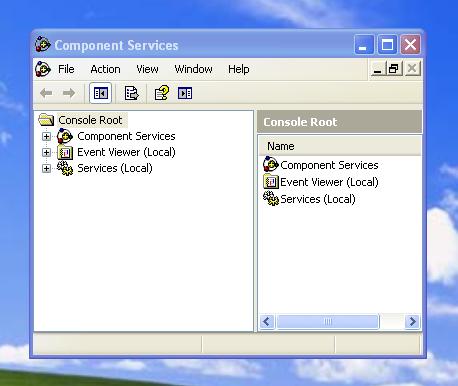
control desktop - Display Properties (Themes tab)
control folders - Folders Properties
control fonts - Fonts
control keyboard - Keyboard Properties
control mouse - Mouse Properties
control netconnections - Network Connections
control printers - Printers and Faxes
control schedtasks - Scheduled Tasks
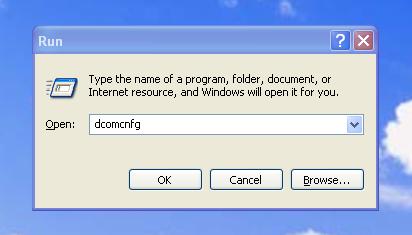
dcomcnfg - DCOM user security
ddeshare - DDE Shares
debug - Assembly language programming tool
defrag - Defragmentation tool
diskpart - Disk Partition Manager
drwatson - Record program crash & snapshots
drwtsn32 - Dr.Watson System Troubleshooting Utility
dxdiag - DirectX Diagnostic Utility
edit - MS-Dos Editor
eudcedit - Private Character Editor
explorer - Windows Explorer
 fonts - Fonts Folder
fontview - Graphical font viewer
freecell - Free Cell Card Game
fsquirt - Bluetooth Transfer Wizard
ftp - ftp.exe program
helpctr - Help and Suppport
hostname - Return Computer's name
hypertrm - Hyperterminal
charmap - Character Map
chkdsk - Repair damaged files
iexplore - Windows Internet Explorer
 iexpress - Iexpress Wizard
inetwiz - Internet Setup Wizard
jview - Microsoft Command-line Loader for Java classes
logoff - Log Out Of Windows
magnify - Windows Magnifier
migwiz - Files and Settings Transfer Tool
mmc - Microsoft Management Console
mobsync - Microsoft Syncronization Tool
moviemk - Microsoft Movie Maker
mrt - Malicious Software Removal Tool
msconfig - Configuration to edit startup files
mshearts - Hearts Card Game
msimn - Outlook Express
msinfo32 - Microsoft System Information Utility
mstsc - Remote Desktop
narrator - Microsoft Narrator
nbtstat - Display stats and current connections using NetBios over TCP/IP
 netstat - Display all active network connections
notepad - notepad
nslookup - Return your local DNS server
odbcad32 - ODBC Data Source Administrator
osk - On Screen Keyboard
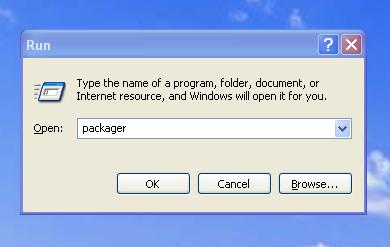
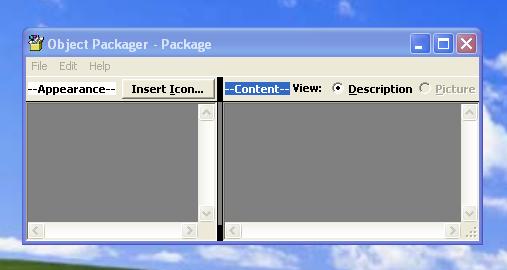
packager - Object Packager
pbrush - Paint
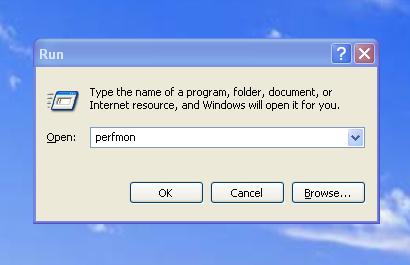
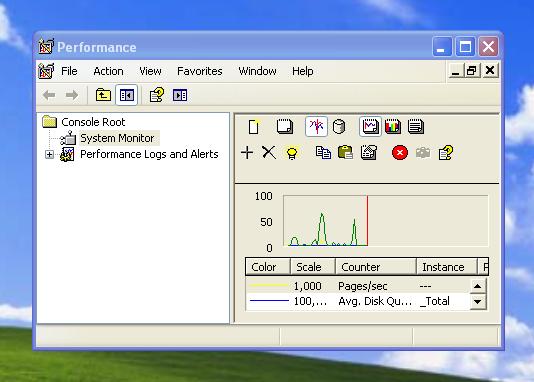
perfmon - Performance Monitor
pinball - Pinball Game
ping - Send data to a specified host/IP
printers - Printers Folder
 regedit - Registry Editor
regsvr32 - Register/de-register DLL/OCX/ActiveX
regwiz - Registration wizard
rtcshare - Sharing Session
sfc /cachesize=x - System File Checker (Set Cache Size to size x)
sfc /purgecache - System File Checker (Purge File Cache)
sfc /revert - System File Checker (Return to Default Setting)
sfc /scanboot - System File Checker (Scan On Every Boot)
sfc /scannow - System File Checker (Scan Immediately)
sfc /scanonce - System File Checker (Scan Once At Next Boot)
shell:recyclebinfolder - Open Recycle Bin
shrpubw - Create a shared folder Wizard
shutdown - Shuts Down Windows
sigverif - File Signature Verification Tool
sndrec32 - Sound Recorder
 sndvol32 - Volume control for soundcard
spider - Spider Solitare Card Game
sysedit - Edit system startup files (config.sys, autoexec.bat, win.ini, etc.)
syskey - Windows System Security Tool
systeminfo - Display various system information in text console
taskkill - Kill processes using command line interface
taskmgr - Task manager
tcptest - TCP Tester
telnet - Telnet program
 tracert - Trace and display all paths required to reach an internet host
tskill - Reduced version of Taskkill from Windows XP Home
utilman - Utility Manager
verifier - Driver Verifier Utility
wab - Windows Address Book
wabmig - Windows Address Book Import Utility
winchat - Simple chat program for Windows networks
winipcfg - Display IP configuration
winmine - Minesweeper Game
winver - Windows Version
wmplayer - Windows Media Player
wordpad - Wordpad
wscript - Windows Script host settings
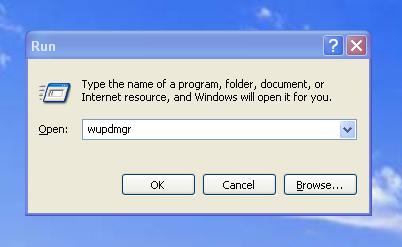
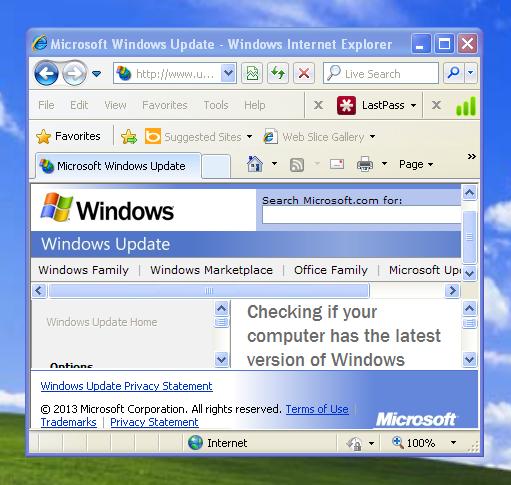
wupdmgr - Windows Update
ipconfig /all - Display Connection Configuration
 ipconfig /displaydns - Display DNS Cache Contents
ipconfig /flushdns - Delete DNS Cache Contents
ipconfig /registerdns - Refresh DHCP and Re-register DNS
ipconfig /release - Release All Connections
ipconfig /renew - Renew All Connections
ipconfig /setclassid - Modify DHCP Class ID
ipconfig /showclassid - Display DHCP Class ID
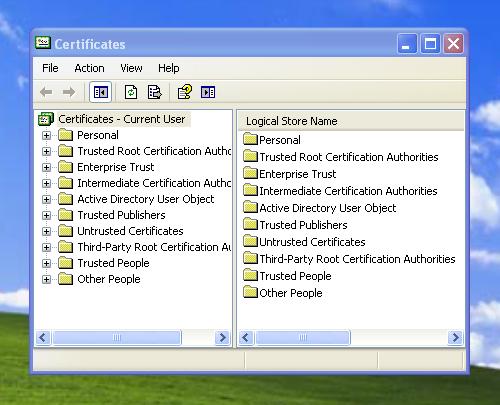
certmgr.msc - Certificate Manager
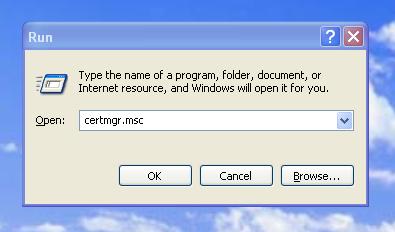 ciadv.msc - Indexing Service
compmgmt.msc - Computer Management
devmgmt.msc - Device Manager
dfrg.msc - Disk Defragmenter
diskmgmt.msc - Disk Management
eventvwr.msc - Event Viewer
fsmgmt.msc - Folder Sharing Management
gpedit.msc - Group Policy (XP Pro only)
iis.msc - Internet Information Services
 lusrmgr.msc - Local Users and Groups
mscorcfg.msc - Net Configurations
ntmsmgr.msc - Removable Storage
ntmsoprq.msc - Removable Storage Operator Requests
perfmon.msc - Performance Manager
rsop.msc - Resultant Set of Policy (XP Pro only)
secpol.msc - Local Security Policy
services.msc - System Services
wmimgmt.msc - Windows Management
access.cpl - Accessibility Options
 appwiz.cpl - Add/Remove Programs
desk.cpl - Display Properties
directx.cpl - Direct X Control Panel
firewall.cpl - Firewall Settings (sp2)
hdwwiz.cpl - Add New Hardware Wizard
inetcpl.cpl - Internet Properties
intl.cpl - Regional Settings
joy.cpl - Joystick Properties
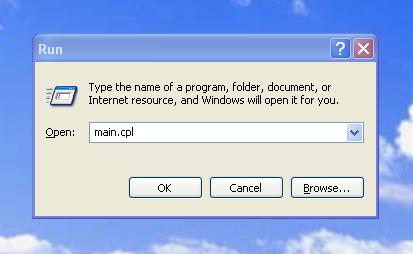
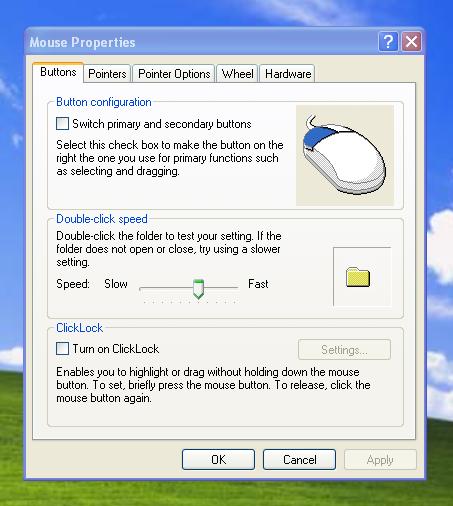
main.cpl - Mouse Properties
 main.cpl keyboard - Keyboard Properties
mmsys.cpl - Sounds and Audio Device Properties
mmsys.cpl sounds - Sound Properties
ncpa.cpl - Network Connections
ncpl.cpl - Network Properties
netsetup.cpl - Network Setup Wizard
nusrmgr.cpl - User Settings
odbccp32.cpl - ODBC Data Source Administrator
powercfg.cpl - Power Management
sysdm.cpl - System Properties
telephon.cpl - Phone and Modem Options
timedate.cpl - Date and Time Properties
wscui.cpl - Security Center (sp2)
%AllUsersProfile% - Open All User's Profile

%AppData% - Open Application Data folder of the logged-in user

%CommonProgramFiles% - Open Common Files directory

%ComSpec% - Display full path to the command processor (cmd.exe)

%HomeDrive% - Open home drive e.g. C:\

%HomePath% - Open user’s home folder

%LogonServer% - Display logon server credentials

%ProgramFiles% - Open Program Files directory (installed programs of Windows and others)

%SystemDrive% - Open the drive where the system folder is placed

%SystemRoot% - Open Windows folder

%Temp% - Open Temporary File folder

%UserProfile% - Open User's Profile

%WinDir% - Open Windows directory
ALT+E - Edit Menu

ALT+ENTER - Display the properties of the selected object

ALT+ENTER - View the properties for the selected item

ALT+ESC - Cycle through items in the order they were opened

ALT+F - File Menu

ALT+F4 - Close the active item/Quit the active program/Bring up power/sleep dialog box

ALT+SPACEBAR - Display the System menu for the active window

ALT+SPACEBAR - Open the shortcut menu for the active window

ALT+TAB - Switch between the open items

ALT+Underlined letter in a menu name - Display the corresponding menu

ALT+V - View Menu

BACKSPACE - View the folder one level up in My Computer or Windows Explorer

CTRL while dragging an item - Copy the selected item

CTRL+A - Select all

CTRL+C - Copy

CTRL+DOWN ARROW - Move the insertion point to the beginning of the next paragraph

CTRL+ESC - Display the Start menu

CTRL+F - Find text

CTRL+F4 - Close the active document in programs that enable you to have multiple documents open simultaneously

CTRL+H - Find and replace text

CTRL+LEFT ARROW - Move the insertion point to the beginning of the previous word

CTRL+P - Print

CTRL+RIGHT ARROW - Move the insertion point to the beginning of the next word

CTRL+SHIFT while dragging an item - Create a shortcut to the selected item

CTRL+SHIFT with any of the arrow keys - Highlight a block of text

CTRL+SHIFT+ESC - Open Task Manager

CTRL+UP ARROW - Move the insertion point to the beginning of the previous paragraph

CTRL+V - Paste

CTRL+X - Cut

CTRL+Y - Redo undone

CTRL+Z - Undo

DELETE - Delete

ESC - Cancel the current task

F10 key - Activate the menu bar in the active program

F2 key - Rename the selected item

F3 key - Search for a file or a folder

F4 key - Display the Address bar list in My Computer or Windows Explorer

F5 key - Update the active window

F6 key - Cycle through the screen elements in a window or on the desktop

LEFT ARROW - Open the next menu to the left, or close a submenu

order that they had been opened

RIGHT ARROW - Open the next menu to the right, or open a submenu

SHIFT when you insert a CD-ROM into the CD-ROM drive - Prevent the CD-ROM from automatically playing

SHIFT with any of the arrow keys - Select more than one item in a window or on the desktop, or select text in a document

SHIFT+ALT - Toggle among installed keyboard languages

SHIFT+DELETE - Delete the selected item permanently without placing the item in the Recycle Bin

SHIFT+END - Highlights from current position to end of line

SHIFT+F10 - Display the shortcut menu for the selected item

SHIFT+HOME - Highlights from current position to beginning of line

Underlined letter in a command name on an open menu - Perform the corresponding command
If you press SHIFT+F8 in extended selection list boxes, you enable extended selection mode. In this mode, you can use an arrow key to move a cursor without changing the selection. You can press CTRL+SPACEBAR or SHIFT+SPACEBAR to adjust the selection. To cancel extended selection mode, press SHIFT+F8 again. Extended selection mode cancels itself when you move the focus to another control.
ALT+Underlined letter - Perform the corresponding command or select the corresponding option

Arrow keys - Select a button if the active option is a group of option buttons

BACKSPACE - Open a folder one level up if a folder is selected in the Save As or Open dialog box

CTRL+SHIFT+TAB - Move backward through the tabs

CTRL+TAB - Move forward through the tabs

ENTER - Perform the command for the active option or button

F1 key - Display Help

F4 key - Display the items in the active list

SHIFT+TAB - Move backward through the options

SPACEBAR - Select or clear the check box if the active option is a check box

TAB - Move forward through the options
Microsoft natural keyboard shortcuts
Windows logo key - Display/Hide the Start menu

CTRL+Windows logo key+F - Search for computers

Windows logo key+L - Lock the keyboard/computer

Windows logo key+BREAK - Display the System Properties dialog box

Windows logo key+D - Display the desktop

Windows logo key+E - Open My Computer

Windows logo key+F - Search for a file or a folder

Windows logo key+F1 - Display Windows Help

Windows logo key+M - Minimize all windows

Windows logo key+R - Open Run dialog box

Windows logo key+SHIFT+M - Restore minimized windows

Windows logo key+U - Open Utility Manager
Accessibility keyboard shortcuts
Left ALT+left SHIFT+NUM LOCK - Switch the MouseKeys either on or off

Left ALT+left SHIFT+PRINT SCREEN - Switch High Contrast either on or off

NUM LOCK for five seconds - Switch the ToggleKeys either on or off

Right SHIFT for eight seconds - Switch FilterKeys either on or off

SHIFT five times - Switch the StickyKeys either on or off

Windows Logo +U - Open Utility Manager
Windows Explorer keyboard shortcuts
END - Display the bottom of the active window
HOME - Display the top of the active window
NUM LOCK+Asterisk sign (*) - Display all of the subfolders that are under the selected folder
NUM LOCK+Plus sign (+) - Display the contents of the selected folder
NUM LOCK+Minus sign (-) - Collapse the selected folder
LEFT ARROW - Collapse the current selection if it is expanded, or select the parent folder
RIGHT ARROW - Display the current selection if it is collapsed, or select the first subfolder
Shortcut keys for Character Map
After you double-click a character on the grid of characters, you can move through the grid by using the keyboard shortcuts

CTRL+END - Move to the last character

CTRL+HOME - Move to the first character

DOWN ARROW - Move down one row

END - Move to the end of the line

HOME - Move to the beginning of the line

LEFT ARROW - Move to the left or to the end of the previous line

PAGE DOWN - Move down one screen at a time

PAGE UP - Move up one screen at a time

RIGHT ARROW - Move to the right or to the beginning of the next line

SPACEBAR - Switch between Enlarged and Normal mode when a character is selected

UP ARROW - Move up one row
Microsoft Management Console (MMC) main window keyboard shortcuts
ALT+A - Display the Action menu

ALT+F - Display the File menu

ALT+F4 - Close the console

ALT+O - Display the Favorites menu

ALT+SPACEBAR - Display the MMC window menu

ALT+V - Display the View menu

CTRL+M - Add or remove a console item

CTRL+N - Open a new console

CTRL+O - Open a saved console

CTRL+S - Save the open console

CTRL+W - Open a new window

F5 key - Update the content of all console windows
MMC console window keyboard shortcuts
ALT+ENTER - Display the Properties dialog box, if any, for the selected item

ALT+Minus sign (-) - Display the window menu for the active console window

CTRL+F10 - Maximize the active console window

CTRL+F4 - Close the active console window. When a console has only one console window, this shortcut closes the console

CTRL+F5 - Restore the active console window

F1 key - Open the Help topic, if any, for the selected item

F2 key - Rename the selected item

F5 key - Update the content of all console windows

SHIFT+F10 - Display the Action shortcut menu for the selected item
Remote desktop connection navigation
ALT+DELETE - Display the Windows menu

ALT+HOME - Display the Start menu

ALT+INSERT - Cycle through the programs in most recently used order

ALT+PAGE DOWN - Switch between programs from right to left

ALT+PAGE UP - Switch between programs from left to right

CTRL+ALT+BREAK - Switch the client computer between a window and a full screen

CTRL+ALT+END - Open the Microsoft Windows NT Security dialog box

CTRL+ALT+Minus sign (-) - Place a snapshot of the entire client window area on the Terminal server clipboard and provide the same functionality as pressing ALT+PRINT SCREEN on a local computer.

CTRL+ALT+Plus sign (+) - Place a snapshot of the active window in the client on the Terminal server clipboard and provide the same functionality as pressing PRINT SCREEN on a local computer.
Microsoft Internet Explorer navigation
CTRL+B - Open the Organize Favorites dialog box

CTRL+CTRL+P - Open the Print dialog box

CTRL+E - Open the Search bar

CTRL+F - Start the Find utility

CTRL+H - Open the History bar

CTRL+I - Open the Favorites bar

CTRL+L - Open the Open dialog box

CTRL+N - Start another instance of the browser with the same Web address

CTRL+O - Open the Open dialog box, the same as CTRL+L

CTRL+R - Update the current Web page

CTRL+W - Close the current window
Some useful ALT codes
ALT+0145 - Open curly single quote
ALT+0146 - Close curly single quote
ALT+0147 - Open curly double quote
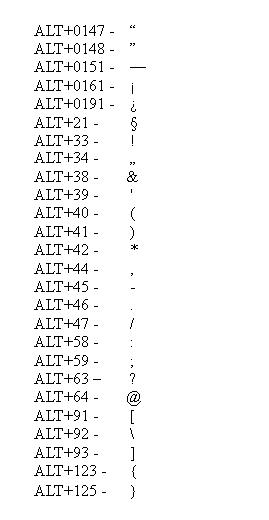 ALT+0148 - Close curly double quote
ALT+0151 - Long Dash/Hyphen
ALT+0161 - Inverted exclamation mark
ALT+0191 - Inverted question mark
ALT+21 - Paragraph
ALT+33 - Exclamation mark
ALT+34 - Quotation mark
ALT+38 - Ampersand
ALT+39 - Apostrophe
ALT+40 - Open bracket
ALT+41 - Close bracket
ALT+42 - Asterisk
ALT+44 - Comma
ALT+45 - Dash/Hyphen
ALT+46 - Full Stop
ALT+47 - Slash
ALT+58 - Colon
ALT+59 - Semi-Colon
ALT+63 - Question mark
ALT+64 - @ sign
ALT+91 - Open square bracket
ALT+92 - Backslash
ALT+93 - Close square bracket
ALT+123 - Open curly bracket

ALT+125 - Close curly bracket
Note Some keyboard shortcuts may not work if StickyKeys is turned on in Accessibility Options, Some of the Terminal Services client shortcuts that are similar to the shortcuts in Remote Desktop Sharing is not available when you use Remote Assistance in Windows XP Home Edition.
Thanks to The New Tech for the original forum posting.
Microsoft Office run commands
If the Microsoft Office is installed you can use following run commands to run its components:
winword – Microsoft Word
excel – Microsoft Excel
powerpnt – Microsoft PowerPoint
msaccess – Microsoft Access
outlook – Microsoft Outlook
ois – Microsoft Picture Manager
Changing permissions of subfolders (more advanced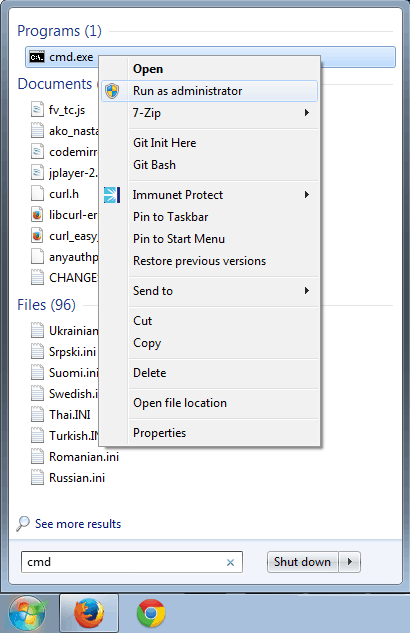 )
)
Run cmd, set up path to folder where you want to change permissions and execute this command:
CACLS * /T /e /p User:F
Explanation:
T – recursive
e – edit
p – set permission
User – user to whom you want to change permissions
F – full control
Note: If you are on Windows 7 or higher you need to Run cmd as Administrator (see image)


good utility
How to send a file “deletion” command through Run Command?
I don’t think that it’s possible to delete files via Run Command. You probably will need to use Command Prompt (cmd in Run) and there you just type “del filename”. If filename is with white space (e.g. Program Files) use double quotes (“”) to encapsulate the filename.
These are very useful commands. Thanks.
i think to delete a file from the run box you can if you like cheat by trying cmd.exe /k del filename /q i hope im right and that it helps
Does anyone know how you setup new commands in the Run menu?
ie. you can type “firefox”, “winword” or “excel” into the Run box and the applications open, but others won’t.
There must be some way of linking applications with this path, maybe in the system registry?
There’s no firefox.* files in my system path directories: Path=C:\WINDOWS\system32;C:\WINDOWS;C:\WINDOWS\System32\Wbem;C:\Program Files\Subversion\bin;c:\Program Files\Microsoft SQL Server\90\Tools\binn\
Does anyone have any ideas?
Thanks
Hello Glenn,
it’s quite simple. All you have to do is add a new key into Windows registry under
HKEY_LOCAL_MACHINE\Software\Microsoft\Windows\CurrentVersion\App Paths
with name of the command with .exe at the end. Into this key create a new string variable named “Path” and put as value path to directory with your executable. To a “(Default)” variable insert as value path to executable.
Now just type name of your command (can be without .exe at the end) and enjoy. You even don’t have to restart the computer.
This each every lines are helped me thank u
This is awesome, thanks very much.
thanxz
Really gr8 work done!!!! Thnx
I was searching for Xp shortcuts. Luckily i got all the shortcuts in single place.
That was superb n nice..
great going..
Anyone Know The Key In Command To See Everything Ever Done On Your PC
thanks
Hey Peter …… thanks for that !
thanx…really which is usefull
thanks a lot for these commands.
what is the run command to open out look express
Thank u, all the commands are so good. If any new commands related to Unix and any windows related please send to the above mentioned mail.
Thanks!
There are two important commands those are not listed in foliovision.com/seo-tools/computers/windows/xp-run-commands/ . They are Winchat.exe and Cmd>Systeminfo . Thus, the list is incomplete. Thank you!
This is the most useful thing I’ve ever found on net……….Thanx Pal
is there a “Run Command” code that allows to instantly shut every program that is running?
Hello David,
use taskkill.
taskkill /?
will get you all the information. You can create all kinds of selections using /FI filters specifying which processes will be killed.
It’s hard to create a rule which will kill all the processes and not kill your whole Windows, though.
This feature does not apply to Windows XP Home. You have to use more simple tskill there.
Use it carefully! M.
Thanks – you helped me find my Character Map!!
Thanks – you helped me
Sweet list. Thanks!
Is there any “run command” to open Interner Explorer.
Hi Naresh,
I tested this one on IE6 and IE7:
“C:\Program Files\Internet Explorer\iexplore.exe”
Don’t forget to include the quotes.
Thank you, M.
Does anyone know how to run the setup file for a CD if it doesn’t run automatically?
Thank you very good compilation
what it is shortcut for the office components such as word, excel,etc…..
Hello Morris,
you can run Microsoft Office components by following run commands from command line:
winword – Microsoft Word excel – Microsoft Excel powerpnt – Microsoft PowerPoint msaccess – Microsoft Access outlook – Microsoft Outlook ois – Microsoft Picture Manager
Thanks
Hello Chris,
you can run a setup file manually. You have to right click on cd(dvd)-rom in MyComputer and then click “Open”. Then you have to find a setup file.
You can also click “AutoPlay” to execute autorun, when you right click on the cd(dvd)-rom. If autorun doesn’t work, you have to follow steps on support.microsoft.com/kb/330135/en-us for turn-on the AutoPlay feature.
Thanks
hola a todos..
muy bueno el contenido..
saben me gustaria saber los comandos de control de volumen(aumentar, disminuir, mute, etc…), me pueden ayudar …??
gracias…
Hello Pedro,
Windows doesn’t have any mechanism to control sound volume by commands or key-shortcut.
You have to download program for this issue. Here two program, which can help you: mute.exe setvol.exe Mute control: You can switch on/off sound by command:
"<mute.exe location>\mute.exe"Or you can switch on/off manually by command:"<mute.exe location>\mute.exe" on"<mute.exe location>\mute.exe" offSound volume control: You can set from 0 to 100 per cent of sound volume by:"<setvol.exe location>\setvol.exe" 50(This example set system sound volume to half) And finally You can increase or decrease volume by:"<setvol.exe location>\setvol.exe" +10(increase sound volume by 10%)"<setvol.exe location>\setvol.exe" -10(decrease sound volume by 10%)Key shortcuts: I recommend to create three shortcuts with targets:
"<mute.exe location>\mute.exe""<setvol.exe location>\setvol.exe" -10"<setvol.exe location>\setvol.exe" +10You can set key-shortcuts in properties of each shortcut. Shortcuts have to be placed in startmenu or desktop, otherwise they won’t work. You have to be careful in choosing key-shortcuts, because if another program uses your key-shortcut, your shortcut won’t work. If desktop shortcut is a shortcut to another shortcut, its key-shortcut won’t work too.You can also try another way for mutting sound volume by using a script. The method is described at the bottom of page pcreview.co.uk/forums/thread-1468591.php.
I hope, that the information will be useful.
Thanks
Also, add odbcad32.exe for the ODBC Data Source Administrator.
[MARKED AS SPAM BY ANTISPAM BEE] hola busco la manera de enviar por mi propia red local el comando run a otros equipos para que ejecuten ciertos programas o conexiones a un equipo en particular ej.:
\AnotherLanPC
y que vea los compartidos por ese equipo.
hi there i’m looking the way to send the run windows others pcs over my lan like
i pc1 send run windows to pc2 this way pc2 can c what i’m sharing
is this possible?? i can’t find the filename for windows run.
\pc1
Hi Xdc,
We don’t exactly know what do you mean.
If you want to run windows from another computer from via your LAN, you can use WOL (wake on LAN) feature, which have to be supported by network card and motherboard. The feature allows to you wake up (when a computer is in hibernate state) or power on (when a computer is power off) via LAN. You have to download a WOL software for control the computers. There are many free WOL software on the Internet.
The software needs some information (e.g. MAC address) to control power on or wake up computers.
Thanks, Matej
Thanks for reply Matej
the Question is, i’m in a college and i’m teacher i want to send students the run windows with the address of my shared folder e.g. \TeacherPC and this run on every pc in class.
thx in advance. sorry about my english i’m chilean and just try to type your language hehe.
Hello Xdc,
I think, that I finally undarstand your problem.
You want to open the file manager windows on remote computers, you don’t want to run Windows OS there remotely.
You can open window with path by writting a path to the run area in start menu or by writting command:
explorer <the path>. Problem is, that it works only on your local computer.You have to download the program for remote program execution. You will need the same admin accounts on remote computers with simple password. The admin users may not be logged in remote computers when you will want to run applications remotely. You have to cheat a little bit, because when you will run explorer with path, no window will appeared. You have to run Internet Explorer with path. Here is command, which you have to write to command line:
"<psExec_directory_path>\psexec.exe" -d -u <remote_adminUser_name> -p <remote_adminUser_password> -i <remote_computer_name(or comma separated names)> "c:\program files\internet explorer\iexplore.exe" <Window_path>When you won’t use the switch -p with the password, then it will be requested from you after executing the command.
Here is an example you can use:
"C:\Documents and Settings\Teacher\My Documents\PsTools\psexec.exe" -d -u adminUser -i \Student_1 "c:\program files\internet explorer\iexplore.exe" \Teachers_computerDon’t forget the quotes!
I hope, that I helped you.
Thanks, Matej
hey Matej i’ve forget about pstools. i has used it before thx to remember me about it, thx for quick replies and for examples.
Hello rick,
thanks for suggestion, it’s added.
here is another i use often.
control userpasswords2
isn’t listed here.
The information from “peter at November 28th, 2008 around 2:04 am” was very helpful.
Thanx buddy
tell me how a password can be give to a folder.
Hi wajid,
here are three methods how you can protect your files and folders by password.
You can use Windows encryption tool to protect your data. Encryption tool uses key, which is generated based on your account information. This method is very useful only in multi-user environment as you will never be asked to enter password.
You can use Compressed folder by either Windows tool or third party archiving programs. In this case you will be always requested to enter password. However if you use windows tool, you can’t encrypt file names (you will see all files in protected folder, but you can’t open any file in it without password). If you want file names encryption, you should use third party archive program (e.g. 7zip, Winrar).
You can use special software for access control to files and directories (e.g.Folder Password Expert or Protect Folder).
Thanks, Matej
What is the command for system restore point? rstrui.exe is not working in run.
Hello Arvind Sinha,
you have to write it with absolute path:
%systemroot%\system32\restore\rstrui.exeThanks, Matej
i’ve learn a lot in this site. than you for that.. but may i ask if what is the shortcut ky in run command for Microsoft Word. :)
Hi Neil,
the answer is here.
Thanks, Matej
Hii
Its very useful
Thanks
sandeep patil
thanks a lot for help
This is very use for me. I’m very lucky to get that shortcut commands. I’ll thank you very much.
why will we get information of network connections? plz send me the answer..!!!
Hi Muddussir,
you can use
netstatcommand. You will find more information about that command on this page.If you want to know more about network command you can look here.
Thanks, Matej
how can I reach in history folder through Run command?
thanks in advance
Hello Rahul,
you must write
cd %USERPROFILE%/Local Settings/Historyto command line.%USERPROFILE%is environment variable, which loads user’s profile folder (e.g. C:\documents and settings{logged user name}).Thanks, Matej
Can any body tell me what the run command key word for remotely accessing PC through LAN. I forgot it it was “ms….” something… help me reminding it thx
Bhupendra
Hi Bhupendra,
I suppose that you meant
mstsc(remote desktop application).Thanks, Matej
On single site I got all the shortcut commands of system that’s great
hallo sagar
These are very useful commands. Thanks
Do not forget wmic, one of the more powerfull tools.
Me love wmic :D
Thank you very much I have got big help
It’s very usefull list of commands and I find a lot of interesting here. But could you help me? I need to run Firefox with known url, and then I need to export data from firebug (I think that I will use NetExport extension in this case). Is it possible at all? Probably my question is too complex, but I really need your help.
A good utilization of time, reading this.. I believe it would help me save time while working with my PC…
Here we spend less time to save more time
hi this is amazing and helpful for all
Thanks man.
I wanted to disable many unwanted process to be loaded at booting time. But I forgot the command I used to execute. You helped me to find that.. ( msconfig :-) ) This could be a good reference for many. Keep posting such useful info.
Thank you very much
how to clear temp configuration?
Hi abc,
try to run MS Disk Cleanup utility which can be executed from command line by
cleanmgr.Thanks, Matej
Very useful commands
Thanks
Hi, I am new to using the cmd terminal. On the computer I’m on at the moment, when I open the terminal the cursor appears following the text C:\Documents and Settings\User> I’m not sure what to call this, my default location?directory?filepath?environment? In any case, I tried some of the commands I have seen on this page. A lot of them don’t seem to change my “location” so that after trying the command I can just try another one. But some do. For instance, after using nslookup it returns my cursor to a newline simply following the text > Now if i try another command such as hostname, it doesn’t work giving me an error message saying hostname is a non-existent domain. Also, the command wmic someone mentioned (what is that) takes me to a different prompt. So far the only way I have found to get back to my original prompt (by hitting all the function buttons) is f6 which brings up the text ^Z and when i hit enter it returns me to my original prompt. However if i try typing this text manually including the capital z, even though it looks exactly the same, it doesn’t work! Why is this? Can someone help and/or direct me to a good website that explains the command terminal usage in more detail? Also, is there no copy/cut/paste in the terminal? I was trying to highlight text with ctrl-shift and arrow keys for copy paste but it doesn’t seem to work.
Thanks in advance.
Hello j,
CMD starts in your user profile directory (C:\Documents and Settings\User).
For simplicity, sometimes when you run a command through CMD( e.g.nslookup) can await user inputs (it should look like in your case “>”) If you want to use CMD again, you have to finish command (e.g. nslookup), which can be done by command
exit(command exit is supported by nslookup), pressing ctrl + c or sending special character(^Z) by ctrl + z (this is the same as you did with F6). Try to usehelpwhen you are not sure.If you want to copy some text from command promt just do rightclick and choose Mark from menu, then highlight text which you want to copy and press ENTER key. Then you will have your text in clipboard. If you want to paste some text, choose paste from rightclick menu.
Thanks Matej
This is very helpful for me and save very much time.
When i am use run commands in run dialog box that commands have saved permanently.
Can u please tell me how to clear command history in run command dialog box
Cnd Hardware Engineer Hyderabad
Hello Cnd Hyd,
you should use
ALT + F7key combination.Thanks, Matej
these are very usfull shortcut keys thanks for made this web side thank you once again boss
Great set of commands. Every now and again I have to look up a run command or something else. This site has proved invaluable. What’s even more impressive though it how long you have kept the updates going. Kudos – and keep up the good work.
thanks for the info.it helps me a lot thank u dude.
Thanks for these shortcuts key. These are very usefull in working with windows xp.
rk sharma
its very good it helps me a lot.
Hi
I frequently go to the run dialog and type the command “telnet abcd” (abcd – just for an example).
Now is there any way to set a short cut icon directly for that command? I understand that we can set a short cut icon for cmd prompt, but I dont know how to set a shortcut directly for a specific command..
Hello Pradeep,
you have to change path in target section of the shortcut according following pattern:
<Windows Folder>\system32\cmd.exe /K <your command>, thus<Windows Folder>\system32\cmd.exe /K telnet abcdin your case.Thanks, Matej
Very very Good & Useful keys for all types of Computer Operator.
When I open a shortcut, say to run eclipse, Windows always opens a cmd window to launch the app, and the window always hangs around.
Some of my shortcuts don’t display this behavior, and I can’t tell why one does and another does not.
But it would be nice if the shortcut window would immediately close after it launches the app. Is this something I can control?
Thanks!
Some of my shortcuts don’t display this behavior, and I can’t tell why one does and another does not.
Hello Tom,
I have never noticed this behavior yet. Give me more information:
Thanks, Matej
hi, all commands are useful but, some of the commands doesn’t work in windows xp sp3 such as(cfgwiz32,fontview,regewiz, sfc/scannow, sndvol32,iis.msc, mscorcfg.msc, ncpa.cpl, wscui.cpl). & what is shortcut key and run command for Close the active console window in windows xp sp3 if anybody known these specific command please tell!
I was always waiting for windows to prompt me to clean up my temp files, etc. That one simple command in your list:
Cleanmgr – Cleans up hard drives
Works great and is a big help!!
Thanks very very much Paul
Do you know of a way to have your run history go with you to another pc? Im a network tech and I use a variety of commands all the time, I hate having to retype them each time on a computer I have never been to or that has had the history erased. I want to make it where it comes with me to whatever PC i am on in the network. I know that I can export the reg file for RunMRU and i can merge it successfully to another pc but I want a logon script or something that does it for me. does anyone have any ideas or maybe ur good at writing scripts? I would appreciate any help in this matter, btw matej this is a wonderful thing you have done here and I for one appreciate it a lot. I use many of these cmds but i use WMIC cmds most often. you should show a few of them in this post aswell. at least the none destructive ones lol.
when I click start run dialog box does not show, how to create the run dialog box?
@frentz
You can hold down the flag key and hit R.
Hello Jon Paul,
I don’t know whether I can help you. I don’t have big experience with writing scripts.
You can try to write your own script. Here are some examples how can you work with registry items through VBScript language.
You can also try to import your exported RunMRU key via network. Just open registry editor and use “connect network registry” option.
Thanks, Matej
Thanks matej I will look into the connect network reg option but I will probably have to do this manually for each PC i log into since I dont know from moment to moment which PC i will be working on. the vbscript option might work ill try that and post what happens later. Thanks for the response.
Hello frentz,
if run option is not shown in start menu go to “Taskbar and Start Menu Properties” then “startmenu” and click on Customize button. Make sure that “Display run” option is checked.
Thanks, Matej
this is very userful for me……thanx
very useful shortcuts.. thanks
Do you know the command to put at the end of a shortcut I create so that it automatically enters the password without stopping for me to do it.
I need something to put at the end of this string to launch Rightfax under out ATLADMIN account so it wont prompt for the password each time it’s opened.
C:\RightFax9.3client\Client\fuw32.exe -uatladmin
It was very useful, thanks.
Hello Jennifer,
it depends on whether the program (fuw32.exe) allows you to put password during of its execution.
I would like to help you, but I couldn’t find any documentations about the program.
Try to execute the program from commandline by following way:
C:\RightFax9.3client\Client\fuw32.exe -hYou should see list of parameters of this program. If you find password parameter then you can execute the program with it and your password.If it doesn’t work please contact RightFax support.
Thanks, Matej
Thank you very much I have got big help and this is very userful for me……thans for lot
thx for the info, very useful even if its a three year old post ;)
Hello, I am mohd shuja and very thankful to you.
But I have some questions to you please solve them:
When we delete any data from the recycle bin it can be revered by data recovery, I want to delete it permanent using run command. I don’t want to use softwares like eraser etc.
How to find all the username and password of my system’s folder,data etc.
Thanks
I was always waiting for windows to prompt me to clean up my temp files, etc. That one simple command in your list:
Cleanmgr – Cleans up hard drives
Works great and is a big help!!
Thanks very very much Paul
Hi,very good and useful shortcuts .And i have a small question, shall all these shortcuts work in windows7?
Hello Mohd Shuja,
I didn’t understand your second question, but I can help you with the first one.
You can use
cipherprogram, which is normally used for encrypting/decrypting files, but it has one special feature which allows you to write zeros on desired data. Use following syntax to remove file permanently in commandline:cipher /w:[Path]Replace[path]with directory or file which you want to remove, but remember that it can not be restored.Thanks, Matej
Hello ganesh,
I think most of them yes, but not the all.
Thanks, Matej
Dear matej sir, In windows XP Turn off option sometimes gets changed like shutdown. and when windows starts open it asks like Administrator password, and then i click below the option OK, then windows desktop opens?!!! do you have any solution.
its really very nice article and thanks a lot
Hello Riyazul,
my opinion is that you probably have some kind of malware software which removes classic turn off options from start menu (through windows registry)and adds its own turn off option (instead of the classic turn off options). The login window asking you to fill administrator password is probably fake. I would run antivirus software in your place.
Thanks, Matej
Thanks of lot for almost all run commands
Thank’s, I have learnt even more commands, so much easier when you know shortcuts! :-)
Re Riyazul on 14th September. I get that box on resuming from hibernation, telling me my user name is locked and to put the password in. But I have no start-up passwords and clicking OK lets the computer continue. This behaviour started after I cancelled some unwanted auto-start programs, does not happen on a complete start and I don’t think is malware. I just put up with it. One more hit on the Enter key is bearable!
thanks this helped me a lot for my exams and competition.
Its realy great utility….. Its help me a lot Thnx
One more thing i just want to ask is… How to run remote(windows xp)system, any excutable file through another windows xp system(both system are in network).
Thnx
how to get the remote system from mobiles vs system
Can anybody tell me what the run command is so that I can see all IE history with detail
veey nice thanks for these shortcut keys and run commands it is very useful veery thanks
How to copy & paste a file from command prompt?
With Netsh.exe you can easily view your TCP/IP settings. Type the following command in a Command Prompt window (CMD.EXE):
Eg: netsh interface ip show config
To Configure your interface
Eg: “netsh interface ip set address name=”Local Area Connection” static 192.168.0.100 255.255.255.0 192.168.0.1 1″ ***(The following command configures the interface named Local Area Connection with the static IP address 192.168.0.100, the subnet mask of 255.255.255.0, and a default gateway of 192.168.0.1:)
Hi,
Really useful to all those who have to reduce their times.
veey nice thanks for these shortcut keys and run commands
Thanks Brother it is Good and Very Good. From India Andhra pradesh Hyderbad
hi pleas show shortcut command for passwording a document
Great list of commands…will definitely bookmark this one 8)
I was on a PC running Win XP with 1 local application running and 2 Remote Desktop sessions open. I fat fingered some keys and my screen displayed the 3 as separate windows (each in 1/4 of the screen) on the basic wallpaper background with none of my icons showing. It was like I had 3 separate desktops on my screen. Do you know the shortcut keystrokes that might make this happen. It seemed useful but I can’t duplicate it. Thanks in advance.
hey good codes but is there one to open a locked folder my sons got this locked folder in a strange hidden place im intrigued at why hese gone to such lengths to hide and i asked him about it and he denies it exist even though it saids it was made by him on properties please help
my task manager has been disable by computer how can I fix this problem….
@sudeep
You don’t have enough rights to do this. If you have enough rights you can try to use: Start –> Run –> Gpedit.msc –> User Configuration –> Administrative Templates –> System –> Ctrl + alt + del options –> Then disable the following gpo: “Remove Task Manager”
Can you please tell me what is a comand for restore windows in windows 7
Hi,
How can I change BIOS password from run? I need runcommand. I’ve changed. But I’ve forgotten that keyword. if someone knows please let me know. my e-mail address: elvin488@mail.ru
im having problem with my system. when i click on folder it shows “access is denied” error. anyone can tell me how to solve this problem.?
hi
The information you people given in your web, really really helpful for all the professional of IT, you people do nice job.
I have a problem in window xp
I want to use RUN Command but the RUN icon not show in the the start menu…….
please give the solution, and once again great job you people do yaar
Thanks waiting for your reply
hi The information you people given in your web, really really helpful for all the professional of IT, you people do nice job. I have a problem in window xp I want to use RUN Command but the RUN icon not show in the the start menu……. please give the solution, and once again great job you people do yaar Thanks waiting for your reply
@Majid: you can’t. But if you need to reset it, you can take the battery out, wait a few minutes and put it back in, your bios and your password will be resetted.
@aryan. You should take ownership on that specific folder and everything in it. Follow this tuto: tipandtrick.net/2008/how-to-take-ownership-and-full-control-permissions-of-files-and-folders-in-vist…
You should be able to access it afterwards. This only works if you have administrator rights.
@KK: See the following website.
pcsupport.about.com/od/fixtheproblem/ht/systemrestorecp.htm
While testing all above shortcuts in Management Consoles iis.msc is not working..!
I tried with inetmgr it works for me..*
Thanks for everything.
Hi Yogesh,
You can configure it somewhere at rightmousebutton at taskbar and then properties.
Customize menu.
But if you want it quick, just push the flag (windowsbutton) + R to show it quickly.
The run commands are very useful and this can prevent the use of mouse to some extent.
Usually we switch IP’s using LAN settings in IE. IE->tools->Internet options->Connections->Under proxy server(Lan settings). Run Found: control inetcpl.cpl,connections,4
But this will open till IE->tools->Internet options->Connections only.
Can you give me the run command to open Local Area Network(Lan) Settings window directly from run.
ncpa.cpl
Hi All. Can any one help me to see, from run which operating system \, I am using \, so that I can know.
thanks dude
Amodh;
Can any one help me to see, from run which operating system \, I am using \, so that I can know.
RUN >. just type– winver
Amodh,,
You can use win logo key + Pause break..This will give you details about the OS..
Not sure how to get it from run command.
guys i forget my administrative pass..how can i find that…if anybody knows then plzz help me
My computer switches on but can not display anything on the screen even though the screen is on and the computer fans are running. What could be the problem and how can I solve it
Does anybody know the purpose of ctrl+@ or ctrl+2 (not numeric keypad)? It returns More?.
it work on web browser(Firefox or chrome),when two or more tabs are open for eg: if u have open 7 tabs u may go to each tab via ctrl+1, ctrl+2, ctrl+3, ctrl+4,ctrl+5, ctrl+6,ctrl+7
I didn’t mean in a browser, just in cmd. I can’t find any reference to it.
Hi. Thanks for your valuable replies… it pretty commendable. one more issue :
i have window server 2003 enterprises edition and client on window 7 ultimate 32 bit
when i authenticate the server from client i.e \192.168.4.80 i found the issue of credientials error is logon failed….try another user
pls help me how to connect
Thanks
I can’t believe this page is still running after four years. Big thanks to all contributors (especially Matej who contributed much for so long.)
thanks a lot.useful information.
Thanks SB.
I’ll have someone on our team look through and update some of the tips and put them in the main document.
I’m the Apple guru (although I loathe the new Apple who wants your credit card details, your cellphone number, your music library, your contact list) around here but can’t help too much with Windows.
PS. Matej is off testing anti-virus software full time for ESET these days.
Hello,
I have a created a shortcut key name test.exe with parameters as follows:
C:\WINDOWS\system32\cmd.exe /k cd D:/Project
however when I run test, I am getting error “Windows cannot find test”. If I remove /k cd D:/Project, then it works fine. How can I resolve this issue? Thanks
if you want to have a software run from command prompt make a shortcut of it in the one of the path, or create a folder, add to the path list and place your shortcuts there for examples, if you want to run soldier of fortune from the start box, create a shotcut to the exe file in system32, name it SOF(it will have the lnk extension), and open the start run windows and type in “sof”(without quotes). one of the first things i was interested in during my mcp :)
let me know if you have questions about it.
Roy
My Remote Assistance {not Remote Desktop}, is not working. I have Windows XP SP3, I think the problem began after my computer was updated to SP3. I’ve tried all three ways to send an invite {I really want to save as file}, I can get to the Invite someone you know, set the length of the session, password etc…but when I click on “Save Invitation” button I get a pop up error, saying: “Message from webpage, A program could not start. Please try again”. Is there a run command for that..or how to fix it. I also noticed that my “Security Center” is not on, Windows firewall won’t open ” Due to an unidentified problem, windows cannot display windows firewall settings. Any advice would be appreciated. Thank You
Reamte desktop ka zamana was gone … use teamviewer software its very easiy to take remote
i need to find that how i can open winword from other shrtcut in run.
like if i write in run: asim, nd open winword.
@fawad: Open run and type: ‘Winword’ without ‘ then press ok. It will open word.
@Debra: Like Siraj Says, use something like teamvieuwer or http://www.join.me
Thanks for your help
this is very very useful to every one to learn shortcut keys.
good thing almost all the shortcuts are mentioned
very useful shortcuts
i know computer history run command
How to start/ stop Default SMTP virtual server in Inetmgr using command line.
Thanks in advance!
Very useful information. Thanks !!!!
very useful information & very important ….. well done thanks
Best list I’ve ever seen. The posts are also very useful. I appreciate it all. Thank you.
Awesome explanation about run command.. It’s useful for all basic learners…
Thanks……
please tell me how to install office remotly
Chris 8 February 2010 at 8:27 pm Does anyone know how to run the setup file for a CD if it doesn’t run automatically?
Answer:
;Rename this file autorun.inf to autostart with the CD / DVD drives ;After renaming, some anti-virus can detect the virus by mistake!
[autorun] OPEN=”FileNameOfSetup.exe”
prashanth 10 May 2013 at 7:23 am (Edit)
please tell me how to install office remotly
Hi prashanth,
here is a wonderful step-by-step guide with pictures. Hope it helps!
Champakali 19 March 2013 at 7:48 am (Edit)
How to start/ stop Default SMTP virtual server in Inetmgr using command line.
Hi Champakali,
you could try these run commands: sc remoteserver start smtpsvc / sc remoteserver stop smtpsvc.
I think the driver for my Sandisk has been “misplaced”. Hope you can help, or offer direction:
I’m using a 2GB Sandisk SDHC card with my older digital camera. I can’t download photos properly (with their info., i.e., HP number sequencing for each photo (HPIM6274.JPG); details for each photo (date and time photo taken, etc.)
It used to work great, but PC won’t recognize now. Works on my friend’s PC just fine. I have a card reader stick, and my PC also has a reader slot, but both don’t recognize Scandisk card.
Thanks for any support,
Karen
Hi Karen,
checking out the password protection or the physical switch on the side of your card probably won’t help if it works on another PC, so I’d suggest taking a look at these two pieces of advice provided by the Sandisk support:
detecting your device and formatting your device.
Regards,
Michal
hello, my search “thru clicking start then search” in windows xp no longer runs, what is the command to type in the run box to execute windows search?
what is the command to type in the run box to execute windows search?
How can I turn off print dialog box when I print from IE8 webpage. I want to disable for a Kiosk. thanks.
Hi Jonathan, Hi sabaattitude,
the fastest way of executing windows search is either the function key F3 or the hotkey Windows logo key+F.
Hi Robert,
please take a look at this guide. Hope it helps!
thank you!!! very useful command..
Hi,
A very useful site, many thanks. One query please, is it possible to turn off (toggle) the LAN connection with XPSP3 from the keyboard.
Hi Peter,
we’re glad you like it. I think Windows logo+R and then ipconfig /release should do. The command ipconfig /renew enables the connection again.
This is useful for all, thank you very much.
Hi Buddy…!!! It’s an awesome list of shortcut keys and ya i like it very much (Y)
I need to find out the specs. of my sound card : 96khz? 192khz? 24bit capable ? Does anyone know the cmd line for sound card specifications? Thanks.
Dose any one know how to change the icon of local disk ? pls help me¤
thanks for these shortcut keys
Can ne one help me with this problem.Whenever I type history in the run command I get this error message”Windows cannot find ‘history’.Make sure youtyped the name correctly,and then try again.To search for a file,click the start button,and then click search.”Please help me to fix this problem.My OS is winxp(Professional) sp3 32 bit .Thnx in advance
Dear Bashir, if you are looking for Command line history, open cmd prompt and type: , it ll give you the history of the commands you used. there is no History command available in dos command. or please give us more details about what history your are looking at
dear brother.
thanks for support that run command is easy to operate any system. so best of luck to u. and many more thanks for your run commands.
thanks for all commands
please can you help me with a problem? I’m running Windows 7 Pro. when i use the RUN command and systeminfo, i do get the box come up and it starts to scan and then the box disappears.? Is there any way to keep this black box on the screen so that i can read the info provided, please? Many thanks in advance
thanks for all commands then this is very usefull tome…………
thanks for all commands and utility
try it W-logo+R and type
control userpasswords2
Excellent and comprehensive set of shortcuts. Thanks!
very very good.
Excellent and comprehensive set of shortcuts. Thanks!
With shortcut “Alt + Print Screen” is possible to take a screenshot of active window Is exist shortcut to take copy only of all text in active window(when active window is popup window with error or information message )?
Is there a shortcut in cmd to run web browsers? e.g. IE, chrome, firefox, safari..
thank you
The command “inf” produces a list of Precompiled Setup Information and Setup Information. What is this stuff?
the fastest way of executing windows search is either the function key F3 or the hotkey Windows logo key+F
Hi,
How to open cutePDF professsional from run command?
thanks for providing this useful cmds
Is there a way to spawn or trigger an application from a clipboard event?
thanks
pls how do i run this on my system. (Run a CMD (as administrator) and locate to desktop (use ‘cd‘ command, ‘/?‘ to get the command help) am not a programmer so am not good at doing it can u pls explain it to me .
I would like to create a desktop icon on XPSP3 that runs SFC /SCANNOW on click.
I prefer run commands over other ways as it seems faster to me. Here are some run commands which I use daily for opening various windows applications . On screen Keyboard – osk Calculator – calc WordPad – write Windows Media Player – wmplayer Windows Fax and Scan – wfs Snipping Tools – snippingtool Paint – mspaint Notepad – notepad Task manager – taskmgrt/ Sticky Notes – stikyno
I prefer run commands over other ways as it seems faster to me. Here are some run commands which I use daily for opening various windows applications . On screen Keyboard – osk Calculator – calc WordPad – write Windows Media Player – wmplayer Windows Fax and Scan – wfs Snipping Tools – snippingtool Paint – mspaint……. always
From the list i found very interesting command that i use daily. Thank you so much.
Can one still send out messages via cmd / net send
Thanks for your question, Elias. I wish I could answer you. Perhaps someone else on this list can.
Thanks a lot for this awesome shortcut tips for Windows run commands and shortcuts…
You would be surprised the amount of IP/networking based commands you shared for command-prompt are used in InfoSec too for flaky tasks such as the environment commands with the variables you shared above and they STILL work in Windows 10 after over a decade!
Hi, This is a very useful list of shortcut keys and the comments are also very useful for all, thank you very much. I have the same problem as Jonathan and sabaattitude, but it seems never answered. What is the command to type in the run box to execute windows search? more precisely I have to write a command in a batch that open the windows search with the starting path from a variable. I guess something like ‘explorer ‘. Many thanks in advance!
Great post! I am actually getting ready to across this information, is very helpful my friend. Also great blog here with all of the valuable information you have.Keepup the good work you are doing here.